
Bookings overview: what you can do
On this page
See what Client Craft bookings do: set your hours, publish a booking page, take appointments and manage them. Start here, then pick an article.
Plan: All plans (Free: 1 booking calendar)
Online bookings let visitors pick a time that suits them, without emails back and forth. Owners and team leads set it up once. Hosts then manage the appointments that come in.
What you can do #
- Set your hours. Create a booking calendar with working hours, time off and how many bookings you take at once. See Set up online bookings.
- Describe what people can book. Create a service with a length, a location, buffers, notice and reminders. See Set up online bookings.
- Publish a booking page. Give it its own web address, or embed it on your site. See Set up online bookings.
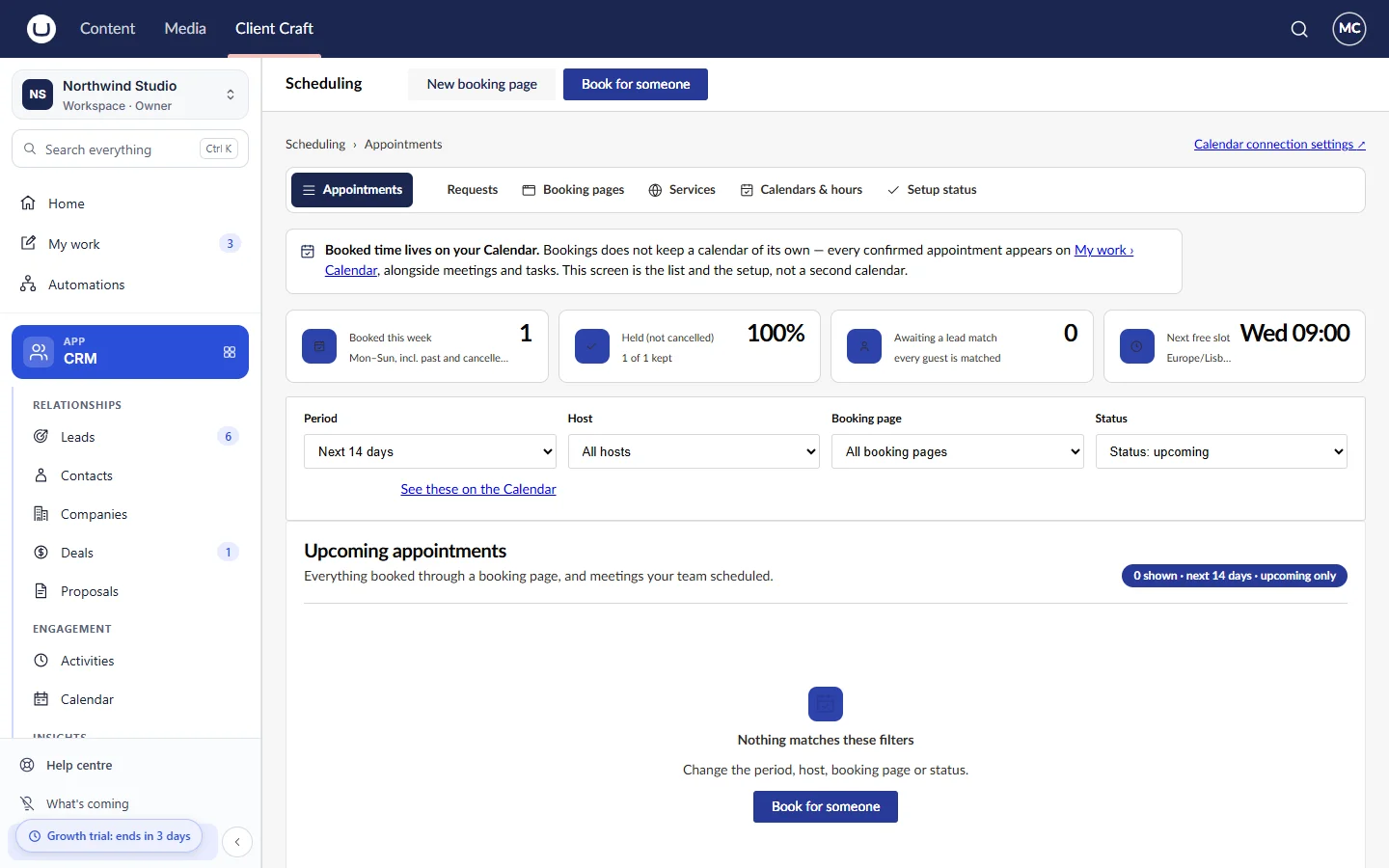
- See upcoming appointments. Filter them and open one to see the guest and its CRM links. See Manage appointments.
- Add a meeting link by hand. Do this when Google is not connected. See Manage appointments.
- Record the outcome. Mark an appointment as held or no-show, or cancel it. See Manage appointments.
How it connects #
- A booking page can use a published form as its lead form, so a booking creates a lead or matches an existing contact. See Turn form submissions into leads.
- Each appointment shows the lead or contact it belongs to.
- Converting a lead carries its meetings and bookings over to the new contact. See Convert, merge, undo and archive leads.
- With a connected Google Calendar, a booking can create a Google Meet link. Without one, you add the link yourself.
Start here #
Read Set up online bookings first. When your page is live, read Manage appointments.
TipNew to Client Craft? Create your free account and try bookings with your own data. Already have an account? Sign in and open Scheduling.
Was this article helpful?