
Plan sprints and always-open lanes
On this page
Group work from several projects into a time-boxed sprint, or keep ongoing work like support in an always-open lane, then run it on one board.
Plan: Growth and above
A sprint is a short, time-boxed round of work. It can include tasks from any project in your workspace. An always-open lane is a durable swimlane for work that never ends, such as support or retainer requests. Both show on one Board.
Before you start #
- You need at least one open project with tasks in its backlog. See Add and organize tasks.
- Only workspace admins, or someone who manages every project in a sprint, can start or complete it.
- Only workspace admins and project managers can create and manage lanes.
Create and run a sprint #
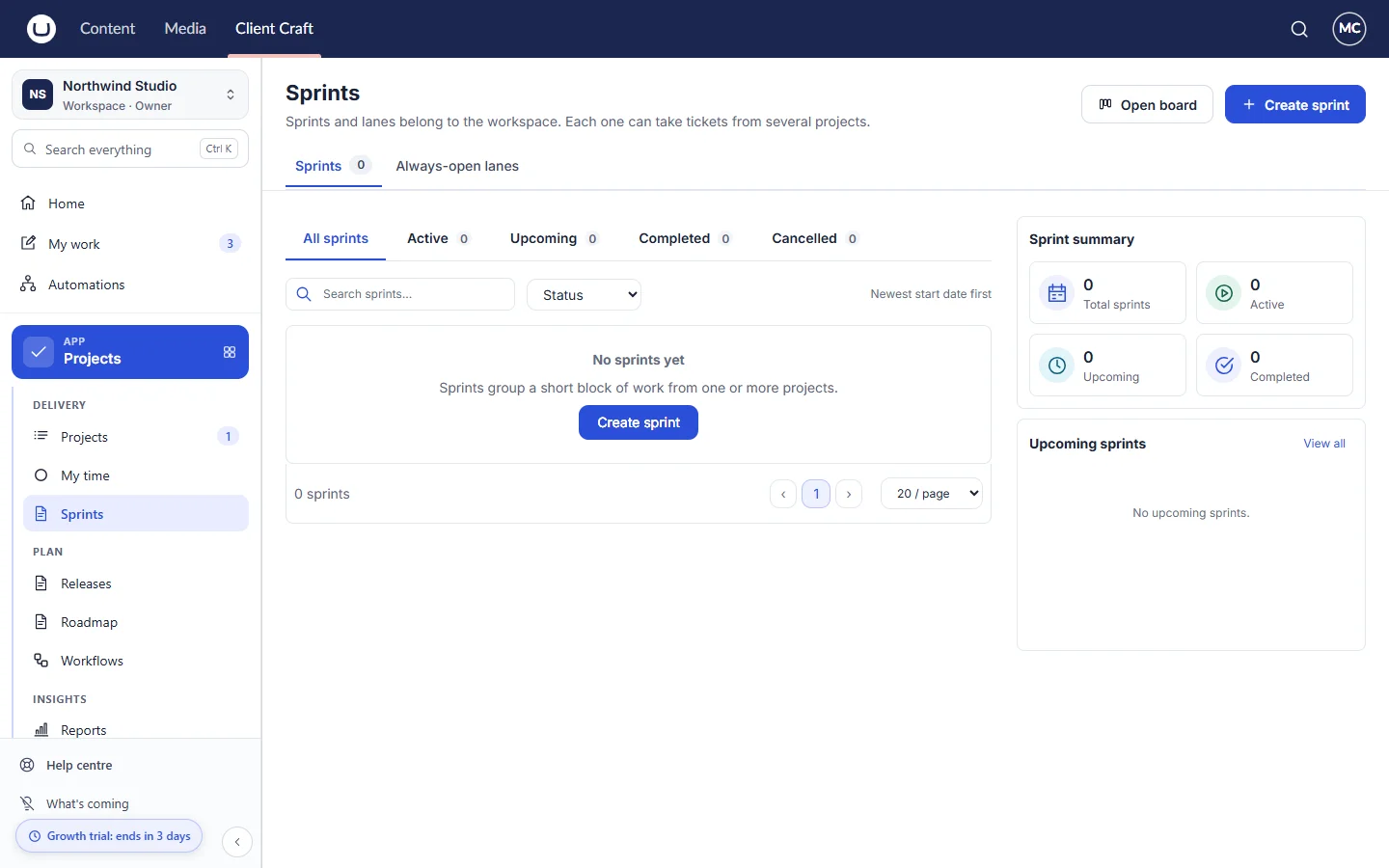
- 1Create the sprintOpen Projects › Sprints. The page is called Sprints and lanes. Click New sprint, enter a Sprint name, pick one or more projects under Pick projects and continue to planning. Dates, goal and capacity are set when you start the sprint.
- 2Plan the sprintOn the planning page, find tickets in the backlog and use Add to this sprint or drag them in. You can filter by project, assignee and type. You can also add another project to merge its backlog. A sprint needs at least one ticket before it can start.
- 3Start itClick Start sprint. Set the Start date, End date or Duration, an optional Sprint goal, and the Capacity with its unit (Points or hours). If planned work goes over capacity, you see a warning, but you can still start.
- 4Work the boardOpen the sprint board. Drag tickets between columns. Use Add mid-sprint to bring in extra work. Filter by assignee, search the sprint or group the rows by project, assignee or priority.
- 5Complete the sprintClick Complete sprint. Done tickets stay in the sprint. For Unfinished tickets, choose where they go: The next sprint, Move to a lane (an always-open lane), or Their own project backlogs. Each ticket goes back to the top of the backlog it came from.
Create an always-open lane #
- 1Add the laneOn Sprints and lanes click New lane. Enter a Lane name (for example Support requests) and pick the projects whose tickets can enter it. A lane has no end date.
- 2Set limitsOptionally set an Owner and a WIP limit: the most open tickets the lane takes at once. Leave it empty for no limit. Done tickets leave the lane after a number of days you set (default 14). They stay in their project and in reports.
- 3Fill the laneDrag backlog tasks into the lane, then work them on the Board. Adding past the WIP limit asks you to confirm with Add anyway.
The Board #
The workspace Board shows every ticket that has left a backlog: active sprints first, ordered by end date, then your always-open lanes. You can rename a lane, change its WIP limit or owner, and reorder lanes. Archiving a lane removes it from boards. Its unfinished tickets go back to their own project backlogs.
Was this article helpful?