
Create, approve and pay a supplier bill
On this page
Record a supplier bill, send it for approval, approve it and mark it paid. Learn who can approve your own bill and how to require a second approver.
A supplier bill goes through three stages in Client Craft: you record it, someone approves it, and then you record the payment. Every step is kept in the bill's history, so you can see who did what and when.
Before you start #
- You need Finance access with permission to prepare bills. Approving and paying need their own permissions.
- Add the supplier as a company or person in your CRM, or create it while you add the bill.
- Set up your taxes first. See Set up taxes for your products.
- Add at least one bank or cash account under Finance › Bank accounts. You pick it when you record the payment.
Step by step #
- 1Open Finance › Payables and click Add billThe Payables page lists your supplier bills in tabs: All, Draft, To approve, Approved · unpaid, Overdue and Paid.
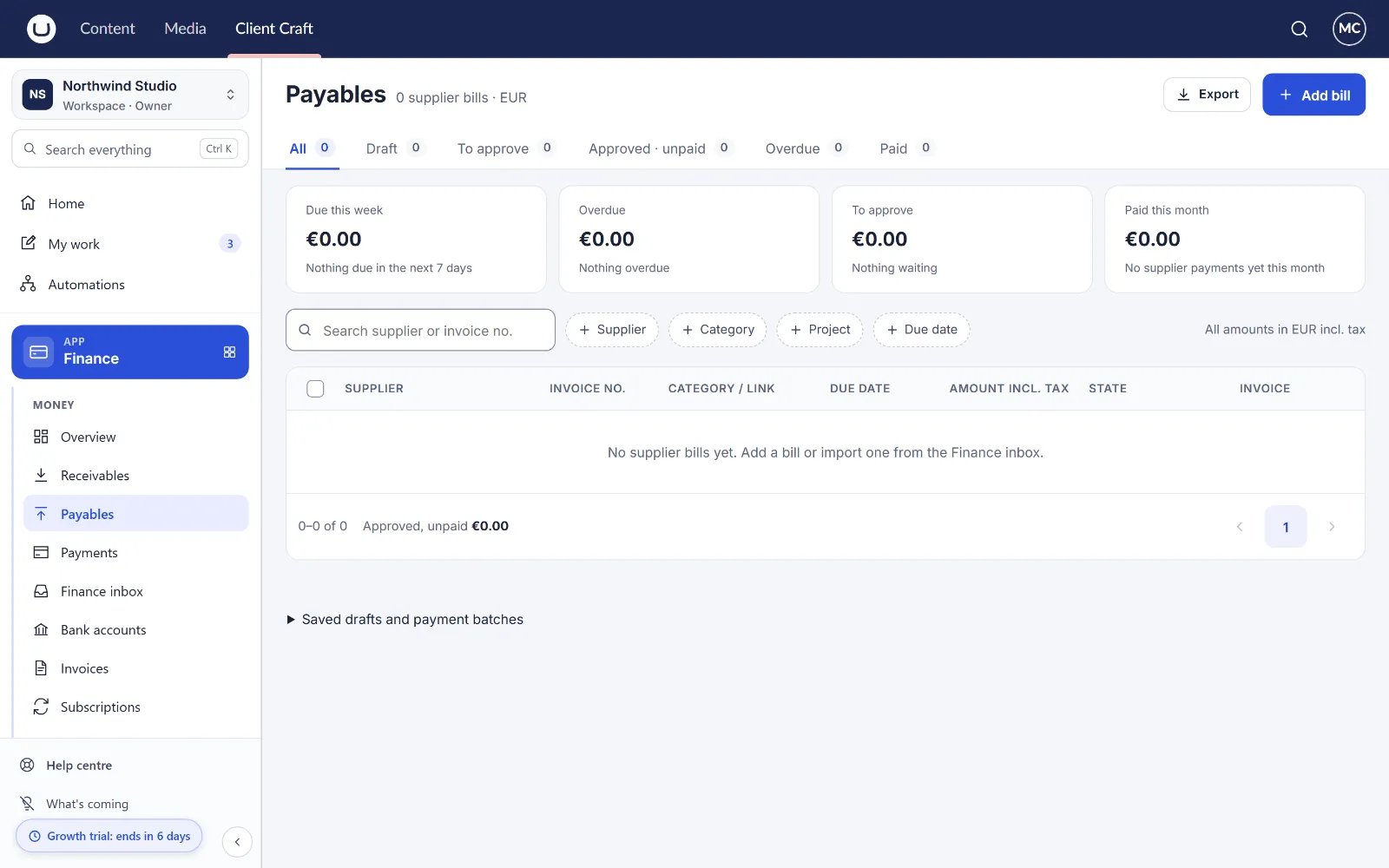
- 2Fill in the billChoose the Supplier. If it is not in the list, click + New supplier. Then add:
- Invoice number and Currency.
- IBAN on the supplier's invoice (optional). It is kept on this bill only and never changes the supplier's bank details. See Supplier bank details and the bank-details check.
- The document lines. Each line has a Tax picker that lists the rates from Settings › Taxes. The tax amount is calculated from the rate, so a typing mistake cannot be saved.
- Category and cost centre, so the cost shows in Budgets and cost centres.
- Issue date, Due date, Total incl. tax and Expense date.
- Document evidence, or why no document is available. This is required before you can submit the bill.
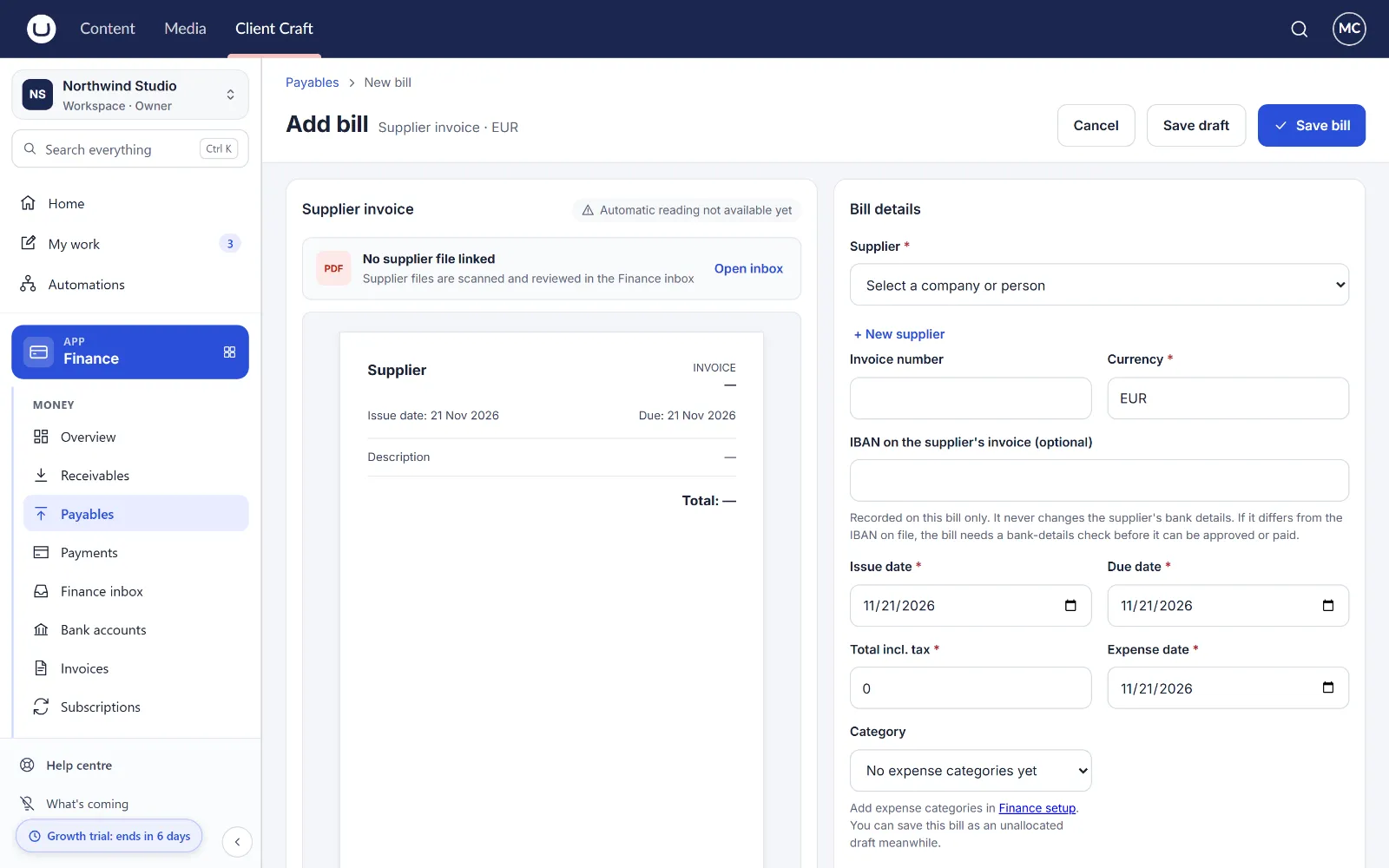
Click Save draft to keep working later, or Save bill. A new bill starts as a Draft.
- 3Submit for approvalOpen the bill and click Submit for approval. The state changes to Awaiting approval.
- 4Approve the billAn approver opens the bill and clicks Approve. The state changes to Approved · unpaid and the button becomes Record payment. See "Who can approve a bill" below.
- 5Record the paymentClick Record payment. Choose the bank account, enter a payment reference and check the amount, then click Mark paid. The bill becomes Paid when every installment is settled.
You can record a payment for one installment only. The bill then shows Partially paid.
Who can approve a bill #
The rule depends on one workspace setting, Require a second approver for bills. You find it in Finance setup, in the access settings. It is off by default.
| Setting | Who can approve a bill you prepared |
|---|---|
| Off (default) | Owners and admins can approve and pay their own bills. Every self-approval is recorded in the audit log. Other users cannot approve a bill they prepared. |
| On | The person who prepared a bill can never approve it. Someone else must approve it. |
There is one exception that applies in both cases: if you are the only approver in the workspace, nobody else can approve, so you can approve your own bill. The button then reads Approve as the only approver, and the approval is recorded in the audit log.
When you can't approve a bill you prepared, the page tells you why. It reads "Someone other than the preparer must approve this bill." or, when the setting is on, "A second approver is required for bills in this workspace (Finance settings)." Ask an owner or admin, or change who can approve in Finance setup.
What happens next #
- The paid amount shows in Payables (Paid this month), on the bank account and in your cost centre and budget actuals.
- If the supplier's bank details changed, you must confirm them before you can approve or pay. See Supplier bank details and the bank-details check.
- Match the payment to your bank statement in Import a bank statement and reconcile.