
Open Client Craft and set up your business
On this page
Open Client Craft from your dashboard, check you are in the right workspace, and work through your first setup tasks.
Plan: All plans
Client Craft opens inside your website's Umbraco backoffice, in the Client Craft section. This article shows you how to get there, how to check which workspace you are working in, and what a locked area means.
Before you start #
- You have a Client Craft account: you signed up, or you accepted an invitation to your organization.
- Your organization has a website: one we built for you, or your own Umbraco connected to Client Craft. See Request a website from Client Craft.
Step by step #
- 1Open Client Craft from your dashboardSign in at your Client Craft dashboard. On Overview, the workspace card has an Open Client Craft button. On Websites, the same link is the Open CRM action on your website's row.
Your CRM opens in your website's backoffice with the same sign-in. You don't need a second account.
- 2Sign in with your own accountIf the backoffice asks you to sign in, use your own Client Craft account. Never share an administrator account: what you can see and do depends on your own role.
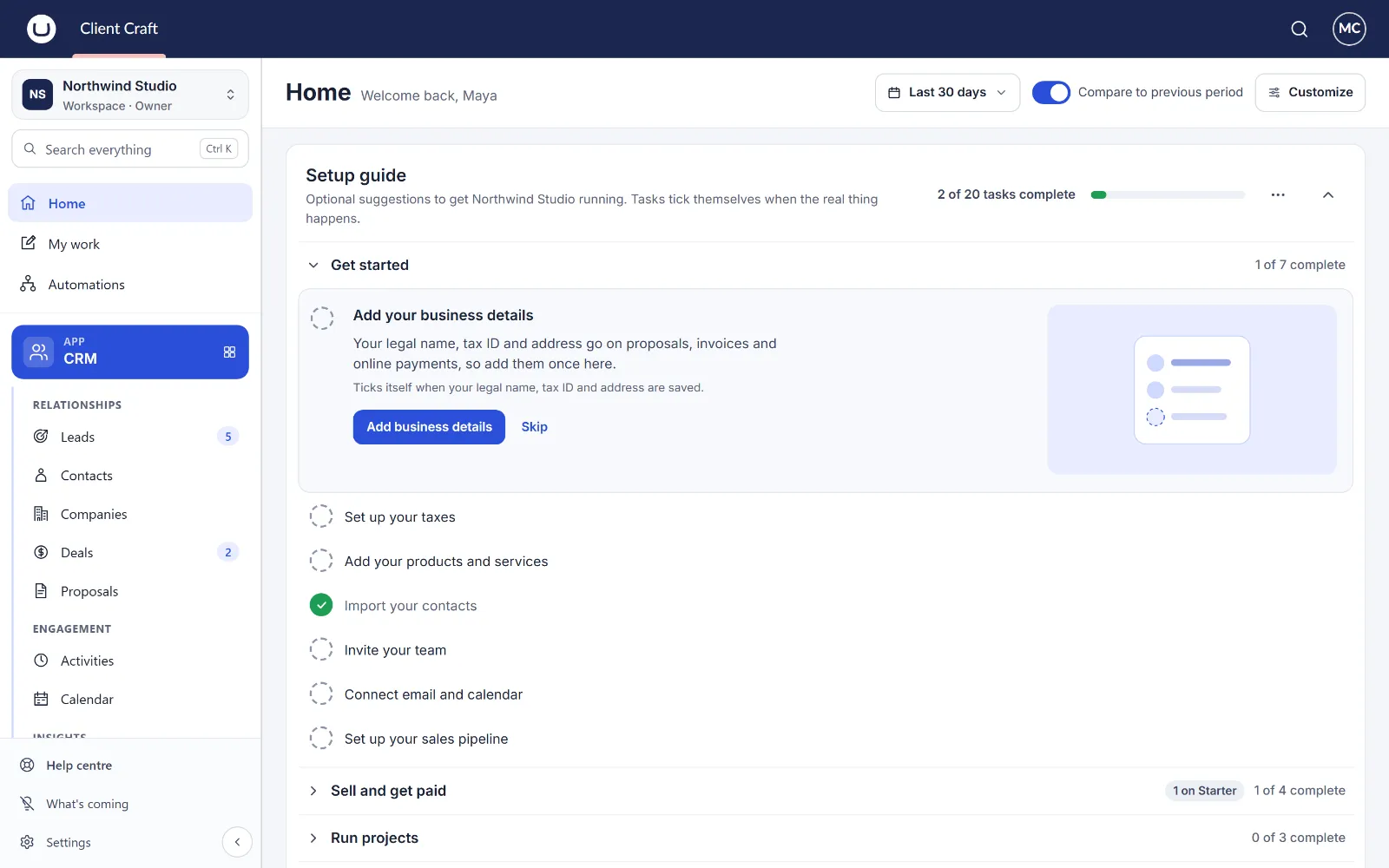
- 3Check the workspaceThe Client Craft section opens on Home ("Welcome to Client Craft, …"). The workspace switcher shows the workspace you are in and your role in it, for example Workspace · Owner.
Check it before you look at or change records. Access to one workspace never gives you access to another.
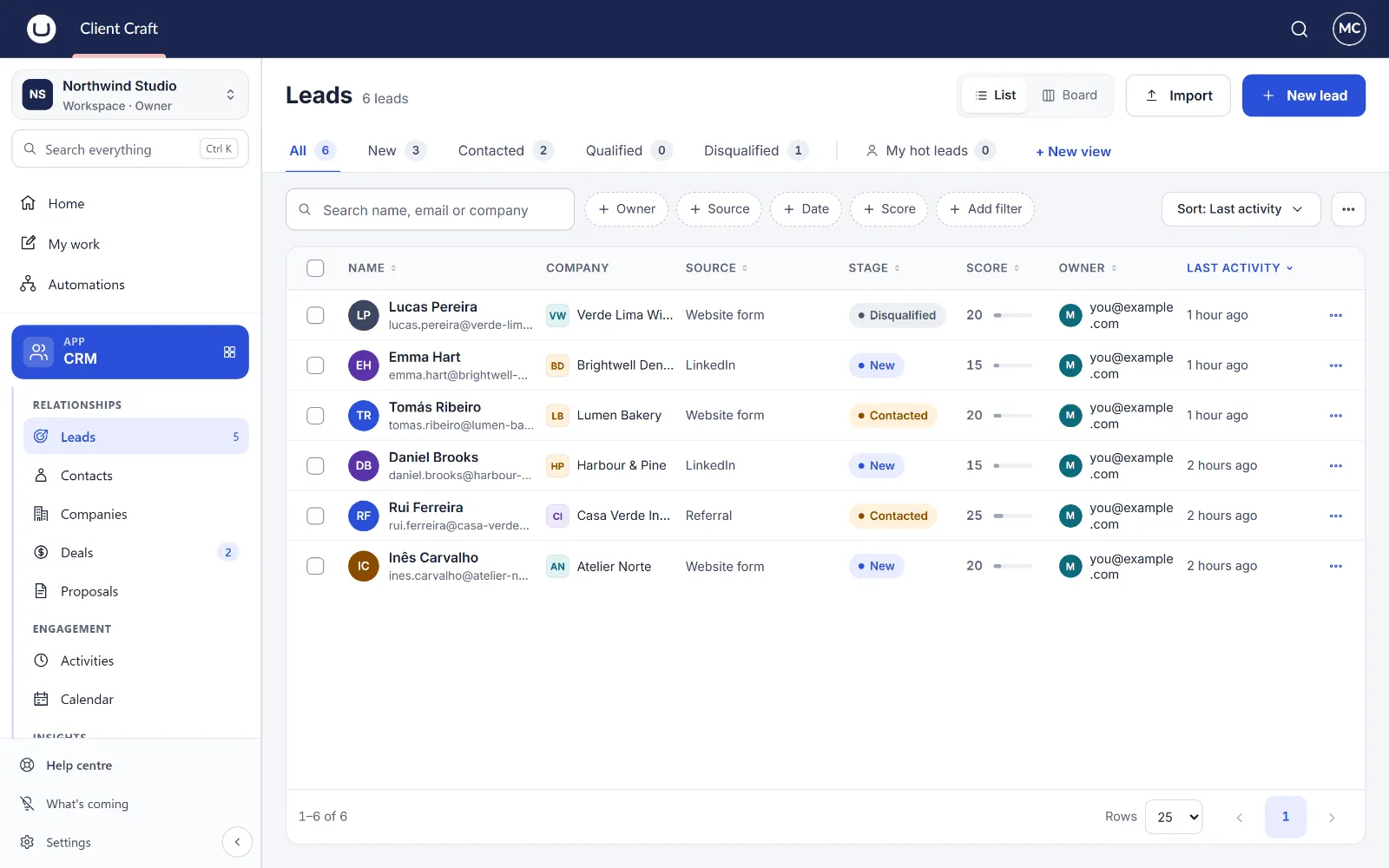
- 4Open an appUse the app switcher to open an app, for example CRM, then Leads in its side menu. You see the lead list, or its empty state if nobody has added a lead yet.
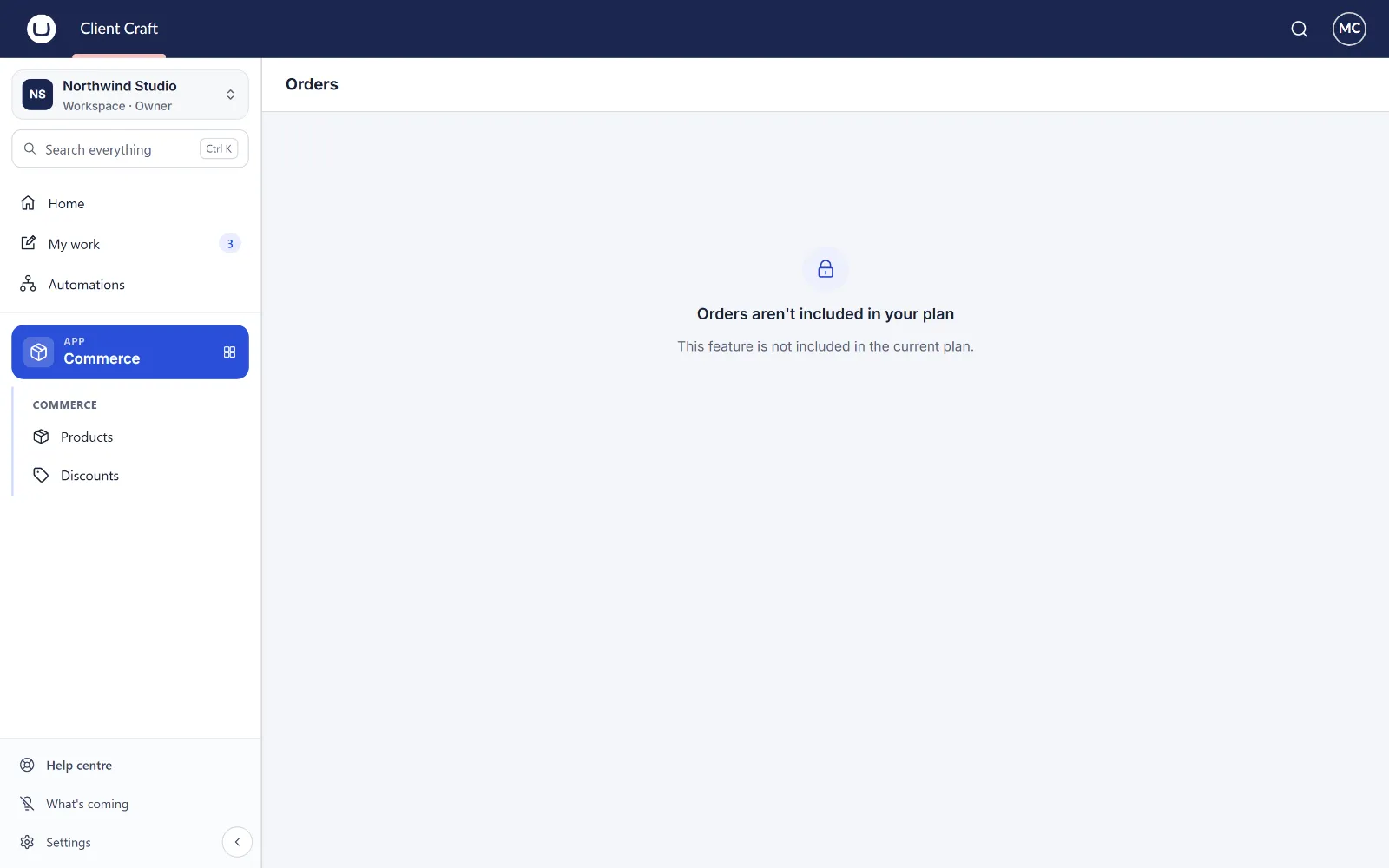
- 5Know the difference between locked and emptyAn empty list means the area works but has no records yet. A locked area is marked Not included and says "The current plan does not include the feature required by this workspace." Nothing is missing: your plan doesn't include that feature.
What happens next #
- Follow the Setup guide on Home: it lists the tasks to finish setting up your business, with a count such as "0 of 21 tasks complete". The first one is Add your business details (legal name, tax ID and address), used on proposals, invoices and payments.
- Learn the layout: Find your way around.
- Bring your team: Invite team members and manage CRM seats.
- Add your first lead: Create and edit a lead.
- Let customers book you online: Set up online bookings.
NoteIf the Client Craft section is missing or access is denied, ask your organization's Owner or an Admin to check your membership, role and seat. Don't create another account to work around it.
TipIf you see "This is taking longer than usual" or "Couldn't load your workspace", press Try again or Retry. Nothing you saved is lost.
Was this article helpful?