
Convert, merge, undo and archive leads
On this page
Turn a qualified lead into a contact, company and deal, merge duplicate leads, undo a merge within 30 days, and archive leads you no longer need.
A lead is someone who showed interest but is not yet a customer. When the lead is real, you convert it into a contact, company and deal. When two leads are the same person, you merge them. When a lead is not worth following, you disqualify or archive it.
Before you start #
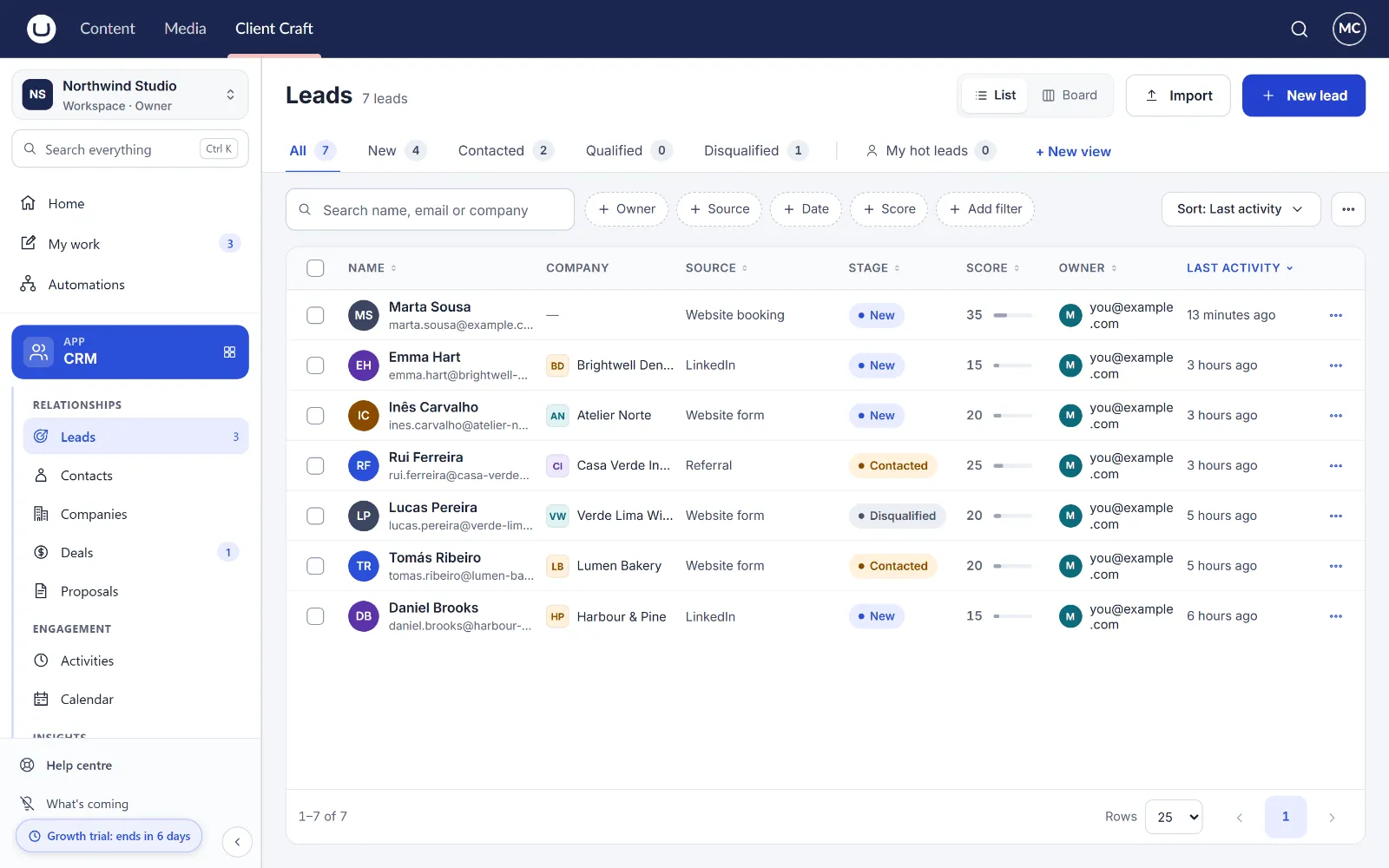
- Open CRM › Leads. The list has the tabs All, New, Contacted, Qualified and Disqualified.
- You need permission to change leads and to create contacts, companies and deals in the lead's workspace.
- To create a deal while converting, the workspace needs at least one active sales pipeline.
- The lead must not already be converted or archived.
Convert a lead #
Leads, contacts, companies and deals belong to the core CRM, so conversion works on every plan.
- 1Open the leadIn CRM > Leads, open the lead you want to convert. Select Convert in the record header. When the Next step card recommends it, you can also use Convert lead there.
The button is not shown on converted or archived leads, and it is unavailable while you are editing the lead's details. Save or cancel the edit first.
- 2Qualify the lead if neededOnly a lead with the status Qualified opens the conversion dialog directly. For any other status, Client Craft first opens the qualify dialog:
- Under Why is this a good fit?, choose a reason, for example Has budget or Decision-maker.
- Add an optional note for whoever picks the lead up later.
- Under Next step, keep Convert now selected.
- Select Qualify and convert.
If you are not ready to convert, choose Just qualify or Schedule a follow-up instead. A follow-up creates a task for the lead owner on the date you pick.
- 3Choose the contactThe dialog has two steps: Choose records and Review and convert. Nothing is created until you confirm on the second step.
By default the Create contact card is filled from the lead (First name, Last name, Email, Phone) and marked Prefilled from lead. Correct anything that is wrong.
If the person is already in your CRM, select Already a contact?, then Yes, link to an existing contact. Search by name, email or company, pick the person and select Continue. The lead's history moves to that contact and no new contact is created.
- 4Choose the companyIn the Company card, pick one option:
- Link the matched or another existing company. Use Link a different company to search by company name.
- Create a new company. Fill in New company details; Company name is required, and Domain, Country and Industry are optional.
- Continue without a company. The person is converted as an individual and you can link a company to the contact later.
If a company is already linked on the lead, change it on the lead first if you need a different one.
- 5Decide on the dealWhen the workspace has an active pipeline, Also create a deal is switched on. Enter the Deal name (required), an optional Value with its currency, and choose the Pipeline. The deal starts in that pipeline's first open stage, and Expected close is taken from the lead.
To attach the contact to a deal that already exists, select Link an existing deal instead and choose it; the contact becomes that deal's primary contact. Switch the toggle off if no deal is needed yet.
- 6Review and resolve duplicatesSelect Review. If an existing contact has the same email or phone, you see This looks like an existing contact:
- Merge into the existing person (recommended). Under Choose what to keep, pick Keep contact's or Take lead's for each differing field, then select Merge and convert.
- Create a separate contact anyway. Explain the reason under Why?; it is saved as a note on the new contact. Then select Continue.
- 7Confirm the conversionThe review lists each record that will be created or linked, with an Edit link to go back. It also shows what is Carried over to the contact: activities, notes and tasks, conversations and form submissions, the website journey, and meetings and bookings.
Converting cannot be undone, although you can edit or delete the new records afterwards. When everything is right, select Convert lead once.
- 8Verify the resultWait for the Lead converted notification. The lead stays on screen as read-only with the status Converted and the banner This lead has been converted. The conversation history stays here.
Use Open contact in the header, and Open deal or Open company in the banner, to check the new records. A converted lead keeps only its Overview, Conversations and Activity tabs.
Conversion not confirmed. After a connection failure the conversion may already have completed. Stay in the dialog and select Retry conversion: it repeats the same request and does not create a second set of records. If you leave instead, open the lead and check its status before starting another conversion.
Reason not saved. The lead was converted but the reason for a separate contact was not stored. Add it as a note on the new contact.
Merge duplicate leads #
- From one lead: open the lead's ... menu and click Merge duplicate…. Client Craft looks for other leads with the same email or phone and opens the merge page. If none match, it says "No duplicates found".
- From the list: select 2 to 5 leads, then choose Merge in the bulk menu.
- From the duplicates queue: the Duplicates view lists possible duplicates (same email, phone, or name and company). Click Review & merge, or Not a duplicate to keep them separate. Leads you keep separate are never suggested again.
On the merge page, choose the lead to keep and the values to keep. The other leads are merged into it and archived. A merge works on 2 to 5 leads at a time, and converted leads cannot be merged.
Undo a merge #
For 30 days, the lead you kept shows a banner: "Name was merged into this lead on … You can undo this until …". Click Undo merge. The toast says "Merge undone", and the merged lead is a separate lead again, with its notes, tasks, files, emails, phone numbers and history moved back.
Archive a lead #
Open the lead's ... menu and click Archive lead. Confirm with Archive lead (or Keep lead to cancel). The lead leaves the active list and becomes read-only. Its history is kept. You can archive a converted lead too: its contact is not affected.
To remove several leads at once, select them in the list and use Delete: they move to deleted records. You can undo for 10 minutes, and administrators can restore them for 30 days.
What happens next #
- When a deal is won, see Start a project from a won deal.