
Set up taxes for your products
On this page
Add your tax rates once, give each product its tax, and deals, proposals and charges show per-rate totals. Change the tax of one line when you need to.
Client Craft never picks a tax for you. You keep a list of your own taxes, give each product or service its tax, and every line on a deal, proposal or charge picks up the tax of its product. Totals then show the net amount, one row per tax rate and the total including tax.
Before you start #
- Add your business country in Finance › Business details. Client Craft uses it to suggest a starting list of taxes and to show tax suggestions on deals and proposals.
Step by step #
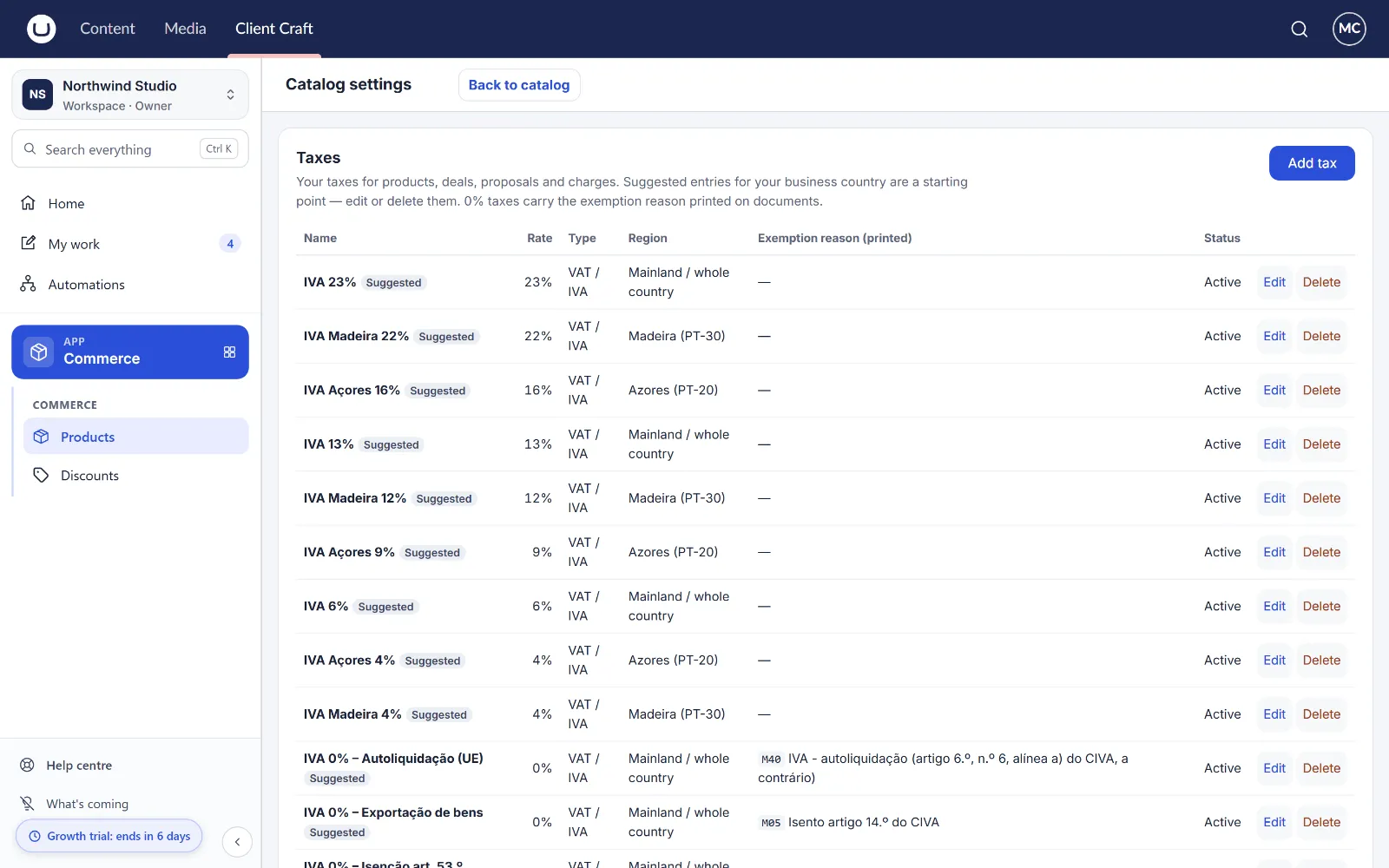
- 1Open Tax settingsSwitch to the Commerce app, open Products, and click Tax settings below the product list. The Catalog settings page opens with the Taxes table.
Each row shows the Name, Rate, Type, Region, the Exemption reason (printed) and the Status. Rows marked Suggested were added for your business country. They are a starting point: you can edit or delete them.
- 2Add a taxClick Add tax and fill in:
- Name: how the tax appears on lines, totals and documents, for example "IVA 23%".
- Rate (%): the percentage.
- Type: VAT / IVA, ISS, ICMS or Other.
- Region: where the rate applies, for example Mainland / whole country, Madeira (PT-30) or Azores (PT-20).
- Active: only active taxes can be picked for products and lines.
- Default for new products: tick it to preselect this tax when you create a product.
Click Save tax.
- 3Add the exemption reason for a 0% taxWhen you enter a rate of 0, two more fields appear: Exemption code (for example M07 or M10) and Exemption reason (printed on documents). The reason is required. If you leave it empty, Client Craft shows "A 0% tax needs its exemption reason. It prints on documents." and does not save the tax.
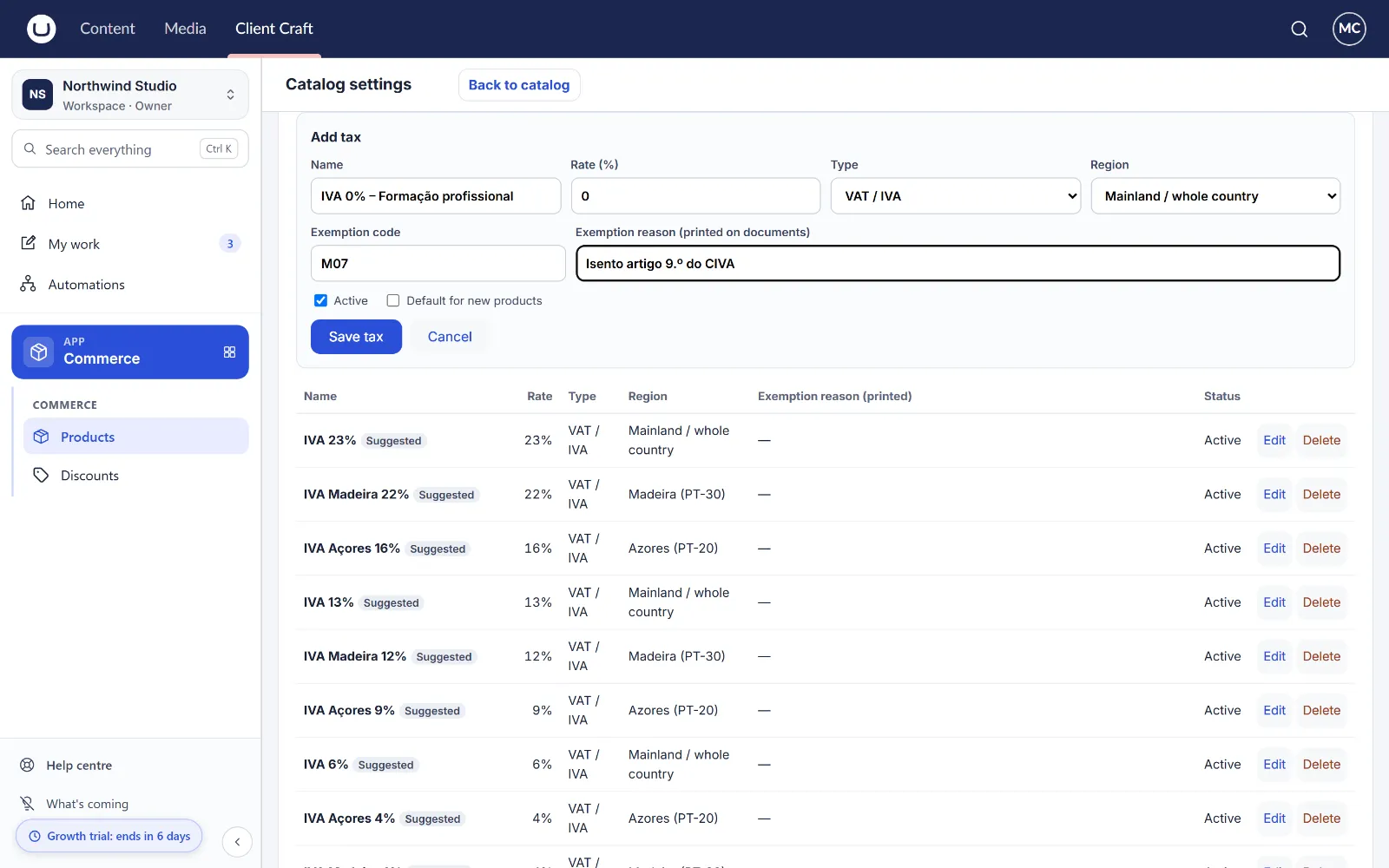 NoteThe exemption code and reason are copied to every line that uses the tax and printed on proposals and documents. Check the wording with your accountant.
- 4Edit or delete a taxClick Edit on a row to change it, then Save tax. Click Delete to remove a tax you don't use. Lines that already use a tax keep their own copy, so editing or deleting a tax never changes an existing deal, proposal or charge.
- 5Give each product its taxWhen you create or edit a product, open Commercial settings. Choose the product's Tax ("Lines with this product pick up this tax; it can be changed per line") and set Price is to Net (tax added) or Tax included. 0% taxes show as "exempt" in the list.
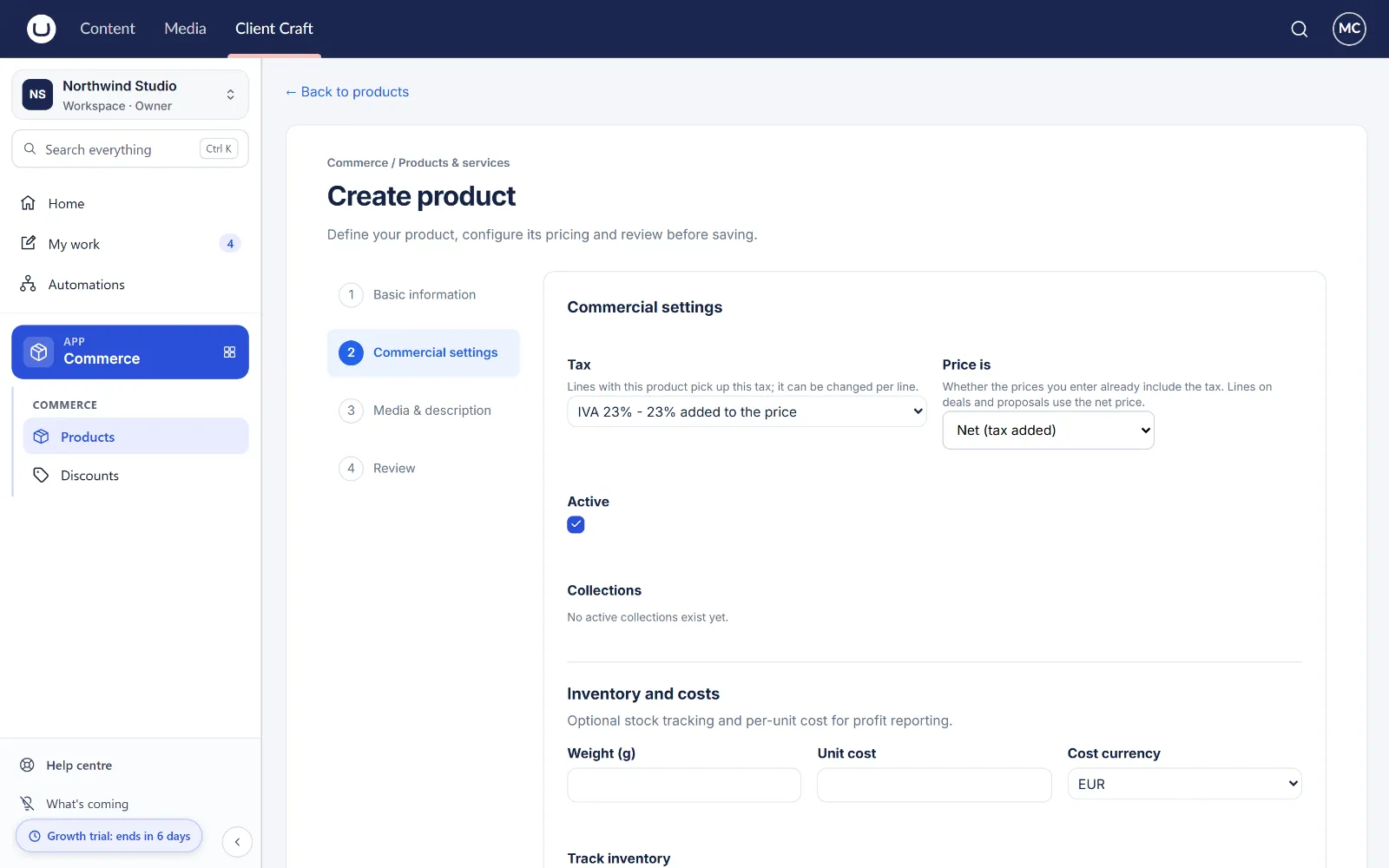 TipIf you enter a price that already includes tax, choose Tax included. Deals and proposals always work with the net price, so Client Craft converts it when you add the product to a line.
- 6Add lines from your catalogLines on deals and proposals come from your products and services. On a deal, open Products & services, click Edit, then Add product or service. Search your catalog and pick an item. The line picks up the product's price and tax.
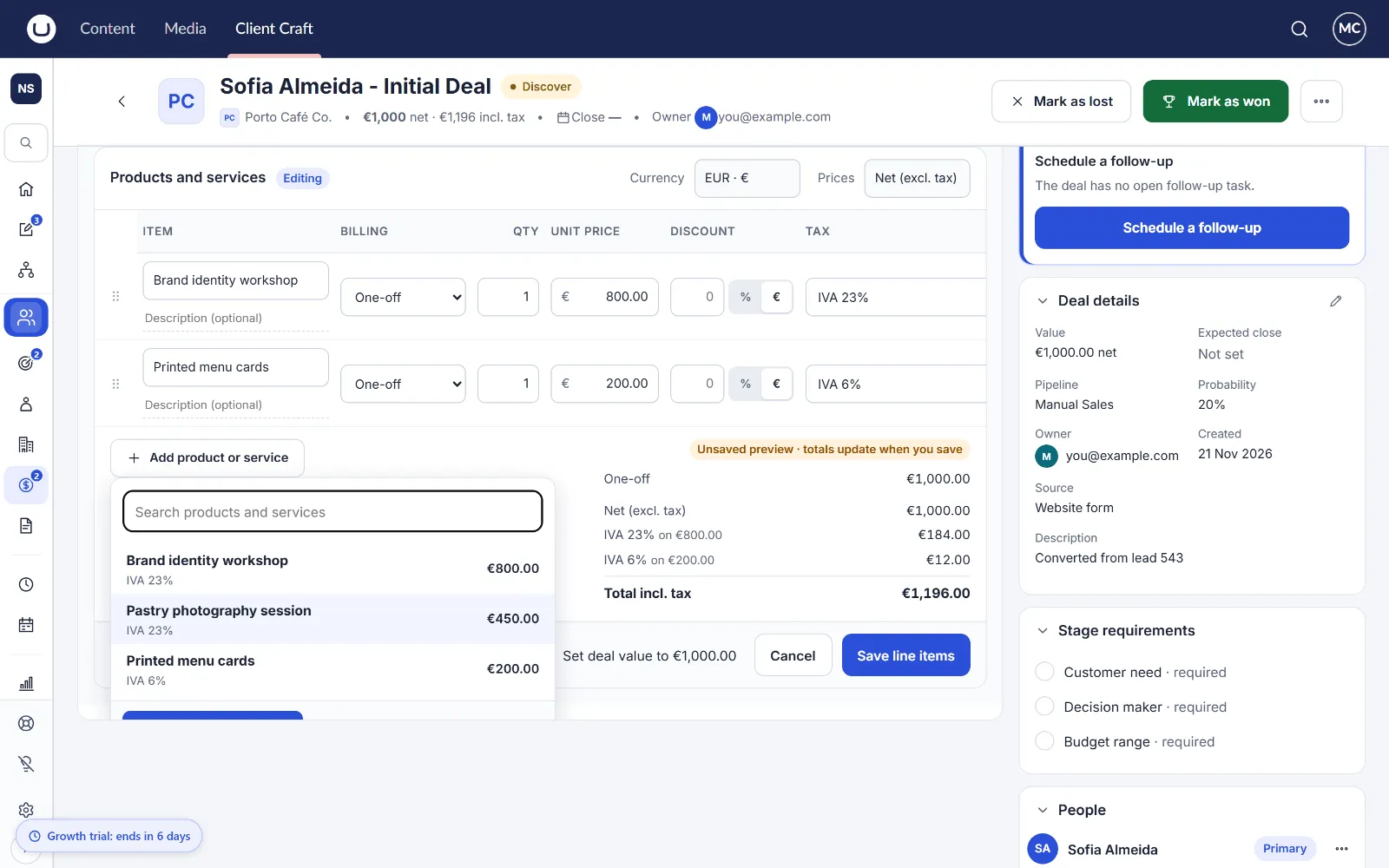
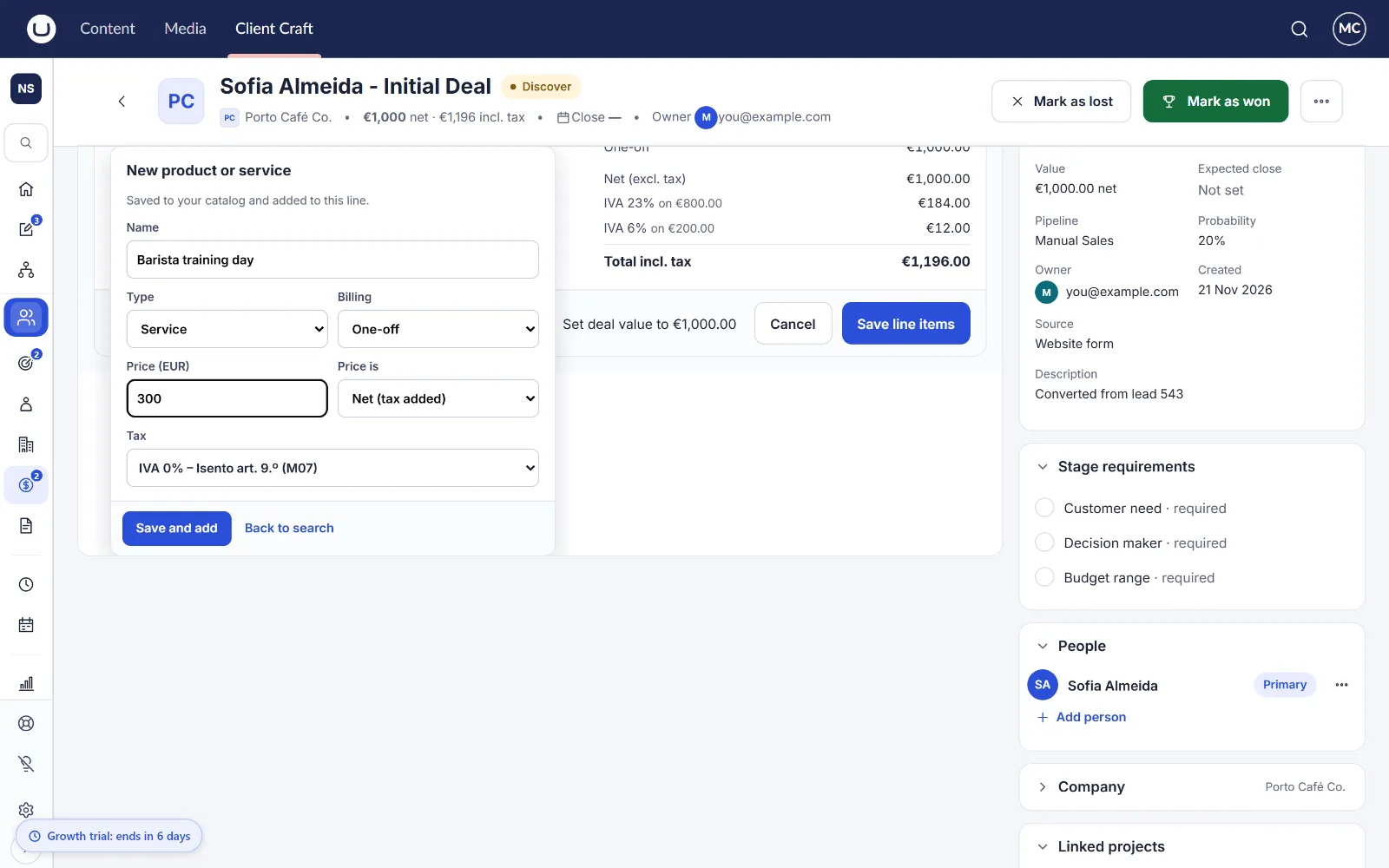
- 7Create a new product or service on the spotIf the item isn't in your catalog yet, click + New product or service in the search. Fill in Name, Type, Billing, Price (EUR), Price is and Tax, then click Save and add. The item is saved to your catalog and added as a line.
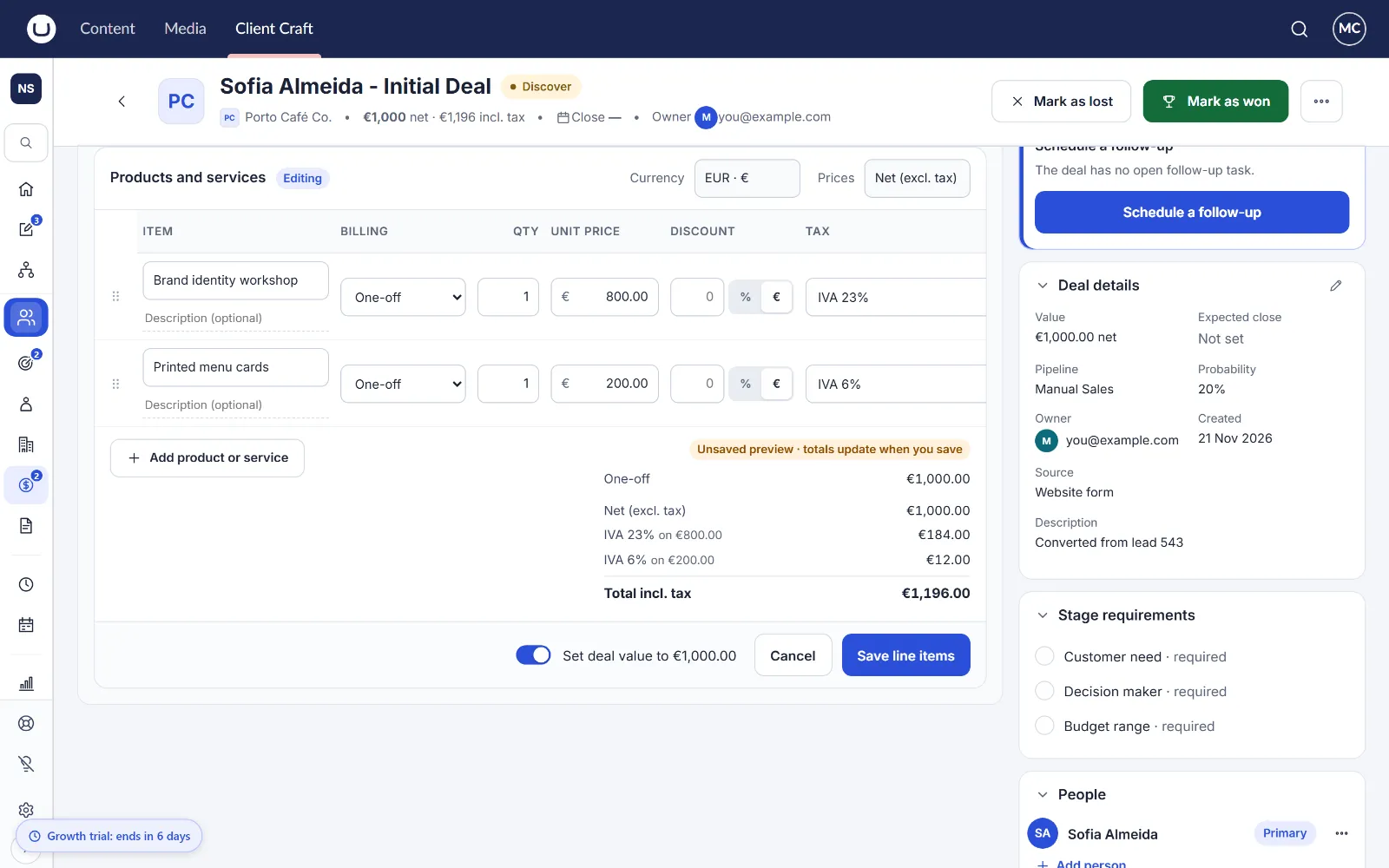
- 8Change the tax of one lineEach line has its own Tax list. Choose another tax to change that line only. The product itself, and other lines, keep their tax.
While you edit, the totals show Unsaved preview · totals update when you save. Click Save line items to keep your changes.
Totals per tax rate #
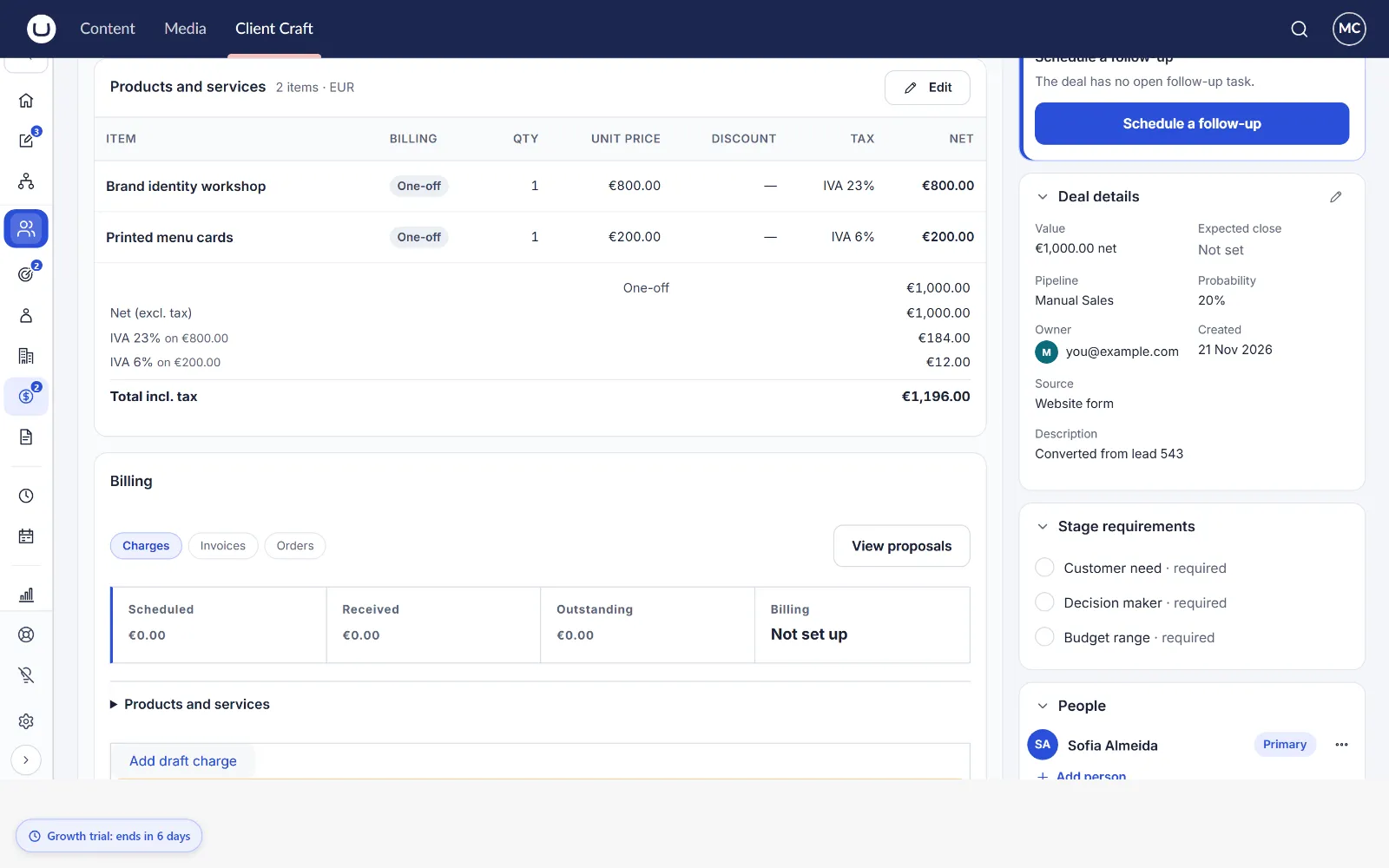
Every deal, proposal and charge shows its totals the same way:
- Net (excl. tax): the sum of the lines before tax.
- One row per tax, for example "IVA 23% on €800.00" and "IVA 6% on €200.00".
- Total incl. tax.
If a line has no tax, the total reads Total · tax not set on every line instead, so you can spot it before you send anything. For 0% lines, the exemption reason is printed with the totals.
Tax suggestions #
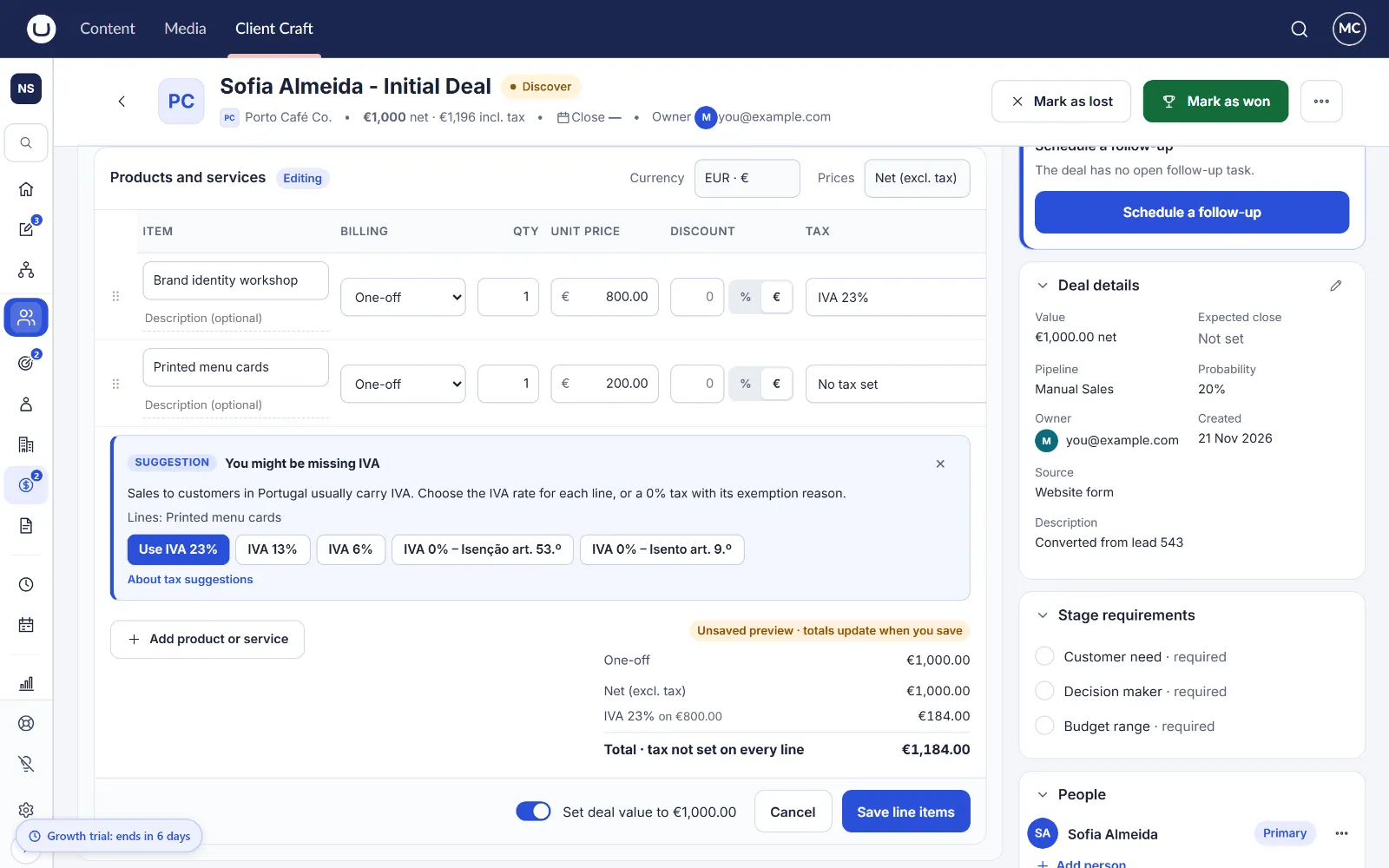
While you edit lines, Client Craft can show a Suggestion box when the taxes on your lines look unusual for this customer. Suggestions are hints, not tax advice. They are never applied for you: you choose the tax of every line. You can close a suggestion with ×.
Suggestions use your business country (from Finance › Business details) and the customer's country, region and VAT number (from the company).
| Your business | Your customer | What you may see |
|---|---|---|
| Portugal | In Portugal | You might be missing IVA when a line has no tax. Buttons such as Use IVA 23% set the tax on those lines. |
| Portugal | A business in another EU country | Suggestion: reverse charge (autoliquidação) when a line carries IVA. Check the customer's VAT number in VIES before you invoice without IVA. |
| Portugal | A private customer in another EU country | You might be missing IVA when a line has no tax. For digital services, the customer's country rate may apply through the OSS. |
| Portugal | Outside the EU | Suggestion: no IVA – outside the territorial scope when a line carries IVA. |
| Brazil | In Brazil | Suggestion: check ISS or ICMS. Services usually carry ISS (municipal, 2% to 5%) and goods carry ICMS. Issue the NFS-e or NF-e in your own fiscal system and upload it as the fiscal document. |
Click About tax suggestions to see the rules behind a suggestion and links to the official sources.
What happens next #
- When you send a proposal, its quote uses the same lines, taxes and totals.
- When a proposal is accepted, each charge it creates keeps one line per tax, so the receivable in Finance shows the same breakdown.