
Work customer requests
On this page
Find a request, set its status, priority and assignee, keep private notes and reply to the customer by email.
Plan: All plans
A customer request is a ticket. Each one gets a number such as SUP-12 and keeps its messages, notes and history together.
Before you start #
- To reply by email, an administrator must connect and activate a Support inbox in Settings › Mailbox assignments.
- A request records what the customer asked. Creating one does not send an email.
Step by step #
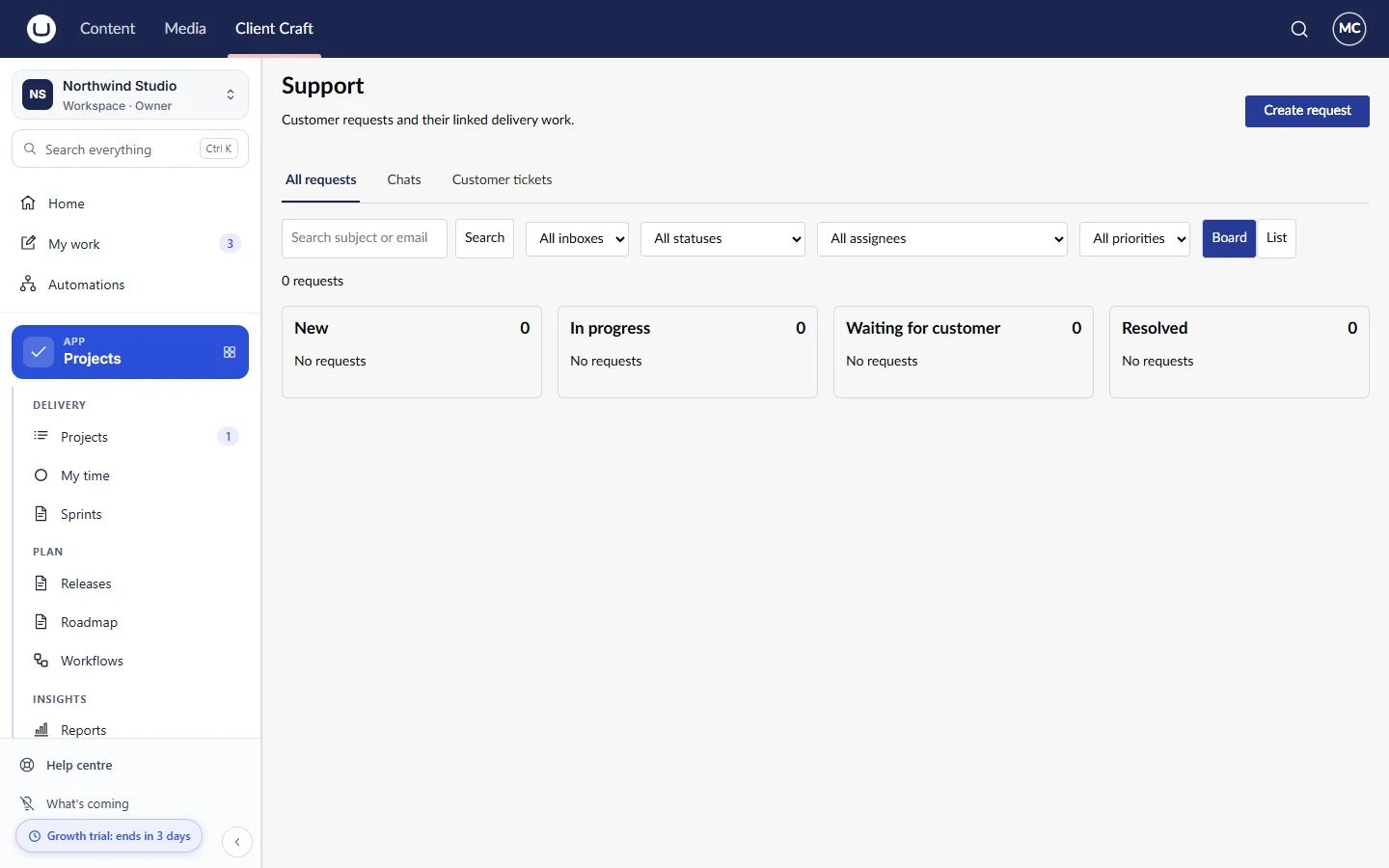
- 1Find the requestOpen CRM › Support. Search by subject or email, or filter by Inbox, Status, assignee and priority. Switch between Board and List. The board has a column for each status.
- 2Create a request by handClick Create request. Choose the Support inbox, optionally link a contact or company, then enter the Requester email, the Subject and a Description. Click Create request.
- 3Set status, priority and ownerOpen a request. Choose its Status (New, In progress, Waiting for customer or Resolved), its Priority (Low, Medium or High) and its Assignee. Click Save changes. Changing the status does not send a message to the customer.
- 5Keep private notesIn Internal notes, write a Private note and click Save private note. Only your team sees notes. They are never sent to the customer.
- 6Link delivery workUnder Linked delivery work you can link project tasks to the request. When the work is done, a message reminds you to review the request before you resolve it.
Every change is recorded under History on the request.
Was this article helpful?