
Edit and publish your website content
On this page
Once your hosted website is live, Owners and Admins can edit and publish its pages and media. Here is what you can change and how.
Plan: Starter and above, with a hosted website
When we deliver your hosted website, your organization's Owners and Admins automatically get access to its content. You can edit and publish pages and media yourself, in your website's Umbraco backoffice. Setting up the site itself stays with Client Craft.
Before you start #
- Your website request shows Live at your address. Until then the site is still being built and you won't see its content.
- You are an Owner or Admin of the organization, or someone gave you content-editor access.
Step by step #
- 1Open your website's backofficeIn your dashboard, open Websites. Your live hosted site's row has its action, for example Open CRM. In the workspace's website card you can also use Open backoffice or Open website.
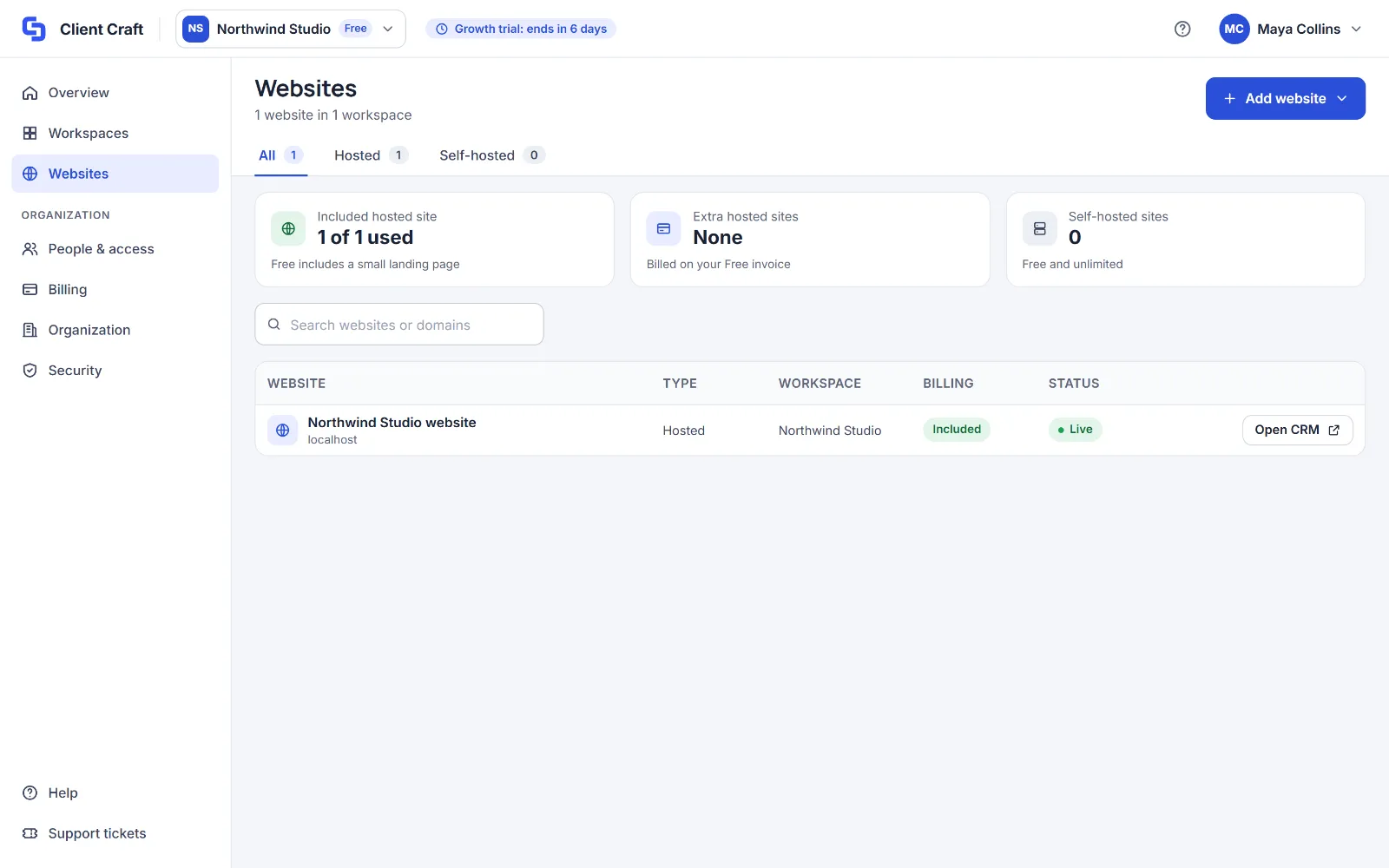
Access is set up automatically after delivery. If you just got it, allow about 2 minutes, then sign in again.
- 2Open ContentIn the backoffice, open the Content section. You see your own site's pages, starting at its home page. Media is in Media, in your organization's folder.
- 3Edit a pageOpen a page and change its text, images and blocks. Pages built with the Visual Builder open in the builder canvas. See the Visual Builder editor guide.
- 4Save and publishUse the buttons at the bottom of the page: save your draft, or publish it so visitors see it.
What you can and can't change #
| You can | Only Client Craft staff can |
|---|---|
| Edit and publish pages | Change the site structure and templates |
| Upload and use media in your organization's folder | Set domains and hostnames |
| Build pages with the Visual Builder blocks your site has | Change cookie consent and the connection to Client Craft |
| Give people Website access from People & access | Change settings, public access and permissions |
NoteContent access never uses a CRM seat. Website access is free, per website. Owners and Admins give it from People & access: invite the person and tick the websites they may edit. They appear with a Website editor tag, sign in to the website's backoffice with their own Client Craft account, and are signed out of it when you remove their access.
TipNeed a new page type, a new section or a domain change? Ask us through Get help from Client Craft.
Was this article helpful?