
Record, track and refund customer payments
On this page
Track what each deal owes, request payment, record money received, review payment proofs and record refunds without charging the customer twice.
Finance is part of the Starter plan and above. You need access to the deal in the selected workspace; recording payments on invoices and receipts in Finance also requires Finance recording access. Card payments and Stripe refunds require completed Stripe payment setup; manual collection does not need a payment provider.
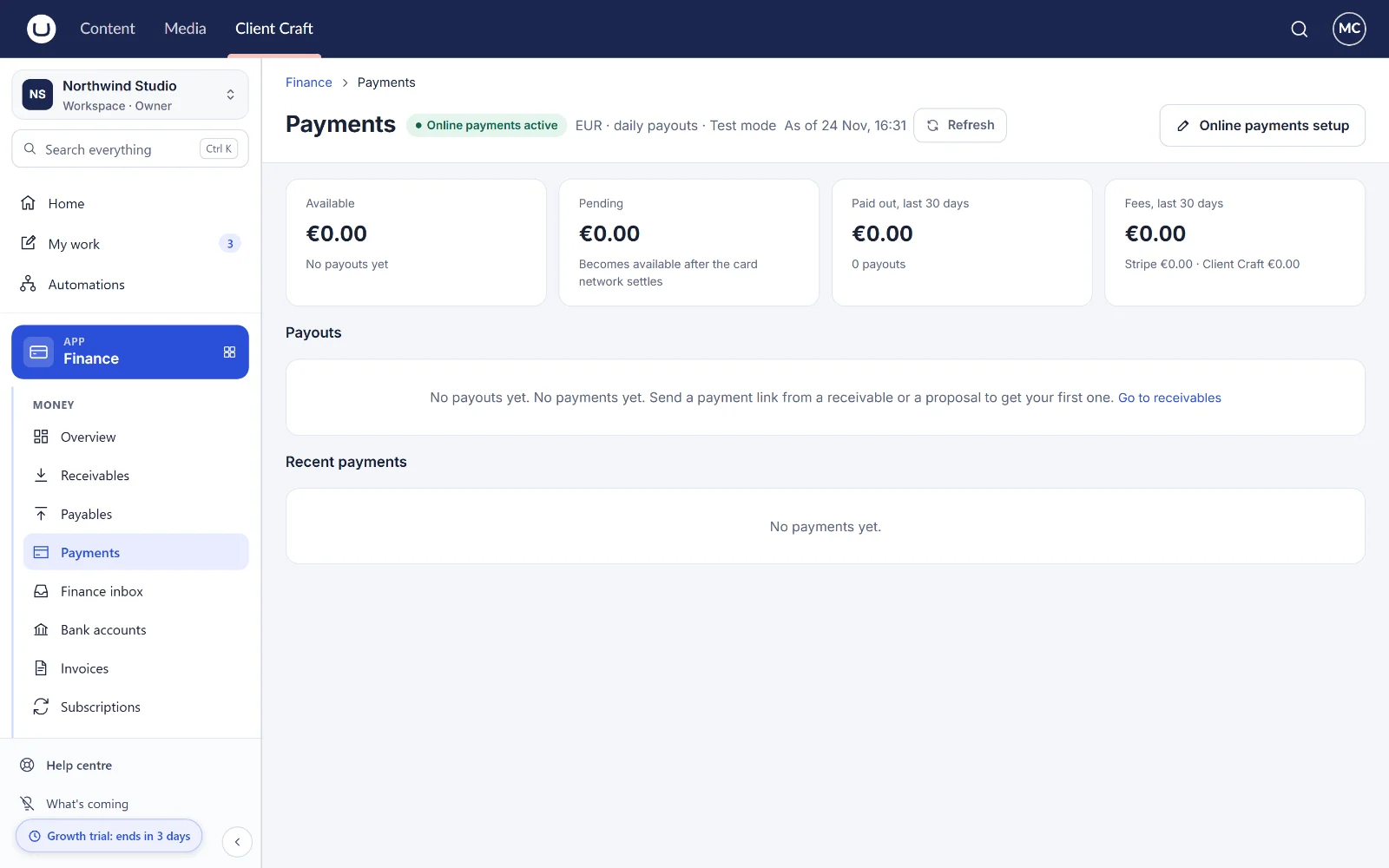
Recording a payment never charges the customer or sends an email: it records money you have already received. Fiscal receipts (recibo, fatura-recibo) remain documents from your own invoicing software.
Step by step #
- 1See what is due on a dealOpen the deal, go to Money and select Charges. The Payment schedule lists each charge with Due, Amount, Status and Fiscal doc. Statuses include Draft (Activate before collecting), Scheduled, Due, Requested, Proof submitted, Partially paid, Overdue and Paid.
- 2Track receivables across dealsOpen Finance › Receivables for all open charges in the workspace, with summaries such as Due this month and Collected this month. Open a receivable to see payments, the payment request and the fiscal document state, for example Paid · fiscal document pending.
- 3Request payment (optional)On an unpaid charge, select Request payment (or Request payment (card or transfer) when online payments are ready). Choose how the client pays, check the bank details shown, then select Create payment link. Client Craft creates a private link and does not email it: you send it to the client yourself. The charge shows Requested. Use Reissue link for an expired link or Cancel request with a reason.
- 4Record money received on a chargeOn the charge, select Record money received. In the dialog:
- Enter Amount received, up to the open amount of the charge.
- Set Date received (UTC).
- Choose the Method: Bank transfer, Cash, Card paid externally or Other.
- Add the Reference (bank reference or receipt number).
- Select Record payment.
You see Collection recorded and the receipt is included in the charge balance.
- 5Review a client's payment proofWhen a charge shows Proof submitted, open it to review the Payment proof. To accept it, choose Confirm by Seen in bank or Match bank transaction, pick the account under Received into, set the date and Bank reference, then select Confirm received. The file must pass its security scan first. To refuse it, select Reject proof, choose a reason such as Amount doesn't match or Money not received in bank, and edit the message the client will see on their payment page.
- 6Record payment on a manual invoiceFor an invoice with Manual collection, open it in Finance › Invoices and select Record payment. Enter the Payment method and the Required reference, check the summary, then select Record payment again. Credits reduce the obligation but are not cash, so confirm only the new cash shown.
To split one receipt across several charges, use Record payment in Finance › Receivables. It needs an active account in the currency of the money received.
- 7Record a refundOn a paid charge:
- Stripe card payment: select Refund, choose Full or Partial and a reason (Scope reduced, Duplicate payment, Service not delivered, Customer request or Other), then Send refund. Stripe credits the client's card.
- Bank transfer or cash: send the money back first, then open Due date, corrections and collection settings, select Refund, fill in the amount, Date sent, method, reference and optional Proof of refund, and select Record refund. The payment stays recorded and the charge stays paid.
If a fiscal document was issued, upload its nota de crédito under the charge's Documents.
- 8Verify the paymentReload the deal. A fully paid charge shows Paid with Recorded and the date; a partial one shows Partially paid and the amount outstanding. Open the charge and check Receipts applied: each receipt lists amount, date, method and reference. If Fiscal doc shows Pending, upload the fatura-recibo or recibo for that payment.