
Connect a Client Craft website form to the CRM
On this page
Place the Client Craft form block on a page, pick the form, then prove with one test submission that the right workspace received the lead.
Plan: All plans (Free: 5 forms with 50 submissions a month)
Forms are built in Client Craft and placed on pages with the form block. The block only stores which form to show; the form's fields, validation and destination are managed in Client Craft. A success message on the page is not proof that the right workspace received the enquiry, so finish with one test submission.
Before you start #
- The site is connected to the client's workspace. See Connect your site to Client Craft.
- The form exists in the Client Craft section under Marketing › Forms and is published.
- An administrator has allowed the FormBlock element type in the page's Block Grid or Block List data type (Settings › Data types). Core creates the type through a package migration; it doesn't add it to your grids.
- Use fictional contact details in a test environment.
Step by step #
- 1Agree the destination firstAgree what the form is for and where its leads go, using Configure the CRM for a client website integration. Being able to place a block doesn't give an editor the right to choose another client's workspace.
- 2Add the form blockOpen the page, insert the form block where the form should appear and size it like any other block.
- 3Pick the formIn the block's content, use the form picker to choose the form. Don't paste form HTML, scripts or credentials into a rich-text field instead.
- 4Check what visitors seePublish and open the public page. Leave a required field empty and type an invalid email: the visitor must understand what to fix. The thank-you message should confirm receipt, not promise a booking, a payment or a response time.
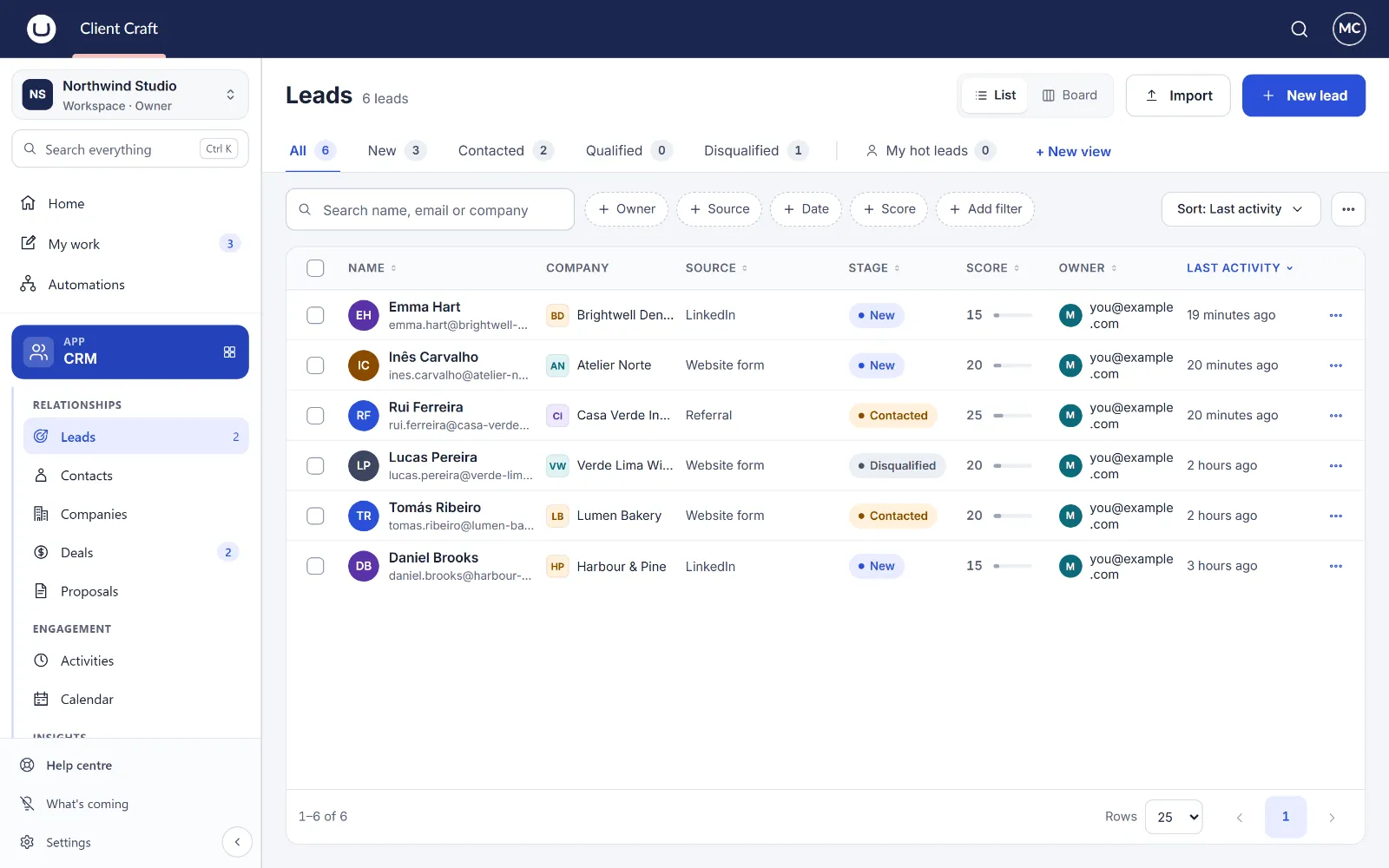
- 5Send one test enquirySubmit a uniquely labelled fictional enquiry, for example "Test enquiry – Demo Renovations 20 Nov". Open the Client Craft section, go to CRM › Leads in the client's workspace and find it. Compare its name, email and message with what you submitted, then reload to be sure it is saved.
WarningIf a submission seems to fail, look for the lead before you submit again. Repeated test submissions create duplicate leads.
NoteHow form submissions become leads, and how duplicates are handled, is explained in the Help Centre's Forms section.
What happens next #
Follow the full recipe, from pipeline to verified lead: Send website leads to a pipeline.
Was this article helpful?