
Find your way around
On this page
Where things live in Client Craft: the dashboard for your organization, and the apps, Home, My work and Settings inside your backoffice.
Client Craft has two places. Your dashboard is your account area: organization, people, websites, plan and billing. Client Craft inside your website's backoffice is where the daily work happens: CRM, marketing, projects, scheduling, finance and more. This article is a map of both.
Before you start #
- You can open the Client Craft section. See Open Client Craft and set up your business.
The dashboard #
The dashboard is where Owners and Admins manage the organization. Its menu has Overview, Workspaces and Websites, then an Organization group with People & access, Billing, Organization and Security. Help is pinned at the bottom. What you see depends on your role: Websites is for Owners and Admins, and a Billing admin manages billing only, not people or content.
Client Craft in your backoffice #
- 1The app switcherThe app switcher lists the apps in this order. Each opens its own side menu.
App What it's for CRM Leads, customers and deals Marketing Forms and social publishing Projects Projects, task boards and overview Scheduling Appointments and requests Website Intelligence Website traffic, journeys and consent evidence Finance Payables, receivables and cost centers Commerce Catalogue and orders Knowledge Internal docs and public help centres 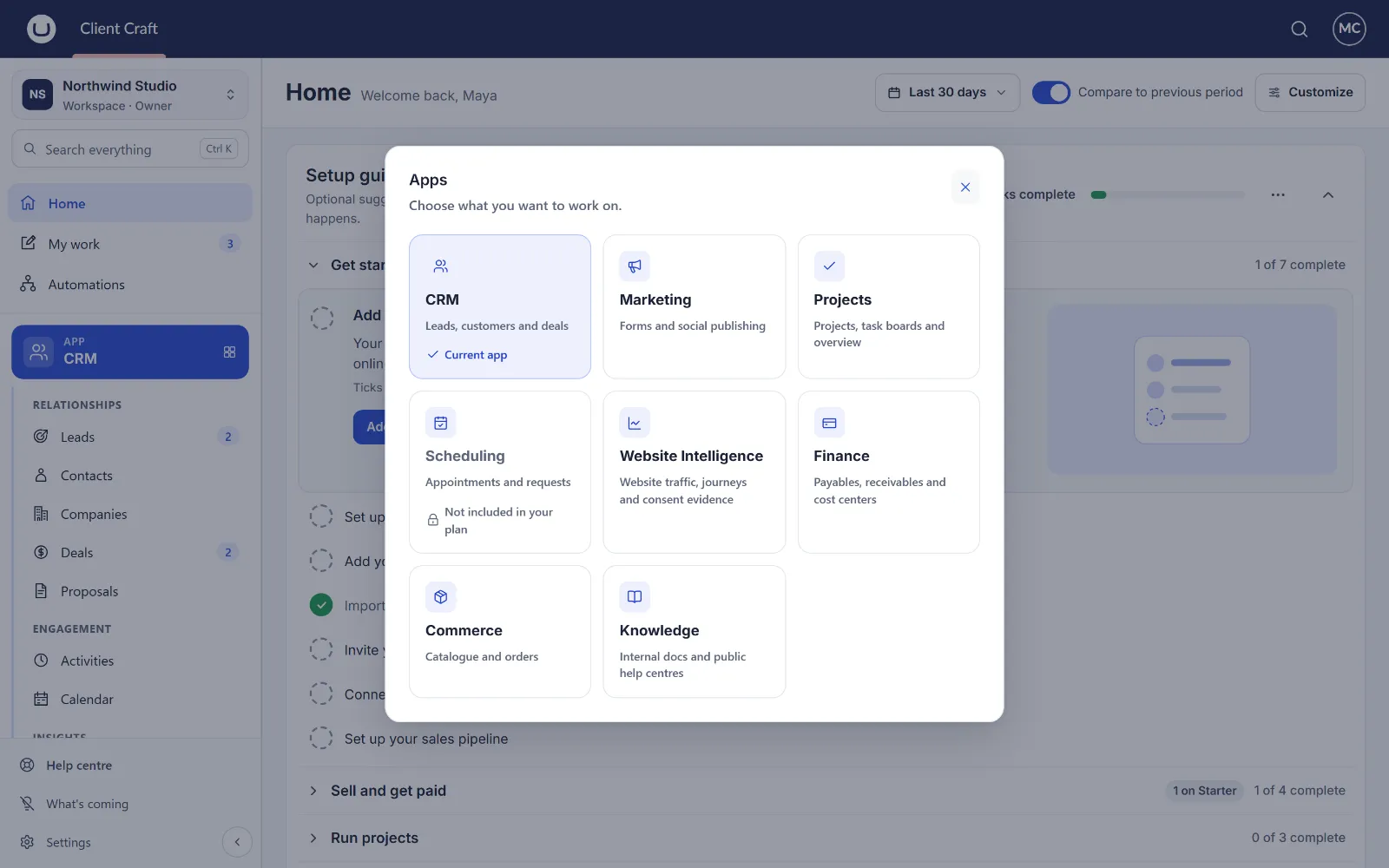
- 2HomeHome shows business performance and activity, and the Setup guide with the tasks still to do.
- 3My workMy work is your day in one page. It has sections such as Needs a reply, Tasks, Follow-ups and reminders, Project work, Your goal this month, the agenda for Today and My numbers today.
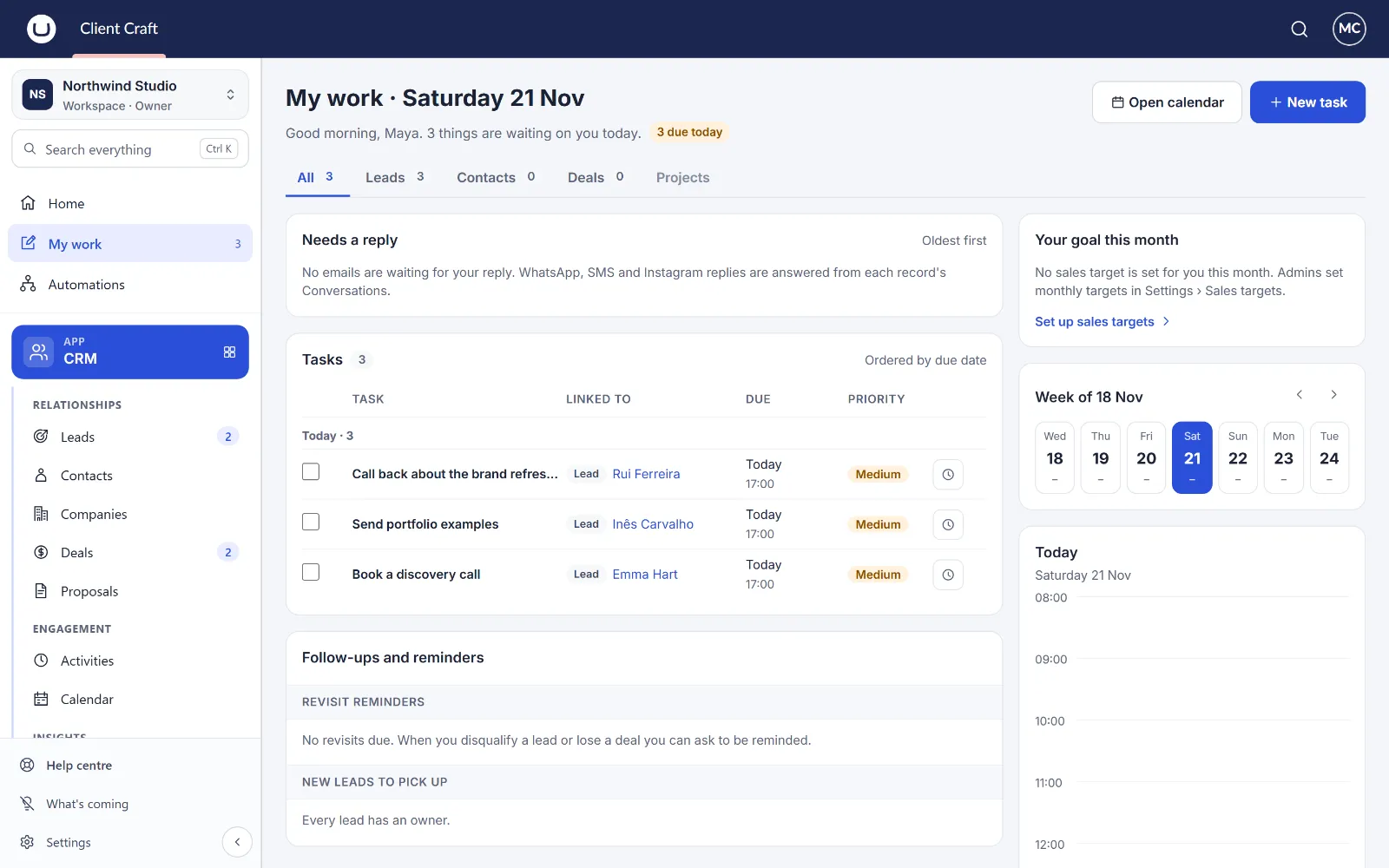
- 5SettingsSettings holds the workspace configuration: Subscription & billing, People & access, Workspace details, Sales pipelines, Custom fields, Client portal, Booking setup, Sender & domain and more. Settings overview helps you find the right page.
- 6The workspace switcherIf you belong to more than one workspace, switch between them with the workspace switcher. Each workspace has its own data; switching never copies or shares records.
What happens next #
- A locked page (Not included) means your plan doesn't include that feature. An Owner can upgrade from Subscription & billing.
- Need help? See Get help from Client Craft.
- Ready to work? Start with the CRM overview.