
Edit a page: insert, move, resize and edit blocks
On this page
Work on the real page: add blocks from the Insert panel, drag and resize them, edit text in place and change a block's properties in the inspector.
Plan: Free Visual Builder package
The canvas shows your page exactly as visitors see it. Everything you add or change is saved as ordinary Umbraco content, so the page also stays editable in Umbraco's own editor.
Before you start #
- The Visual Builder is turned on. See Turn the Visual Builder on for a site.
- You have permission to edit the page in Umbraco.
The screen #
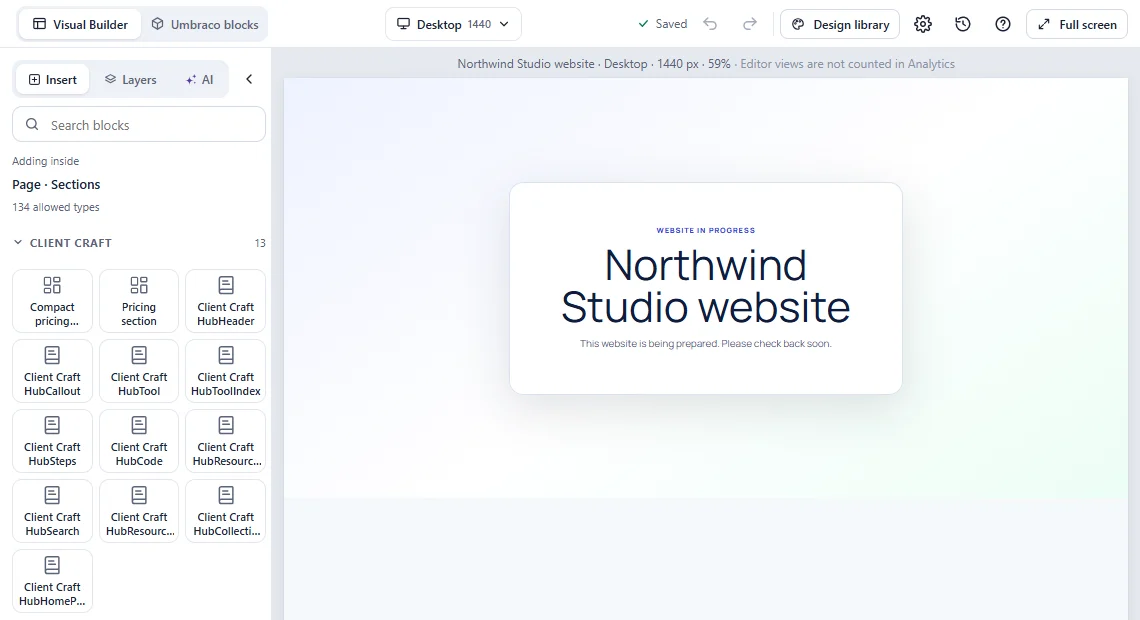
- Toolbar. Visual Builder / Umbraco view switch, device buttons (Desktop, Tablet, Phone), save status, Undo and Redo, Design library, Page settings, History, Keyboard shortcuts and Full screen.
- Left panel. Three tabs: Insert (blocks and patterns), Layers (the page as a tree) and AI. Collapse panel turns it into a thin rail.
- Canvas. The rendered page, with Zoom out, Zoom in and Fit to the window.
- Right panel. The properties of the selected block, or of the page when nothing is selected.
Step by step #
- 1Insert a blockOpen Insert. The panel says where the block goes ("Adding inside" or "Adding after" the selected block) and how many types are allowed there. Click a block to add it, or drag it onto the page. Use Search blocks to filter. Only the block types your page's data type allows are offered. From design library lists components and saved patterns.
- 2Select a blockClick it on the canvas or in Layers. The selected block shows its action bar: Drag to move, Select parent, Move up, Move down, Duplicate, Delete and Block properties.
- 3Move and resizeDrag the handle to move a block; hold Shift while dragging to move it into another container. In a Block Grid, drag the edge of a block to change how many columns it spans.
- 4Edit the contentClick into text on the canvas to edit it in place. Fields that aren't text, such as images, links and toggles, are edited in the right panel with the same Umbraco property editors you know. The inspector shows the block's own tabs as its developer defined them, plus Style and Advanced.
- 5Check and saveThe toolbar shows Unsaved changes while you work, then Saved. Use Umbraco's Save to keep a draft or Save and publish to make it live. See Preview on desktop, tablet and phone, then publish.
TipHold Alt and click to use the page as a visitor would, for example to open a menu, tab or accordion, without selecting a block.
Keyboard shortcuts #
| Action | Keys |
|---|---|
| Delete the selected block | Delete or Backspace |
| Duplicate | Ctrl+D |
| Move up / down | Alt+Up / Alt+Down |
| Select the first child (or edit its content) | Enter |
| Select the parent | Shift+Enter |
| Clear the selection, cancel a drag or close a panel | Esc |
| Undo / Redo | Ctrl+Z / Ctrl+Shift+Z or Ctrl+Y |
On a Mac use Cmd instead of Ctrl and Option instead of Alt. Shortcuts are ignored while you type in a field.
Undo and history #
Undo and Redo step through your changes in this session. History opens the page's version history, where you can compare and restore earlier versions.
If something goes wrong #
- "Page not updated" with Retry: the canvas couldn't re-render your last change. Your change is kept; select Retry.
- "No blocks are allowed here." An administrator configures allowed blocks on the page's data type.
- "You can't change this page's content." Ask an administrator for edit access.
What happens next #
Style blocks: spacing, borders, backgrounds and breakpoints.
Was this article helpful?