
Log notes, calls and tasks on CRM records
On this page
Add notes and tasks to leads, contacts, companies and deals, log calls, emails and meetings, and work through your follow-ups in Activities and My work.
Keep everything about a customer in one place: notes for your team, tasks and follow-ups with due dates, and a log of the calls, emails and meetings you had. Available on every plan. Logging an email or a meeting only records something that happened elsewhere; to email a customer, use Conversations.
Step by step #
- 1Open the recordOpen a lead, contact, company or deal. Each record has Notes, Tasks and Activity tabs, with counts where available. A converted lead keeps only Overview, Conversations and Activity; add new notes and tasks on the contact instead.
- 2Add a noteOn the Notes tab, write in Add a note for your team… and select Save note. Notes are internal and are not sent to the customer.
Pin the notes your team should always see; they appear under Pinned, above Other notes. Use the note actions to Edit note or Delete note. Deleting asks Delete this note?; choose Keep note to cancel.
- 3Add a taskOn the Tasks tab, type the task in Add a task…, choose who it is assigned to and a Due date, and select Add task. The task also appears in My work for the person it is assigned to.
Tasks are grouped as Overdue, Upcoming and Completed. Use Mark done, Mark not done or Reschedule on each row.
- 4Log a callOn the Activity tab, open Log activity and choose Call. On leads and contacts you can also use Log a call in the header.
- Choose the Outcome: Connected, No answer, Left voicemail or Wrong number.
- Check When and enter the Duration in minutes (0 to 1440).
- Write what was discussed.
- Optionally select Create a follow-up task.
- Select Save activity, or press Ctrl+Enter.
A connected call on a New lead moves it to Contacted, and the message reads Call logged. The lead is now Contacted.
- 5Log an email or a meetingWhere the record offers them, the Log activity composer also has Email and Meeting. For an email, say what it was about; it is only logged. For a meeting, choose the outcome (Held, No-show or Cancelled) and add a short summary. Save with Save activity.
- 6Read the timelineThe Activity tab lists notes, tasks, logged calls, stage changes, form submissions and system events, newest first. Use the filter pills to narrow it, for example Notes, Tasks or Stage changes on a lead, or Deals and Invoices on a contact. Filters apply to the activity loaded so far.
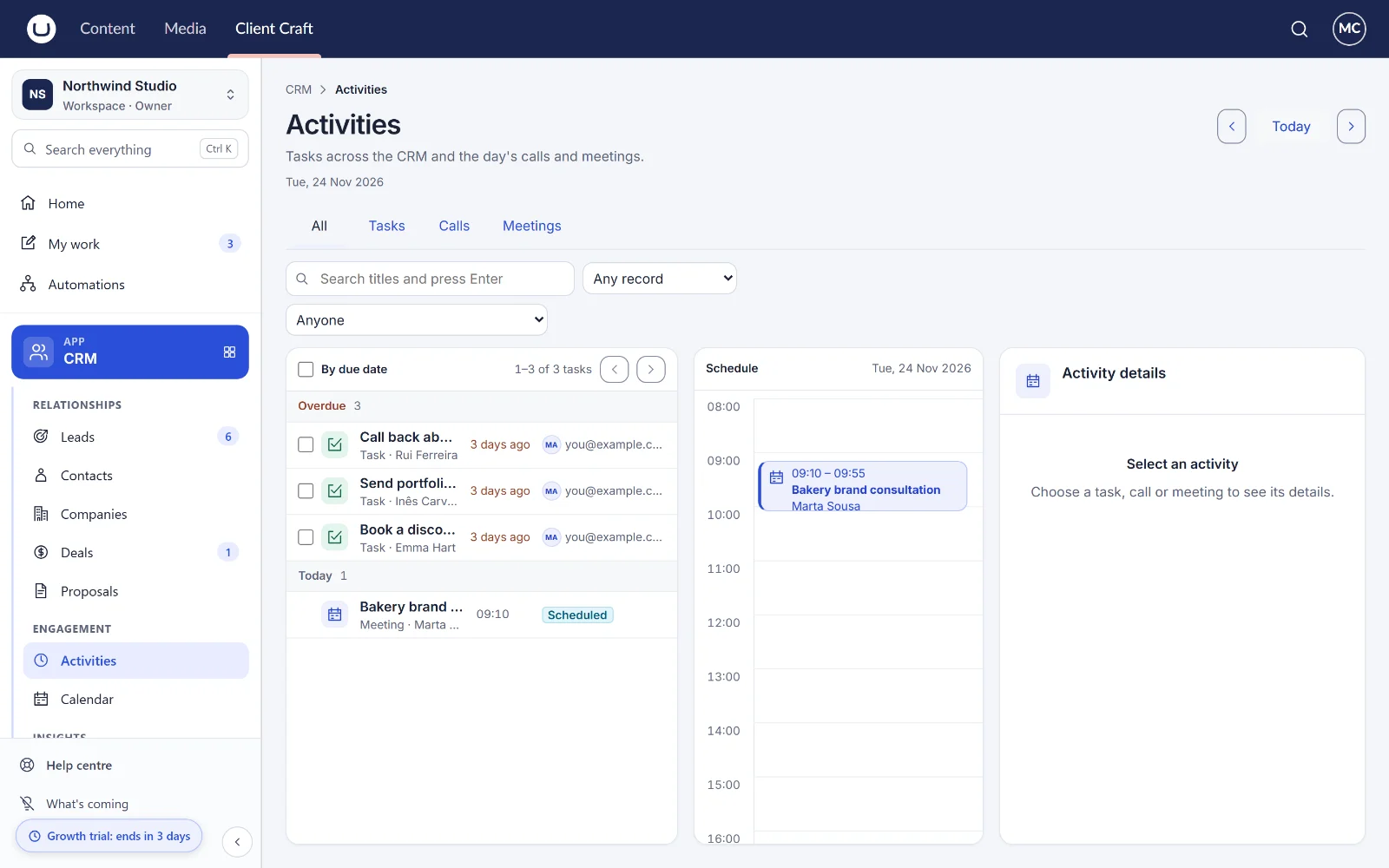
- 7Review activities across the CRMGo to CRM > Activities to see tasks across the CRM and the day's calls and meetings. Switch between All, Tasks, Calls and Meetings, and use Today or the day selector for the Schedule. Select a row to see its details, then Mark as complete or Reopen a task.
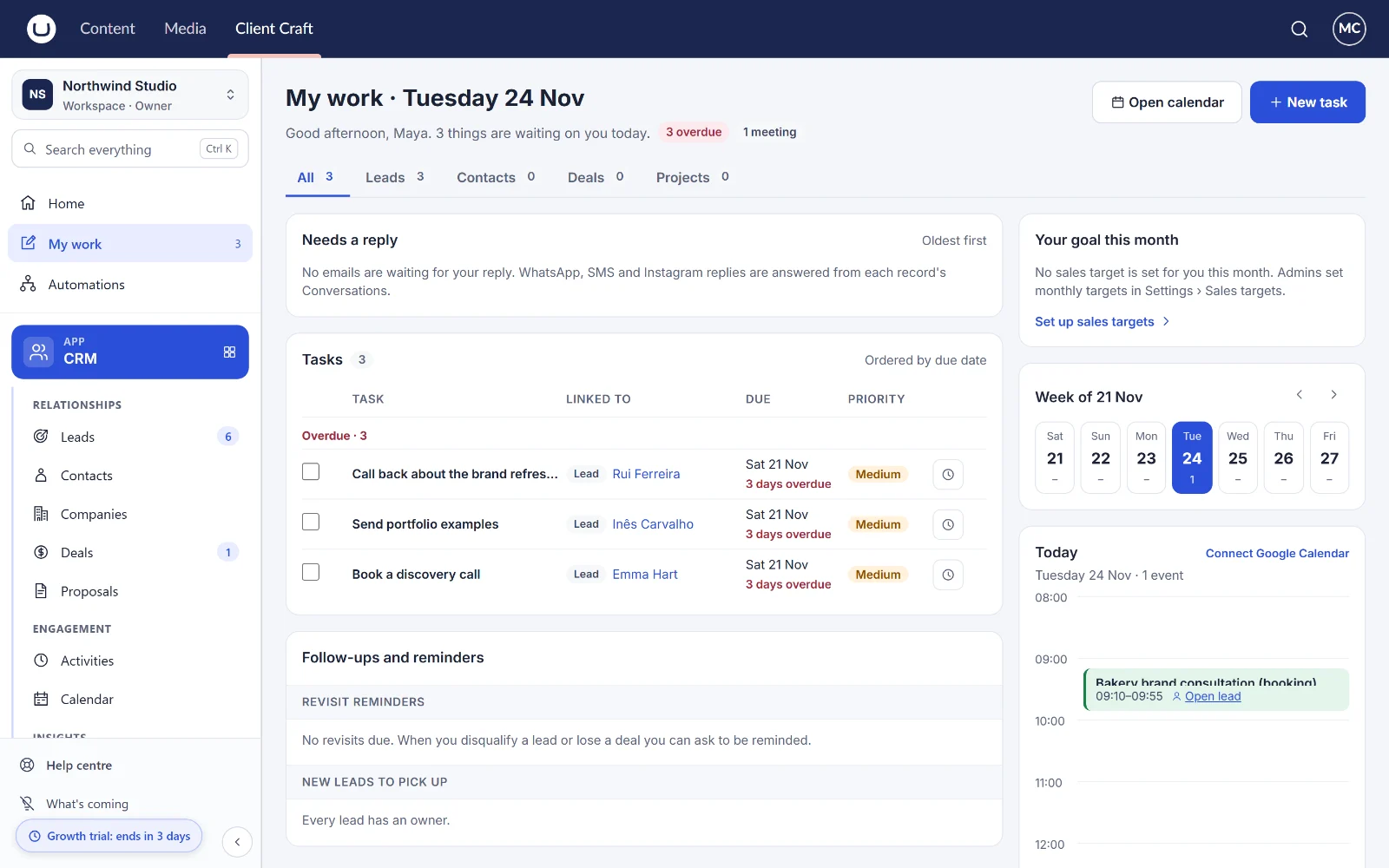
- 8Work through My workOpen My work to see your own work in the selected workspace. Tabs filter by All, Leads, Contacts or Deals. Your tasks are grouped by due date; select Done to complete one, or Snooze it to Later today, Tomorrow or Next week. Use Undo if you clicked by mistake, and New task to add one.
- 9Organize tasks on boardsUnder Projects > Tasks, task boards show the same tasks in different views. Select Create task to add one. When you change filters on a shared board, the change is temporary: use Save as new board to keep it. A new board is Private by default and can be Shared with the team. Moving a card between columns waits for the server; if it fails, the card stays where it was.
If a list shows Retry, it could not load; select it before adding new items. If you switch workspace while saving, reopen the record in the selected workspace and check the timeline before saving again.