
Manage deals and stages in the sales pipeline
On this page
Create deals, move them between pipeline stages on the board or from the deal, and record a won or lost outcome with the details your pipeline requires.
A deal is a sale you are working on. The pipeline board shows every deal by stage, so you can see what is close to closing and what needs attention. You need at least one pipeline; an administrator sets up its stages, win probabilities and stage requirements under Manage pipelines.
Step by step #
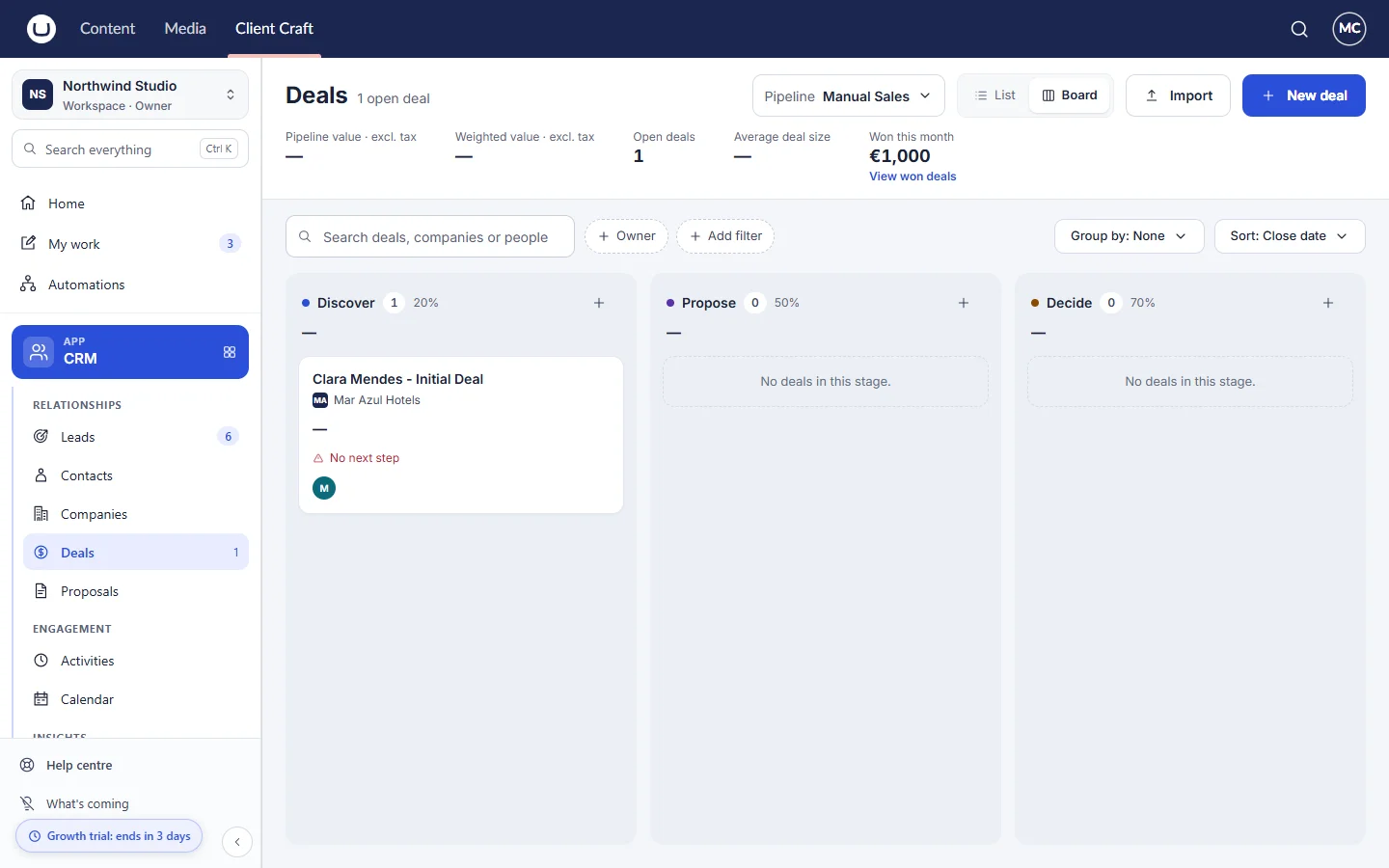
- 1Open the pipeline boardGo to CRM > Deals. The board shows one column per open stage of the selected pipeline, with each column's total, plus a summary with Weighted value · excl. tax and Won this month. Use the Pipeline selector to change pipeline, or choose All pipelines to see every pipeline at once.
Filter the cards by Owner, and use Group by to show one swimlane per owner. The list view shows the same deals as a sortable table with Value, Stage, Probability, Close date, Owner and Last activity.
- 2Create a dealSelect New deal. In the drawer:
- Enter the Title.
- Choose the Pipeline and the Starting stage.
- Enter the value, excluding tax, and its Currency.
- Choose the Customer contact. The contact's company is billed by default; remove the company to bill the contact as an individual.
- Set the Owner, Expected close date and Source.
Select Create deal once and wait for Deal created. Deals created while converting a lead appear here too.
- 3Move a deal on the boardDrag a card to another stage column. While you drag, a label shows Move to the target stage and its probability. Press Esc to cancel. With the keyboard, focus a card, press Space to pick it up, use the left and right arrows to change column and press Space to drop it.
A successful move shows Deal moved. Keyboard moving works on a single pipeline board without owner grouping. On the All pipelines board you can also drop a card into another pipeline's column.
- 4Move a deal from its pageOpen the deal and use the Sales process panel. Select a stage in the stage timeline, or choose it in Move to stage. The panel tells you whether the deal is Ready to advance or how many items are required before moving.
Moving backwards asks for a reason in Reason for changing stage; it stays on the deal's stage history. Confirm with the Move to button for that stage. Use Change pipeline to move the deal into another pipeline.
- 5Meet stage requirementsPipelines can require evidence before a deal advances, for example an accepted proposal or a signed contract. When something is missing, the move is refused and the deal explains why. Use Go to proposals next to the reason to open the deal's Proposals tab and fix it.
Some stages also list Actions for this stage. Each workflow runs only when you select it, and a queued run links to View workflow history.
- 6Mark the deal as wonOn the deal, select Mark as won; on the board you can also drop the card on Won, which opens the deal with this step ready. In Mark deal as won, check the final value excluding tax and choose the Main reason we won.
Keep Create project from this deal selected to start delivery straight away: set the Project name, Project owner, start date and starting scope, then select Mark as won and create project. Otherwise the button reads Mark as won.
- 7Mark the deal as lostSelect Mark as lost, or drop the card on Lost. Choose a Loss reason (required), check Lost on and add Loss notes if useful. You can also select Also mark open proposals as withdrawn and set Remind me to revisit, which creates a task for you on that date. Confirm with Mark as lost.
- 8Reopen a closed dealClosed deals cannot change. To work on one again, select Reopen deal, choose the stage under Reopen in and give a reason for reopening. The deal then returns to the board in that stage.
- 9Verify the resultAfter any change, check the board or the deal: the card sits in the new column, the stage timeline shows the new stage and the change appears in the deal's stage history and Activity tab. Won and lost deals leave the open board and are counted in the summary.
If Mark as won or Mark as lost is unavailable, the reason is shown next to the buttons, for example a contract that has not been signed or an approval that was not recorded. After a connection failure, reload the deal and check its stage before repeating the move.