
Build with AI
On this page
Describe a section or change and AI drafts it on the canvas for you to keep or undo. Comes with Client Craft and uses AI credits.
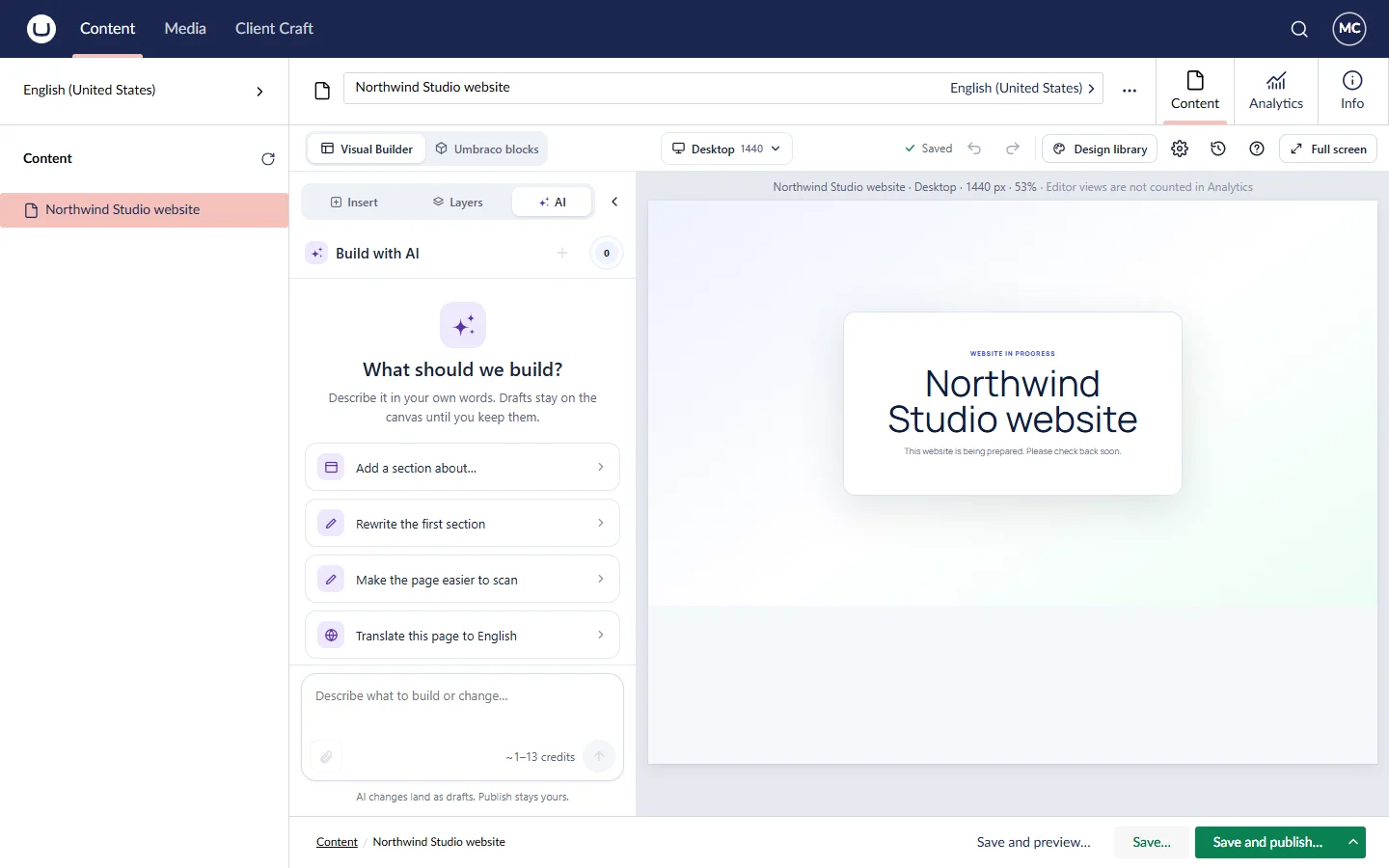
Build with AI turns a short description into changes on your page: a new section, a rewrite, a translation. Every change lands as a draft marked "AI draft" on the canvas. Nothing is published until you keep it and publish the page yourself.
In the free Visual Builder #
Open the AI tab in the left panel. It shows Build with AI marked Not installed, explains "Build with AI comes with Client Craft" and offers the Client Craft package (adds Build with AI, plans and prices, analytics), with a Copy button for the command:
Build with AI turns on when the ClientCraft package is installed; installing ClientCraft.Core alone does not turn it on.
"Then restart the site and connect it to your Client Craft organization. Everything else in Visual Builder works without it." The prompt box below is locked: "Available with Client Craft".
Before you start (with Client Craft) #
- The site has the ClientCraft package and is connected to your organization. See Install the package.
- You can open the workspace that owns this website, and your organization has AI credits.
Step by step #
- 1Open the AI tabSelect AI in the left panel. The ring next to Build with AI shows how many credits are used this month (hover it for "used / total credits" and the reset date).
- 2Describe what you wantType in Describe what to build or change… (up to 2,000 characters), or start from a suggestion such as Add a section about… or Rewrite the first section. If a block is selected, AI works on that block first; otherwise on the whole page. Press Enter or select Send.
A rough guide is shown under the suggestions: "Small edit ~1–2 · New section ~4 · Full page ~13 credits".
- 3Review the draftThe answer lists what changed, with the credits used. On the canvas, each changed block has a violet outline, an AI draft badge and Keep / Undo buttons. A bar at the top shows the number of AI changes, "Not published", and Keep all / Discard all.
- 4Keep or undoKeep the changes you want and undo the rest. Then check the text: AI can be wrong.
- 5Publish when you're readyUse Save and publish as usual. "AI changes land as drafts. Publish stays yours."
If something goes wrong #
| You see | What it means |
|---|---|
| "We couldn't check AI" with Try again | The site didn't answer the availability check. Your page isn't affected. |
| A message with Add credits | Your organization's AI credits are used up. An Owner or Admin can add credits from billing. |
| "The AI's change didn't fit this page, so nothing was changed" | The draft broke a rule of this page (for example a block type that isn't allowed). Try asking differently. |
| "This site isn't connected to a Client Craft workspace you can use" | Check the site's Client Craft connection and your access to its workspace. |