
The design library: themes, tokens, components and patterns
On this page
Keep colours, typography, spacing, shared styles, custom code, components and patterns in one library and publish them site-wide.
Plan: Free Visual Builder package
The design library holds the values every page builds on. Blocks pick colours and sizes from it instead of storing fixed values, so when you change the brand colour in the library and publish, every page that uses it changes. It is stored in the Umbraco database, not as content nodes, so there is nothing to manage in the content tree.
Before you start #
- The page is open in the Visual Builder.
- Editing Custom code needs an Umbraco administrator.
What is in the library #
| Section | What it holds |
|---|---|
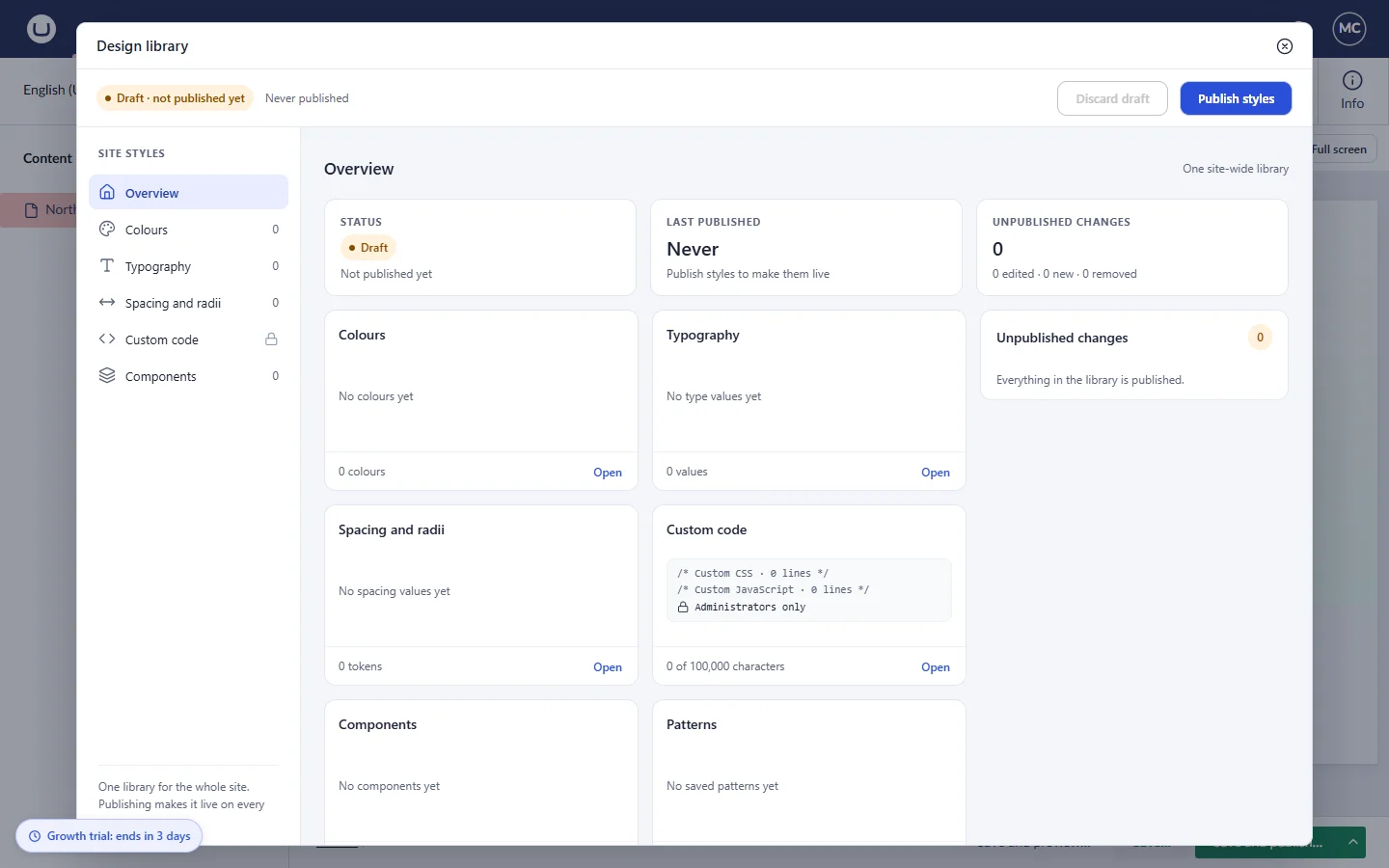
| Overview | Status (Published or Draft), when it was last published, and the list of unpublished changes |
| Colours | Named colours, such as your brand and text colours |
| Typography | Font families, sizes, weights and line heights |
| Spacing and radii | Spacing steps and corner radii |
| Custom code | Site-wide custom CSS and JavaScript, up to 100,000 characters each. Administrators only |
| Components | Components (blocks edited once and shown everywhere) and Patterns (saved layouts inserted as an editable copy) |
Step by step #
- 1Open the librarySelect Design library in the toolbar. The first time, the builder creates the site's library for you ("Setting up your design library").
- 2Change a valueOpen Colours, Typography or Spacing and radii. Select Add colour, Add type value or Add spacing value to add one, or change an existing value. Changes are drafts: the Overview counts them as unpublished, and visitors don't see them yet.
- 3Save or discard the draftSave draft keeps your changes for later. Discard draft throws them away.
- 4Publish the stylesSelect Publish styles. The confirmation, "Publish styles to the whole site?", lists what changed. Confirm with Publish styles: the change applies to the whole site at once, not to one page.
Components and patterns #
- Components are kept in sync: edit one and every page that uses it changes. See Make a component and reuse it on many pages.
- Patterns are starting points. Save one from a block's Advanced tab with Save as pattern; inserting it from Insert › From design library adds an editable copy that no longer follows the pattern.
- Only published components and patterns can be inserted on a page.
NoteBy default there is one design library for the Umbraco installation. A developer can scope libraries per client or per website with a scope policy.
WarningCustom JavaScript runs on every page of the site. Only add code you trust and have tested.
What happens next #
Was this article helpful?