
Turn form submissions into leads
On this page
Build a form, map its answers to lead fields, publish it on your site, and see how submissions become leads and how possible duplicates are flagged.
Every form you publish in Client Craft saves its answers to the CRM. A new enquiry becomes a lead; a second enquiry from the same email updates that lead instead of creating another. When only the phone number matches, Client Craft keeps the enquiries apart and asks you to review them as possible duplicates.
Before you start #
- You need access to the Marketing app (app switcher › Marketing › Forms).
- To show a form on your website, the site must be connected to your workspace. Placing the form block is explained in Connect a Client Craft website form to the CRM.
Step by step #
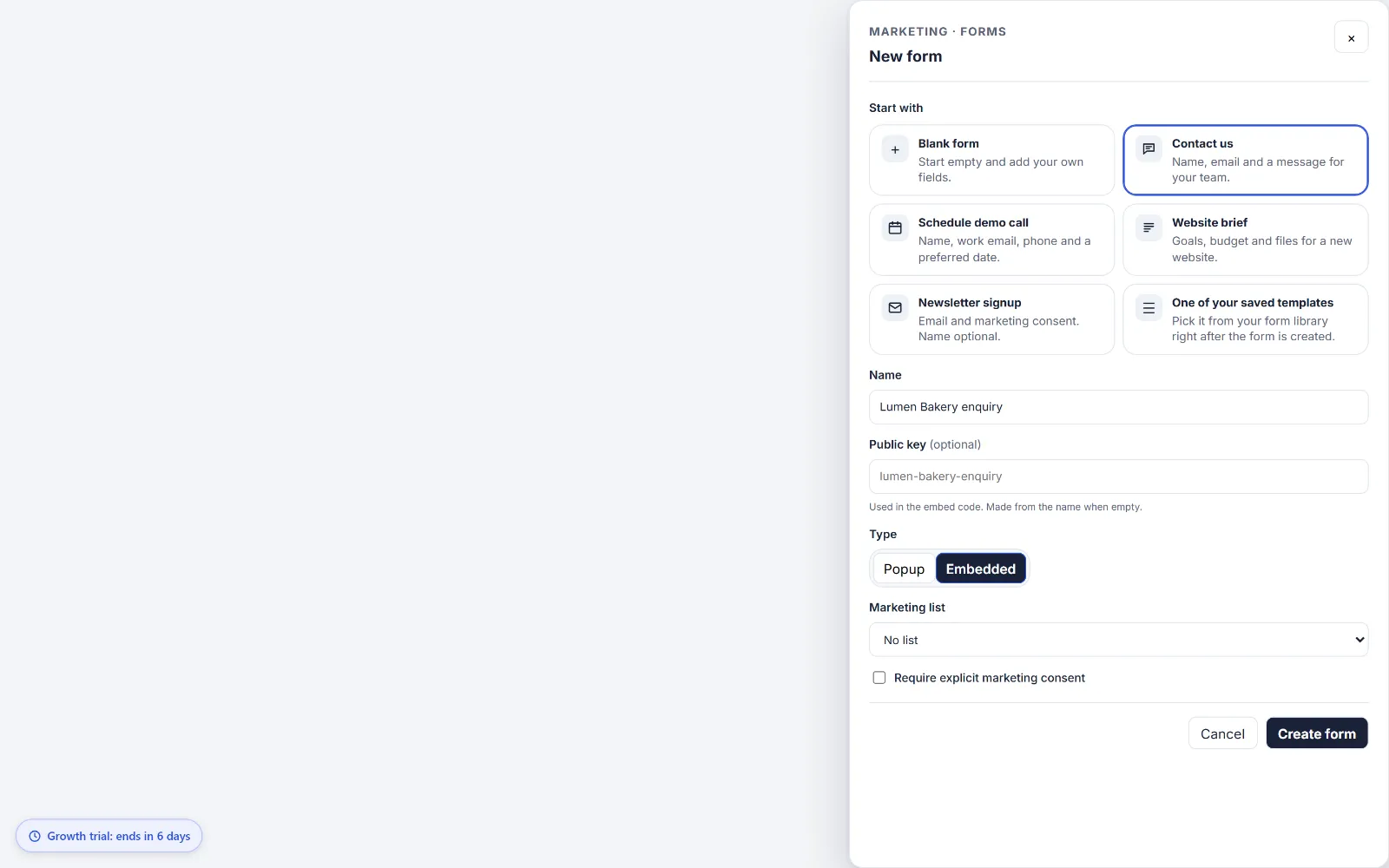
- 1Create the formIn Marketing › Forms, click New form. Under Start with, pick Blank form or a template such as Contact us (name, email and a message), Schedule demo call, Website brief or Newsletter signup. Enter a Name, choose the Type (Popup or Embedded) and click Create form.
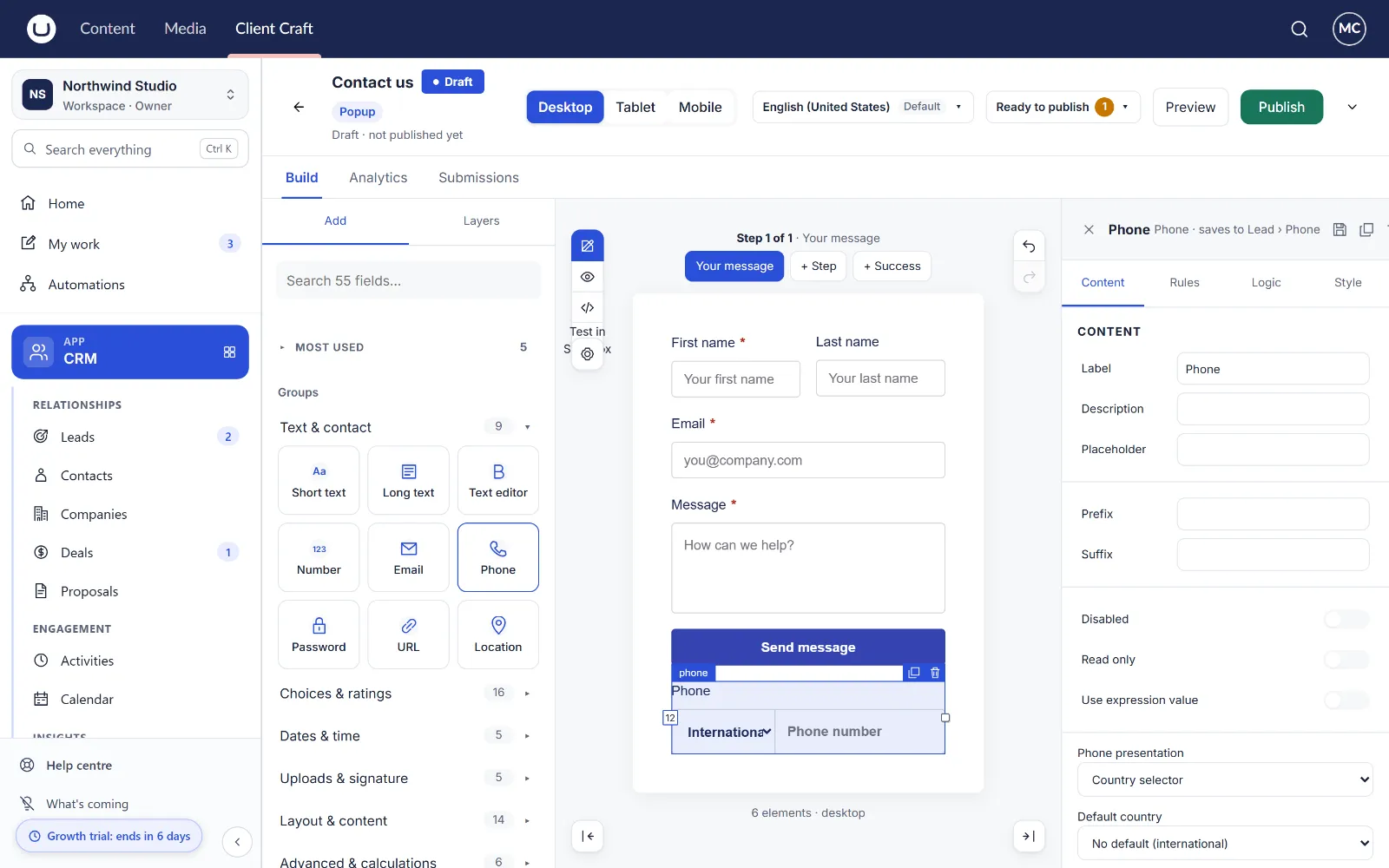
- 2Add and arrange fieldsThe builder opens on Build. Click a field under Add (for example Phone in Text & contact) to add it at the end, or drag it into place. In Layers, select a field and press Alt + ↑ or Alt + ↓ to move it.
When you select a field, its header shows where the answer is saved, for example "Phone · saves to Lead › Phone".
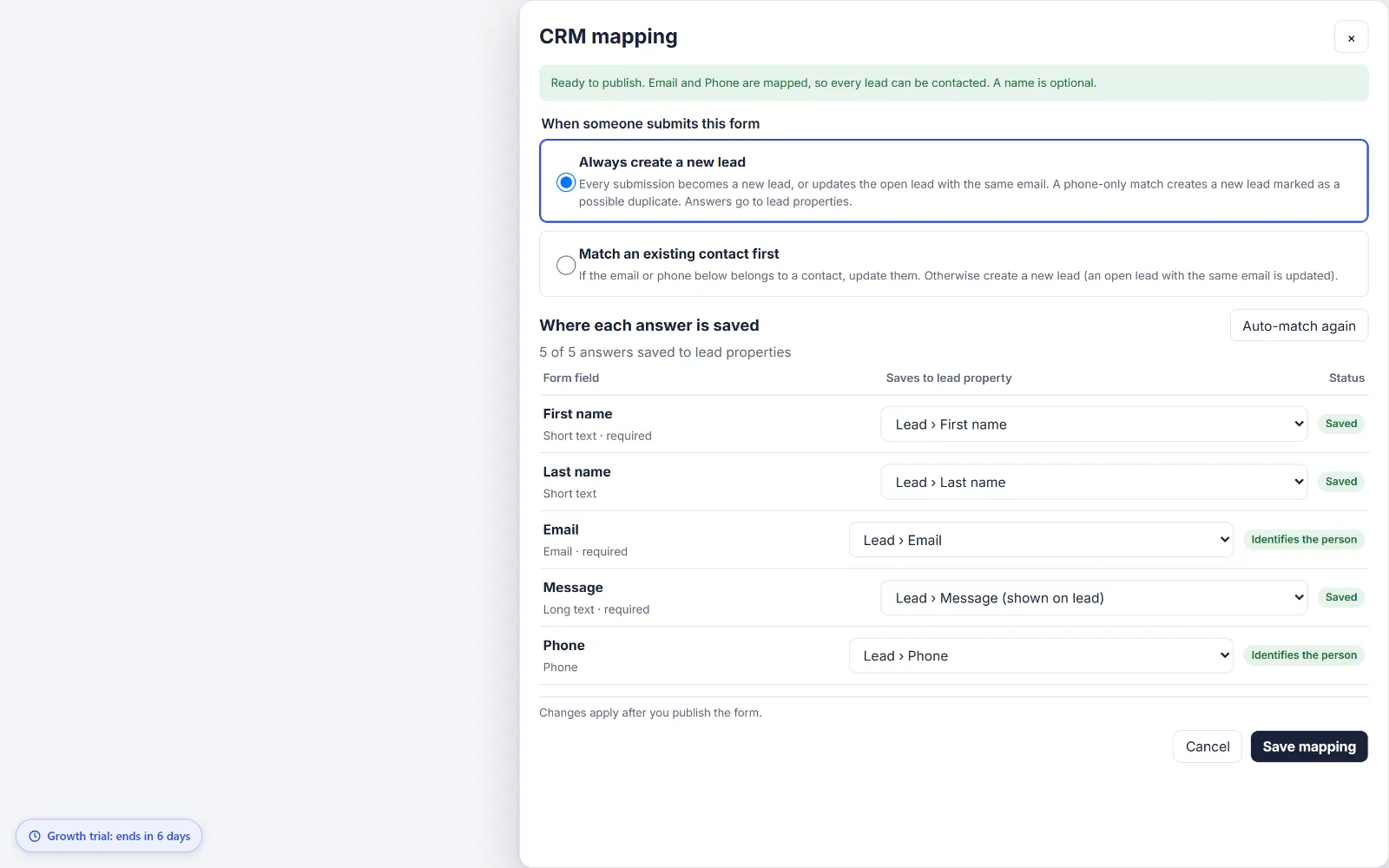
- 3Check where answers are savedWith the form selected, open Submission. Saves to CRM is Always on and summarizes the mapping, for example "Always create a new lead · Email and Phone mapped · 5 of 5 fields saved". Click Edit CRM mapping to change it:
- When someone submits this form: Always create a new lead, or Match an existing contact first (if the email or phone belongs to a contact, update that contact).
- Where each answer is saved: a lead property for each field. Email and phone are marked Identifies the person. Auto-match again maps the fields for you.
Click Save mapping. "Changes apply after you publish the form."
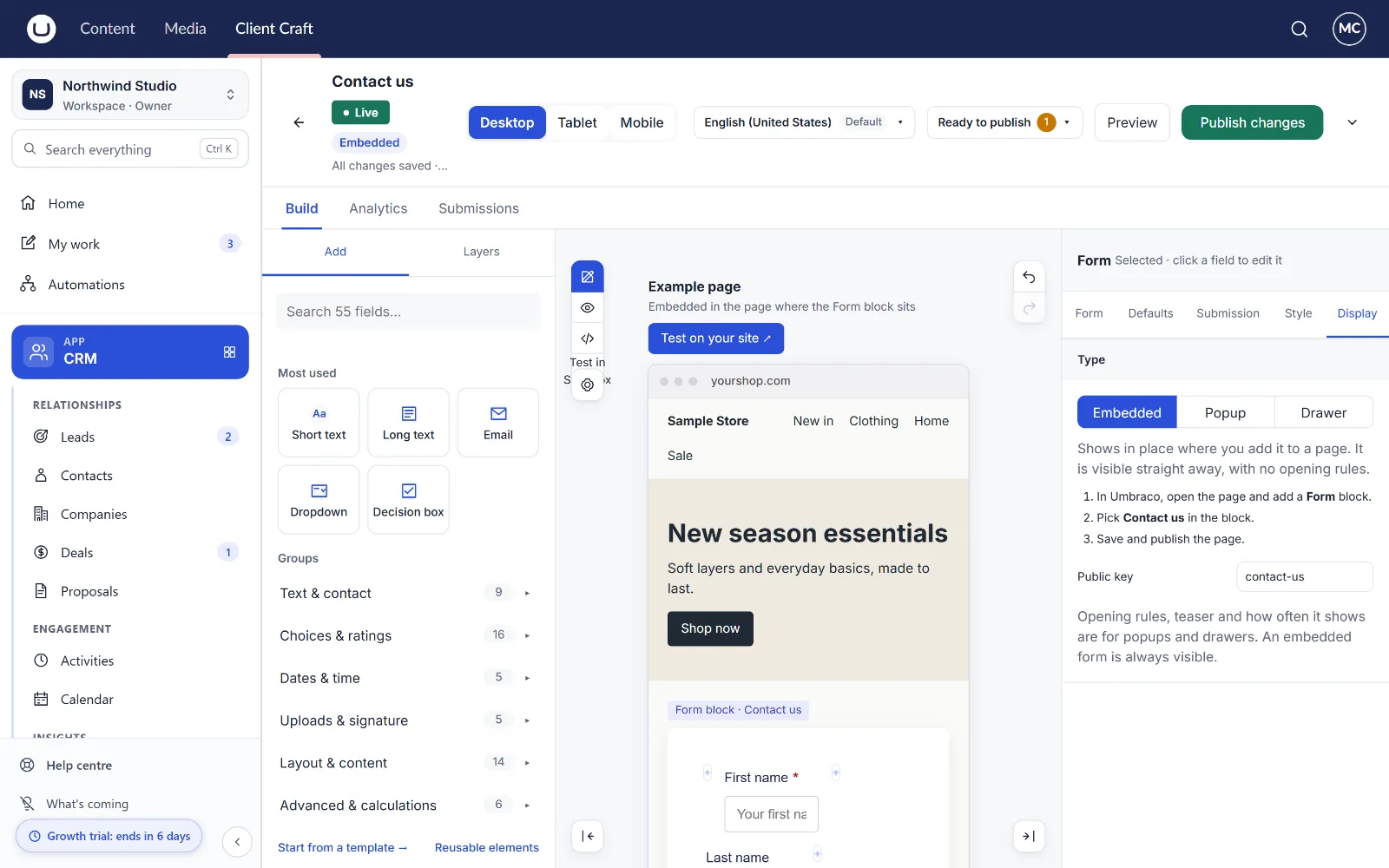
- 4Publish the formClick Publish. The status changes from Draft to Live and you see "Form published". After later edits, click Publish changes.
- 5Place it on a pageFor an embedded form, open Display. It lists the steps: "In Umbraco, open the page and add a Form block. Pick your form in the block. Save and publish the page." Popup and drawer forms have their own opening rules instead.
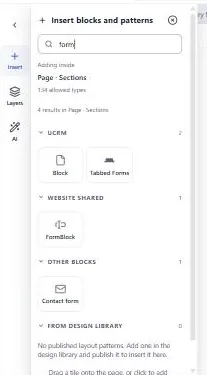
In Umbraco's Content section, open the page (or create one), click Add section and search the Insert panel for "form". Insert FormBlock.
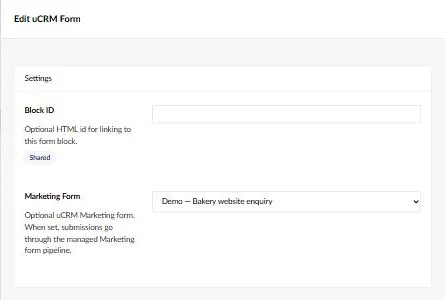
Select the block and click its edit icon. In Edit uCRM Form, choose your form under Marketing Form ("When set, submissions go through the managed Marketing form pipeline"). Only published forms are listed. Click Update, then Save and publish.
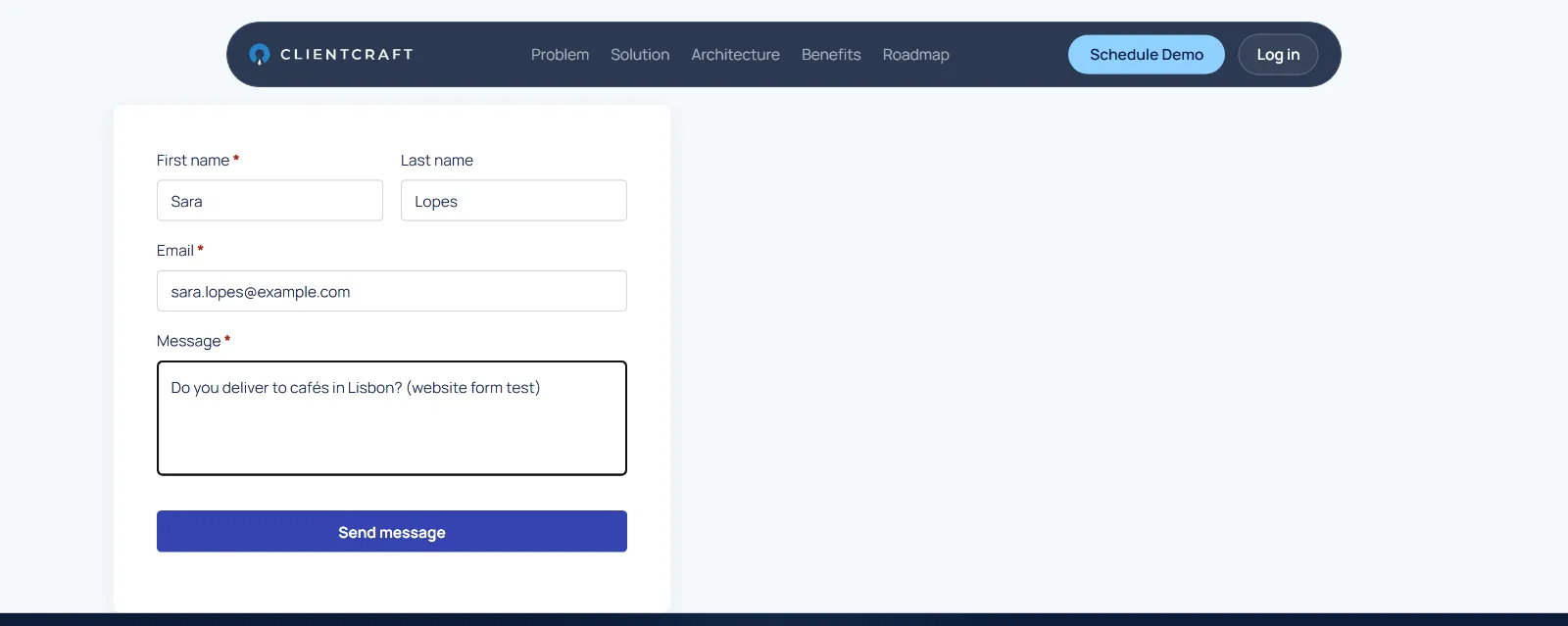
Visitors then see the form on the page.
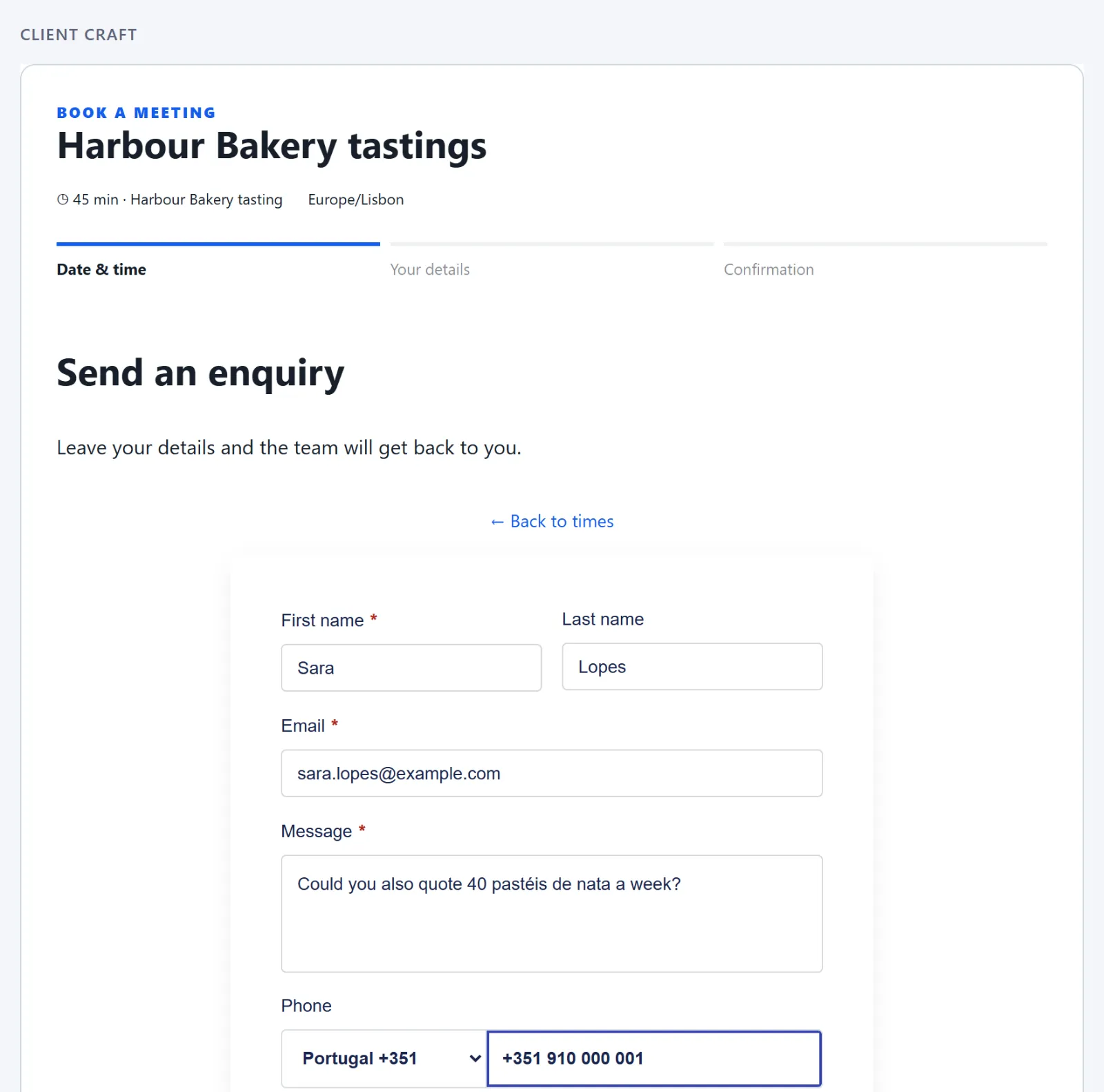
You can also attach a published form to a booking page as its lead form. Visitors then fill it in when they book or when they click Send an enquiry instead. See Set up online bookings.
What happens when someone submits #
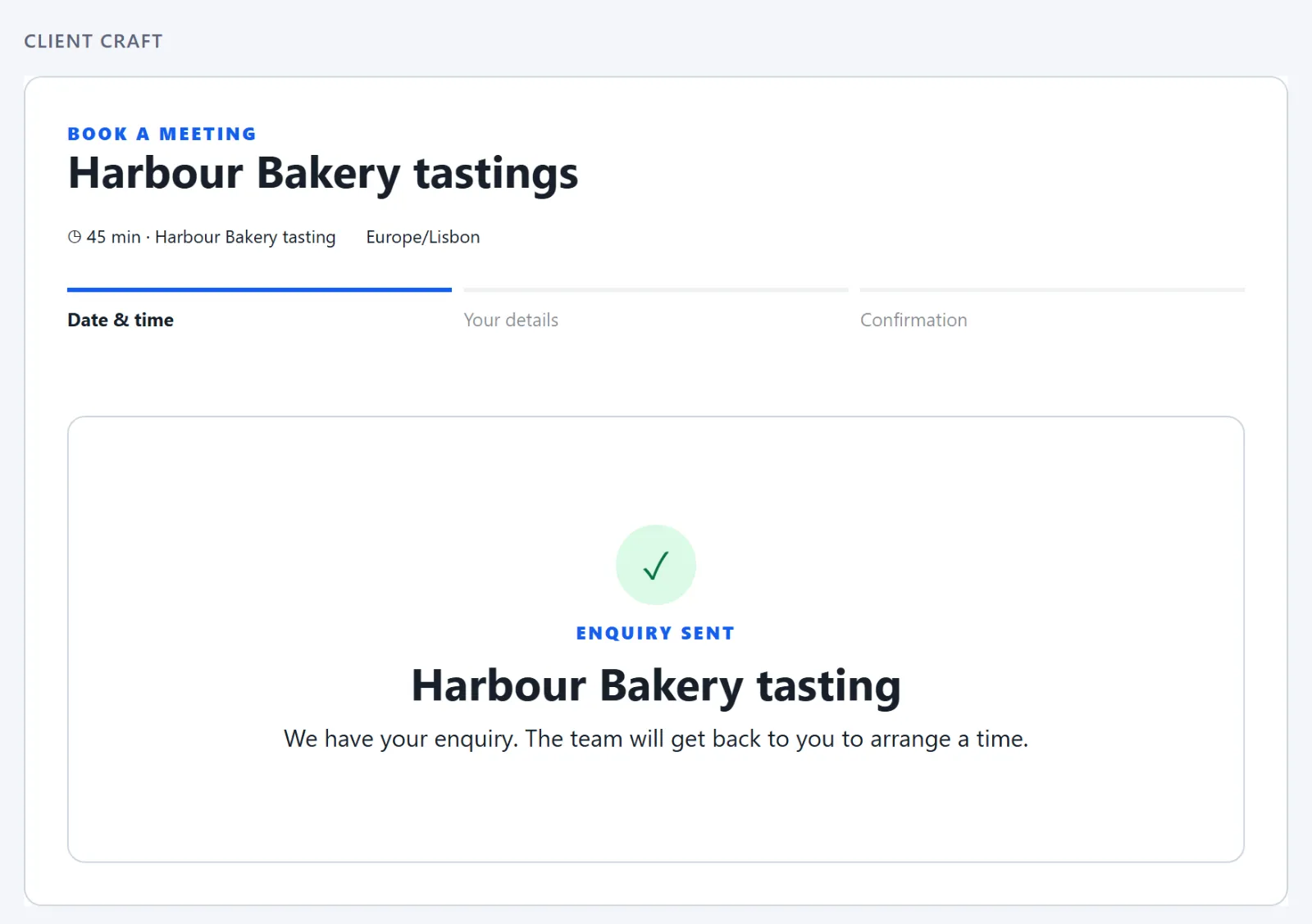
The visitor sees your thank-you message.
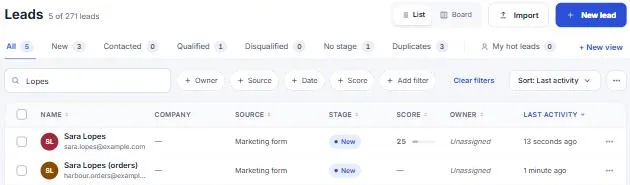
In CRM › Leads, the submission appears as a lead with the source Marketing form and the stage New.
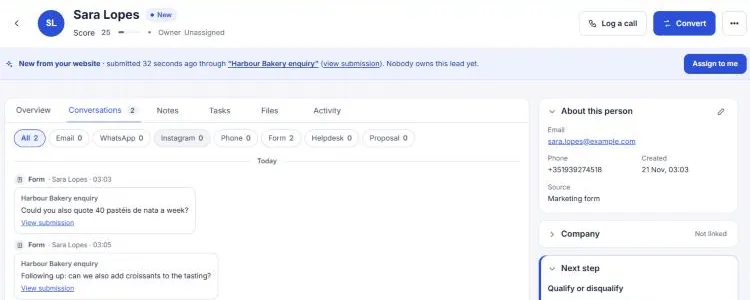
Open the lead to see "New from your website · submitted … through your form" with a view submission link. Each submission is listed in Conversations under Form.
How duplicates are handled #
| The new submission has… | What Client Craft does |
|---|---|
| The same email as an open lead | Adds the submission to that lead. No new lead is created. |
| A new email, but a phone number that another lead already has | Creates a new lead and flags the leads as possible duplicates. |
| A new email and a new phone number | Creates a new lead. |
A phone number alone never merges two leads: you decide.
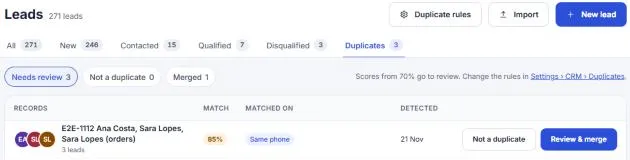
On a flagged lead, Possible duplicates found lists the other records ("Another enquiry shares these contact details. Separate enquiries may both be valid.") with the reason, such as Same phone. Click Review & merge to compare and merge them, or Not a duplicate to dismiss the match.

Review the Duplicates queue #
Open CRM › Leads and the Duplicates tab. Needs review groups the leads that match, with the Match score, what they Matched on and when they were Detected. Not a duplicate and Merged keep the history. "Scores from 70% go to review." An administrator can change the rules with Duplicate rules or in Settings › CRM › Duplicates.
What happens next #
- Qualify the lead and convert it to a contact, company and deal with Convert.
- When the client is ready to buy, see Mark a deal as won and start its project.