
Set up online bookings
On this page
Set your hours in a booking calendar, describe what people can book as a service, then publish a booking page at its own web address or embed it on your site.
Online bookings let visitors pick a time that suits them, without emails back and forth. You set it up once in three layers: a booking calendar (who, when and how many at a time), a service (what is booked, how long, where) and a booking page (what visitors see). Every booking becomes an appointment, and the guest's details go to your CRM.
Before you start #
- Open the Scheduling app (app switcher › Scheduling › Appointments & requests). The tabs are Appointments, Requests, Booking pages, Services, Calendars & hours and Setup status.
- Publish the form you want guests to fill in. See Turn form submissions into leads.
- For Google Meet, the host needs a connected Google Calendar. You can take bookings without Google: see Manage appointments for adding a meeting link by hand.
Step by step #
- 1Create a booking calendarOpen Calendars & hours and click New calendar. Fill in:
- Calendar name and Responsible person. A person can have several calendars that take appointments at the same time.
- Timezone and Availability source: Client Craft working hours and bookings (no Google connection needed) or Google Calendar and Client Craft.
- Capacity: by default, one appointment at a time ("Pending customer requests also reserve this space"). Tick Allow multiple bookings and set Maximum simultaneous bookings for more.
- Working hours per day. Use Add hours for a second window, for example around lunch, and Remove to close a day.
- Time off and extra availability: a Start, End, Availability (Unavailable or extra availability) and an optional Reason, then Add exception.
- Accept new reservations: untick it to stop new bookings. "Existing appointments stay in the calendar if you disable it or lower its capacity."
Click Save calendar. The panel What else blocks a slot lists what removes times: time off and exceptions, busy time in Google (for Google calendars), other bookings and meetings up to the capacity, and each service's buffers, notice and horizon.
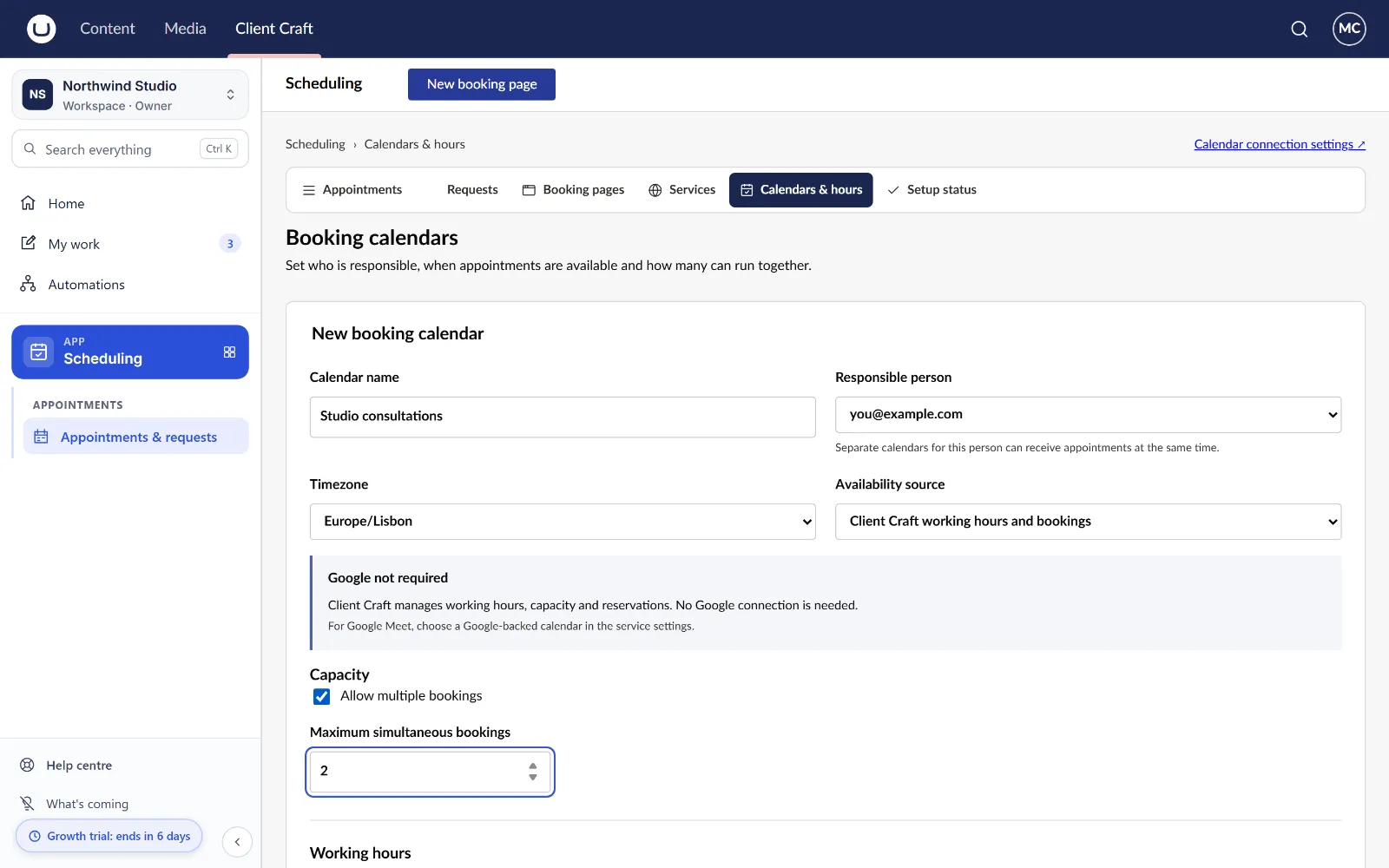
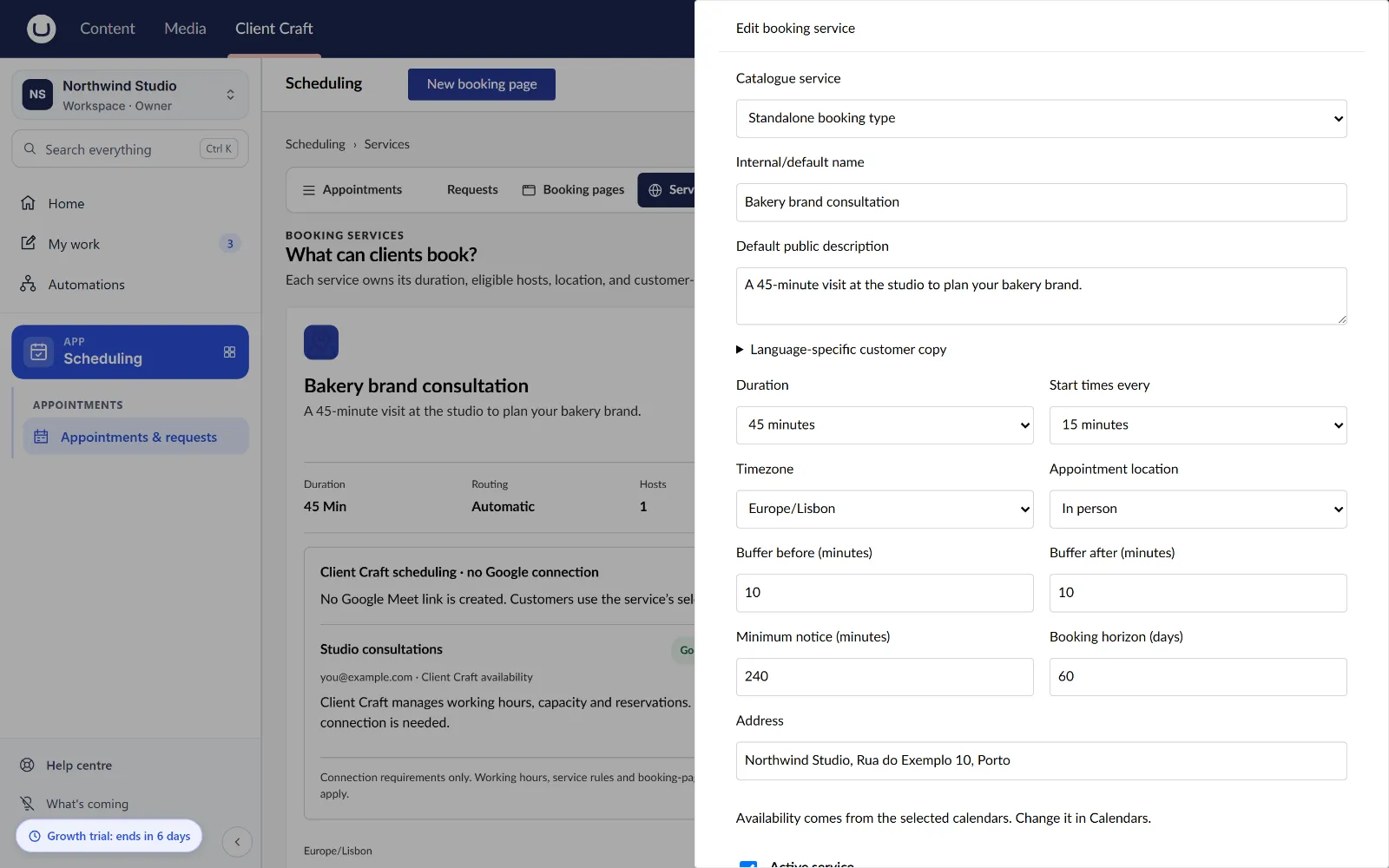
- 2Create a serviceOpen Services and click Create Booking Service. Choose a Catalogue service or Standalone booking type, fill in the Internal/default name and Default public description, then:
- Duration and Start times every (for example every 15 minutes).
- Timezone and Appointment location: Google Meet, Zoom, Custom URL, Telephone or In person. For In person, enter the Address; for Telephone, the call instructions.
- Buffer before (minutes) and Buffer after (minutes), Minimum notice (minutes) (240 by default) and Booking horizon (days) (60 by default).
- Active service: inactive services can't be booked and are removed from published booking pages.
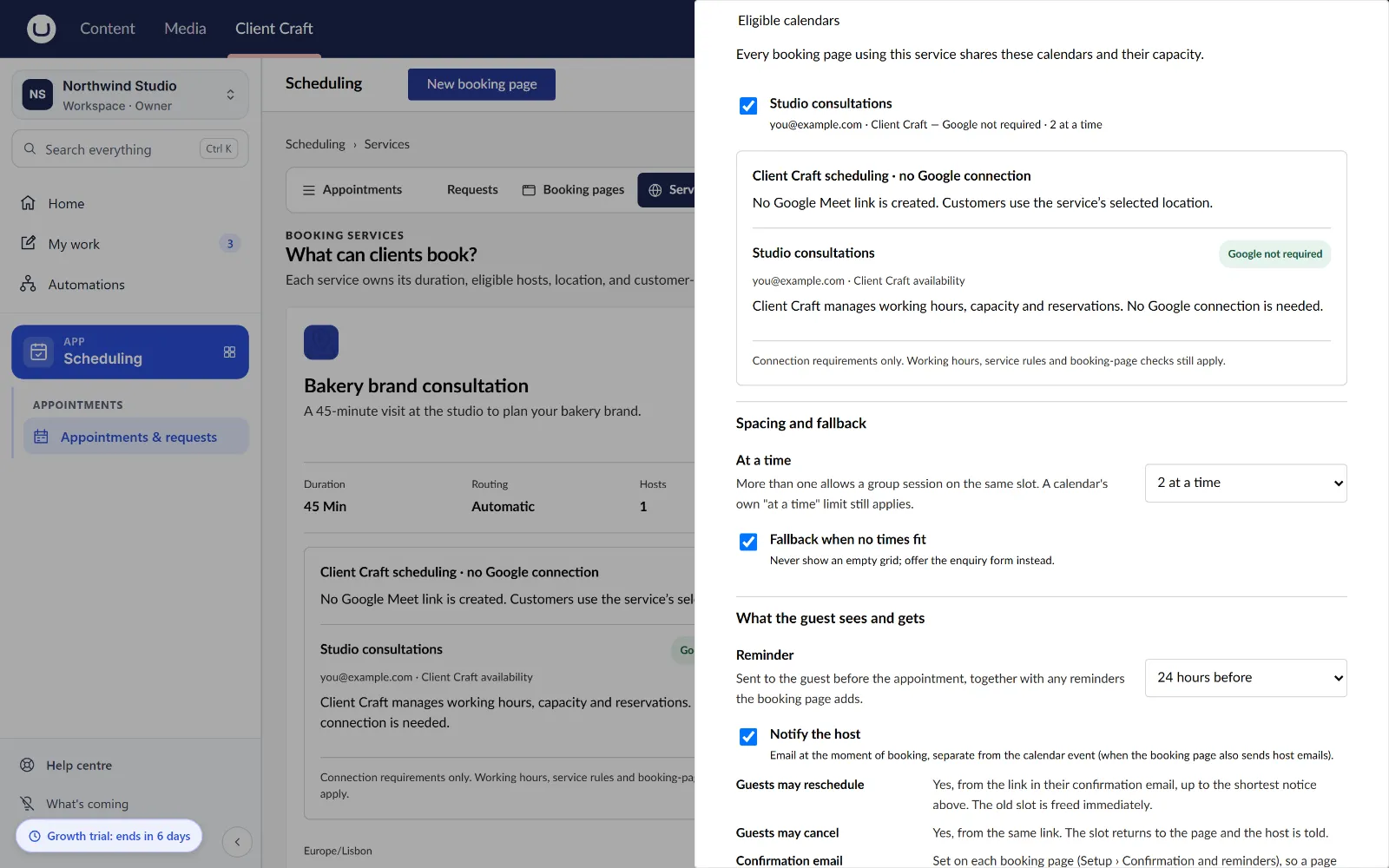
- Eligible calendars: tick the calendars this service uses. "Every booking page using this service shares these calendars and their capacity."
- 3Set capacity, fallback and remindersFurther down the service:
- At a time: more than one allows a group session on the same slot. A calendar's own limit still applies.
- Fallback when no times fit: "Never show an empty grid; offer the enquiry form instead."
- Reminder: No reminder, 1 hour before, 2 hours before, 24 hours before (default) or 48 hours before.
- Notify the host: an email when someone books.
What the guest sees and gets summarizes the rest: guests may reschedule and cancel from the link in their confirmation email, the confirmation email is set on each booking page, and every booking is added to the host's calendar (My work › Calendar).
Click Save Booking Service.
- 4Create a booking pageClick New booking page. The Setup tab has five steps, with a Live preview on the right ("Preview only. No appointments or emails are created."):
- Name it and give it a web address: Page name, Web address (for example
/book-a-tasting/), Public description and Language. - Choose the service: tick one or more services.
- Pick who can host it: with two or more hosts, the guest gets whoever is free.
- Attach the lead form: choose a published form under Lead form. On booking, create shows what the form's lead capture creates, for example "A lead, or a match to an existing contact, linked to the meeting".
- Publish and embed: a checklist of what must be ready.
Under Confirmation and reminders, When is the appointment confirmed? is Automatically after submission or After staff telephone approval. You can also tick Email reminders.
Click Save draft.
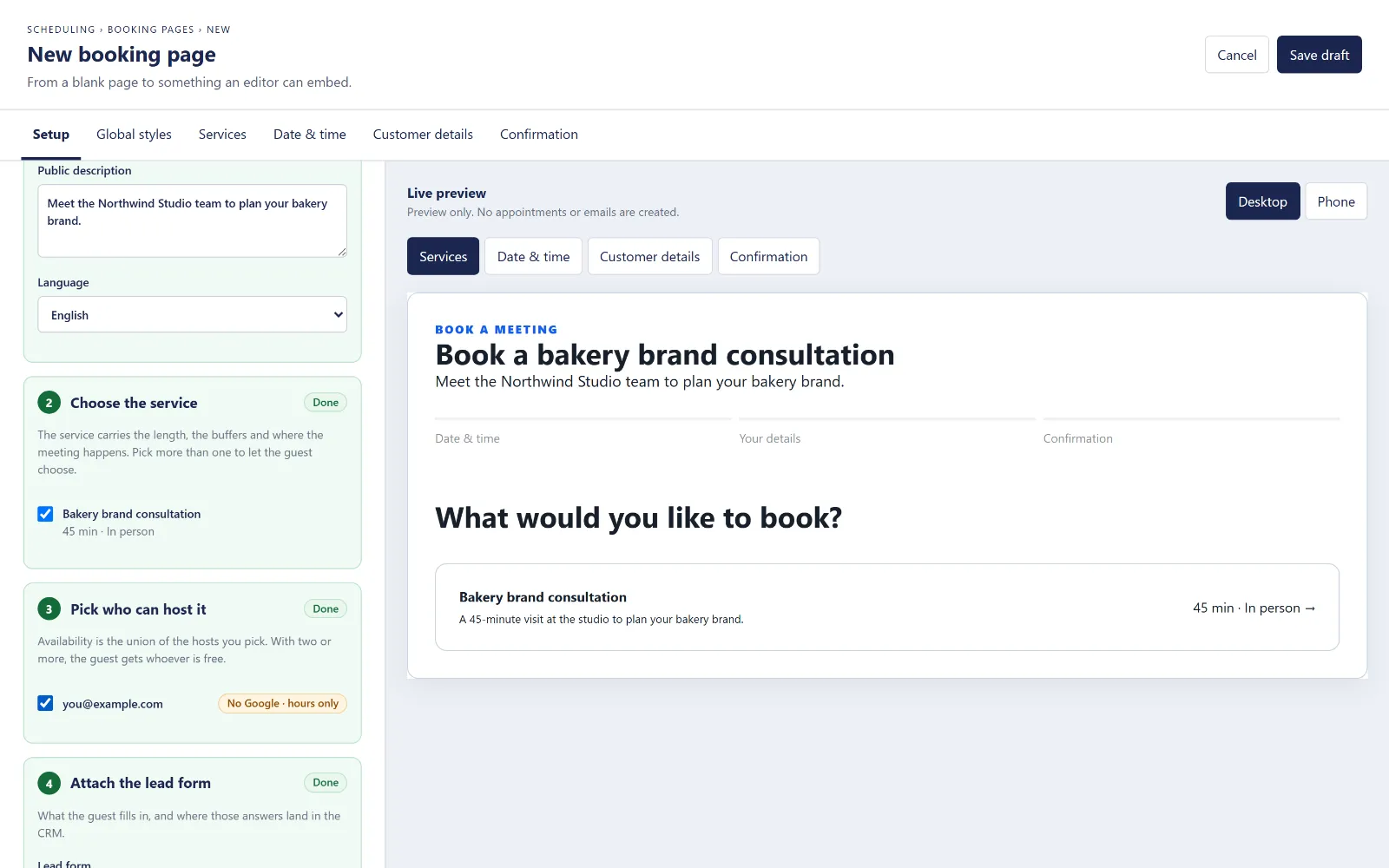
The other tabs (Global styles, Services, Date & time, Customer details, Confirmation) change the page's look and wording.
- Name it and give it a web address: Page name, Web address (for example
- 5Publish the pageStep 5 shows the checks, for example "Service has a length and a location", "At least one host picked" and "Lead form chosen". Checks marked "Blocks publishing" must pass; warnings don't stop publishing.
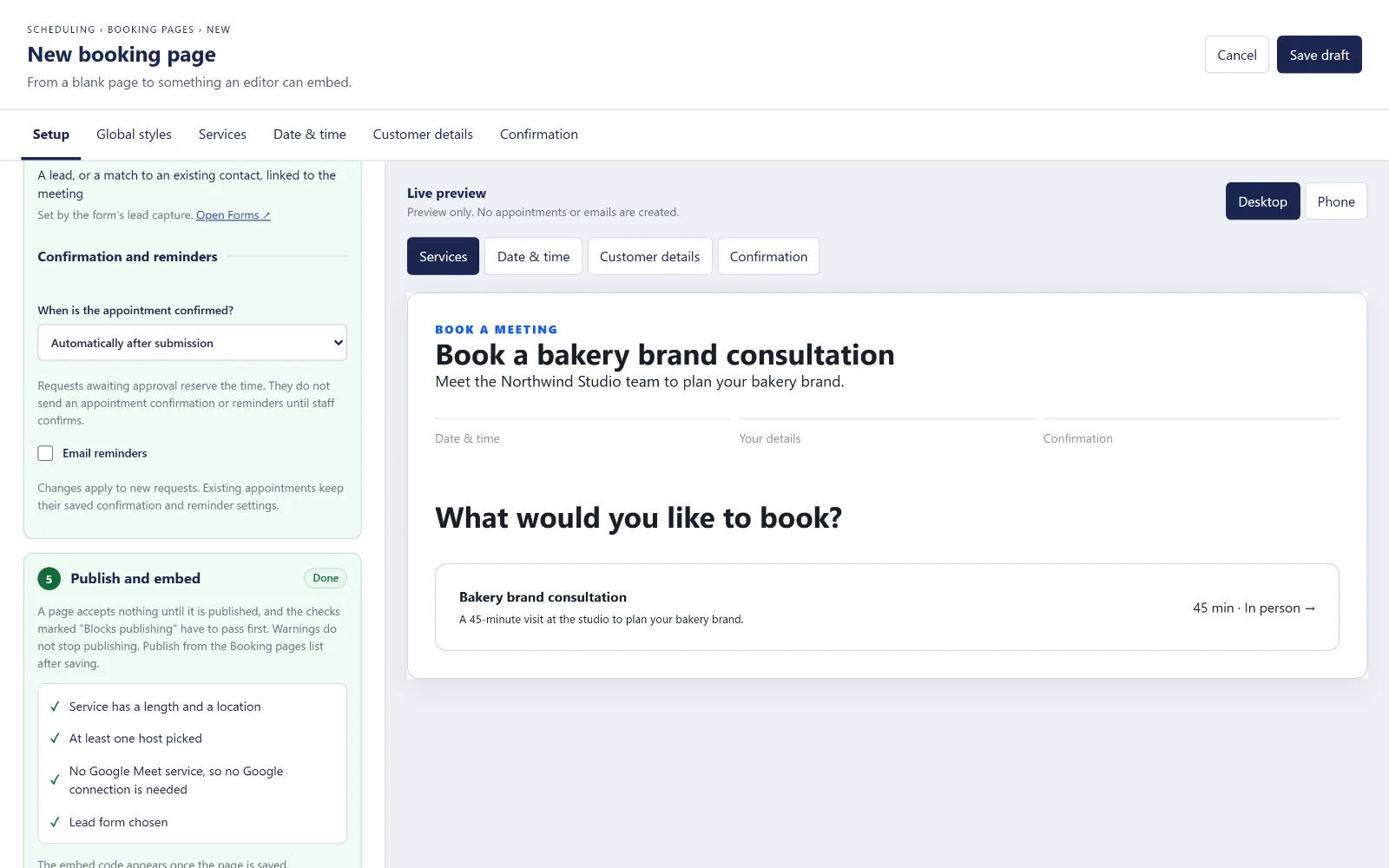
In Booking pages, click Publish on the page. You see "Booking Page published. It is live at …/your-address/. You can also embed it with the Booking block."
- 6Share or embed itEach page card shows its web address with Copy link, the services, hosts, lead form and bookings in the last 14 days. The Embed box has the embed code with Copy and Preview. Paste the code on a page that loads the Client Craft scripts, or add the Booking block to a page in the content editor.
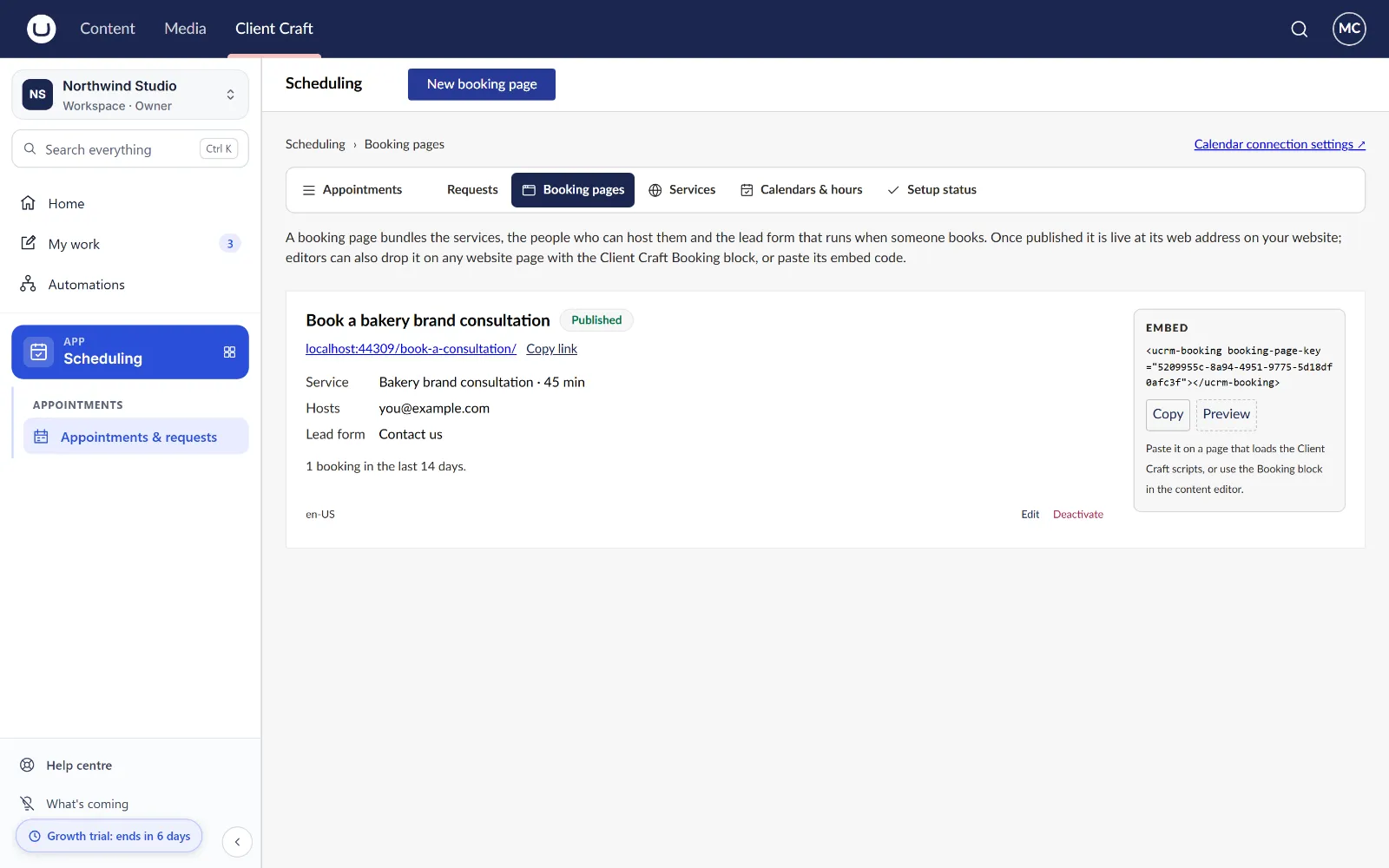 NoteA new web address can take about a minute to start working after you publish.TipIf a host's Google connection is missing, the card warns you. Bookings for a Google Meet service still work: "Guests are told the link will follow and the host is asked to add it."

What visitors see #
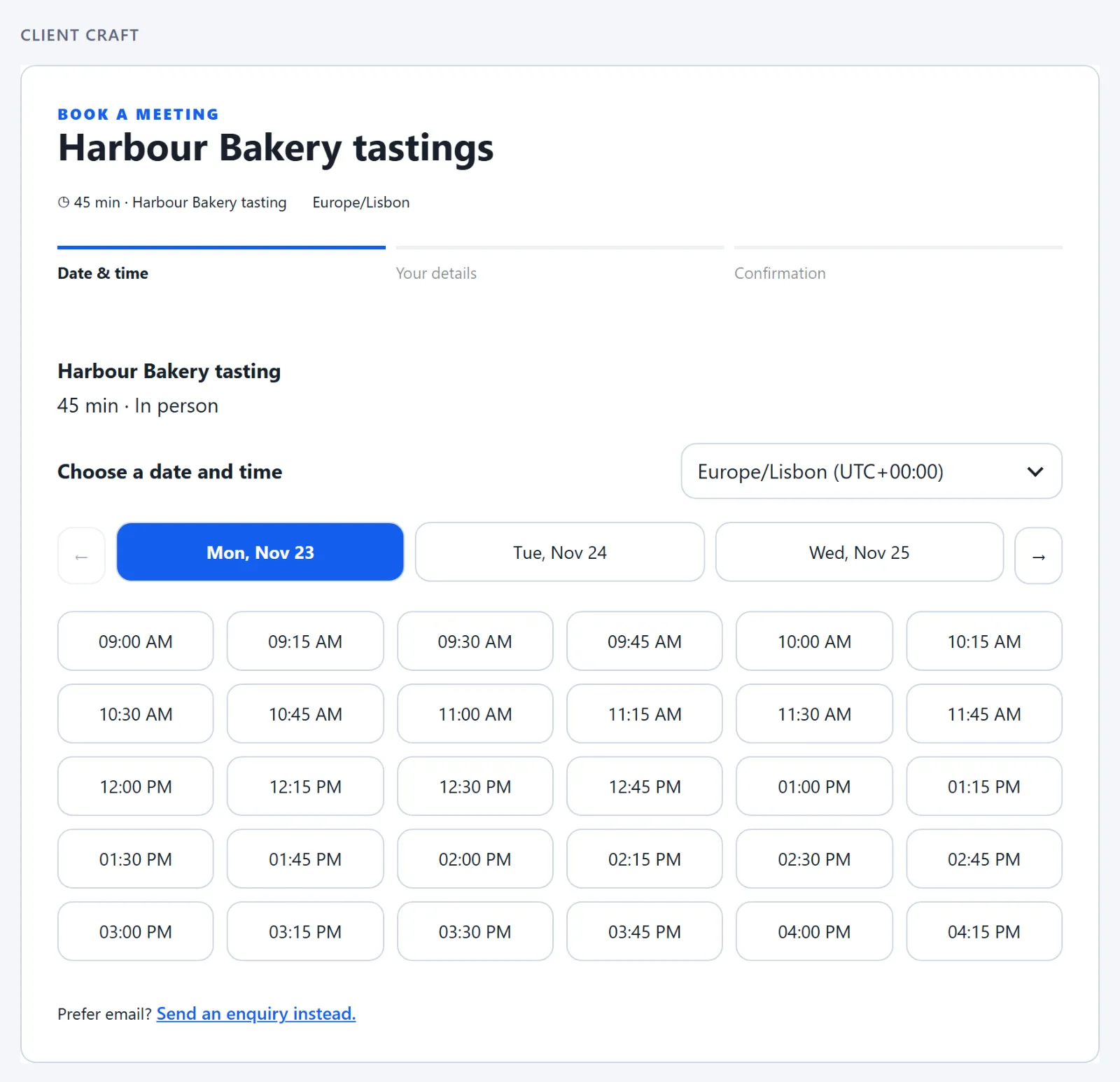
The page shows the service, its length and the timezone, with three steps: Date & time, Your details and Confirmation. With one service, the page goes straight to the dates. A Send an enquiry instead link is always there for people who prefer email.
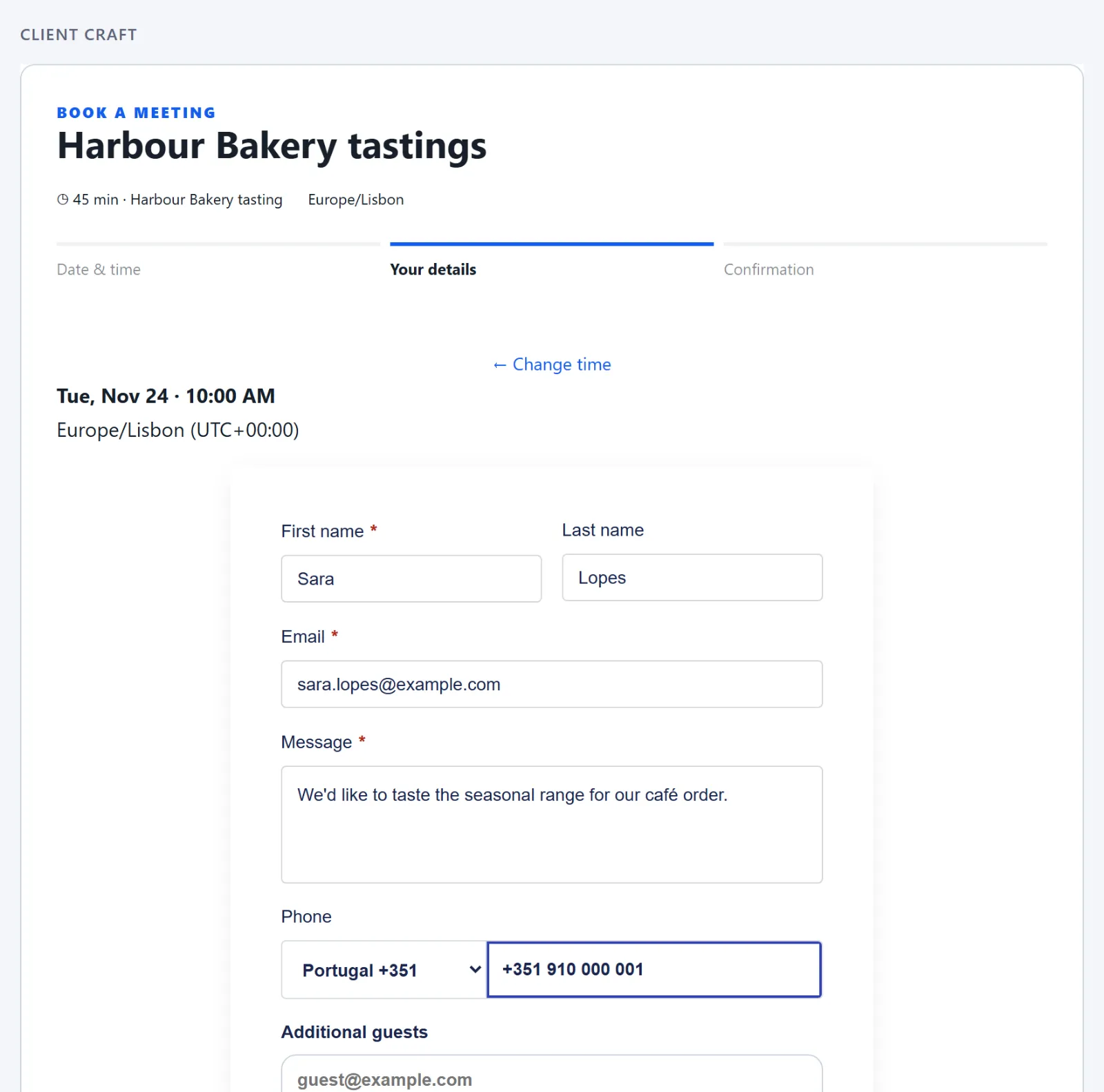
After picking a time, the visitor fills in your lead form. They can add Additional guests.
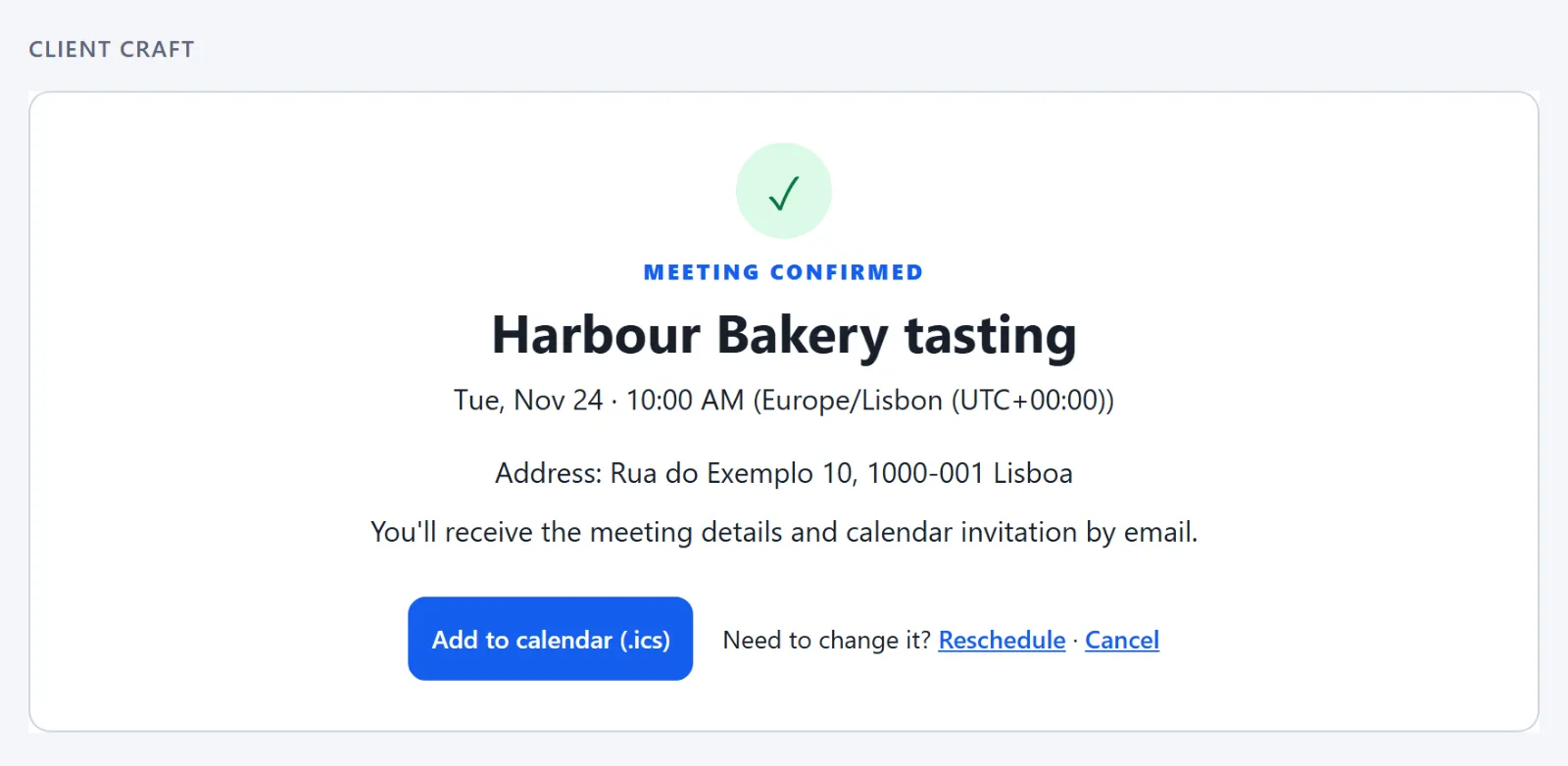
When the booking is confirmed, they see Meeting confirmed with the date, time and timezone, the address or meeting details and "You'll receive the meeting details and calendar invitation by email." They can Add to calendar (.ics), or use Reschedule and Cancel.
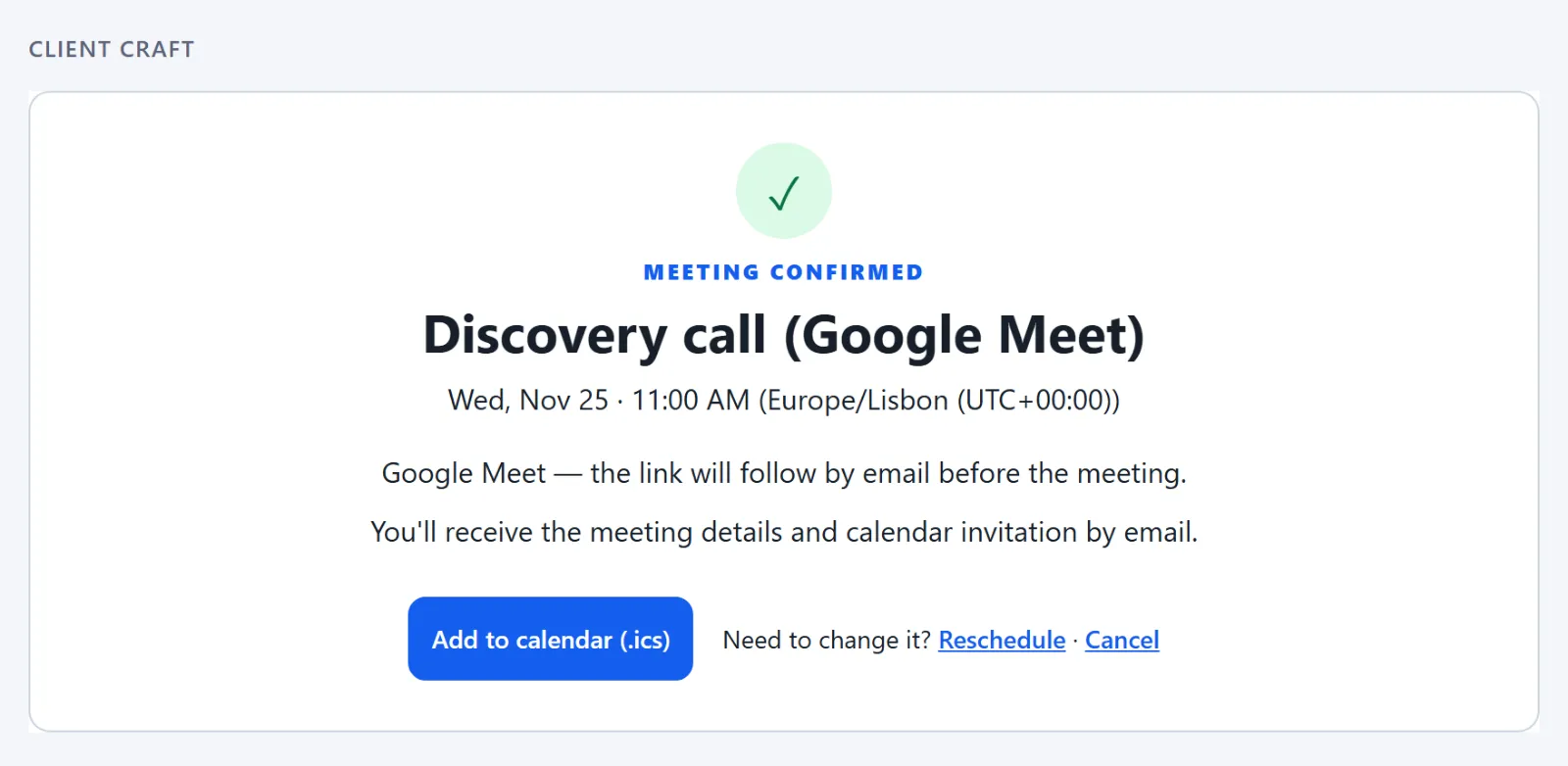
For a Google Meet service whose host hasn't connected Google, the page says "Google Meet — the link will follow by email before the meeting."
- Add to calendar (.ics) saves a calendar file named after the service, for example
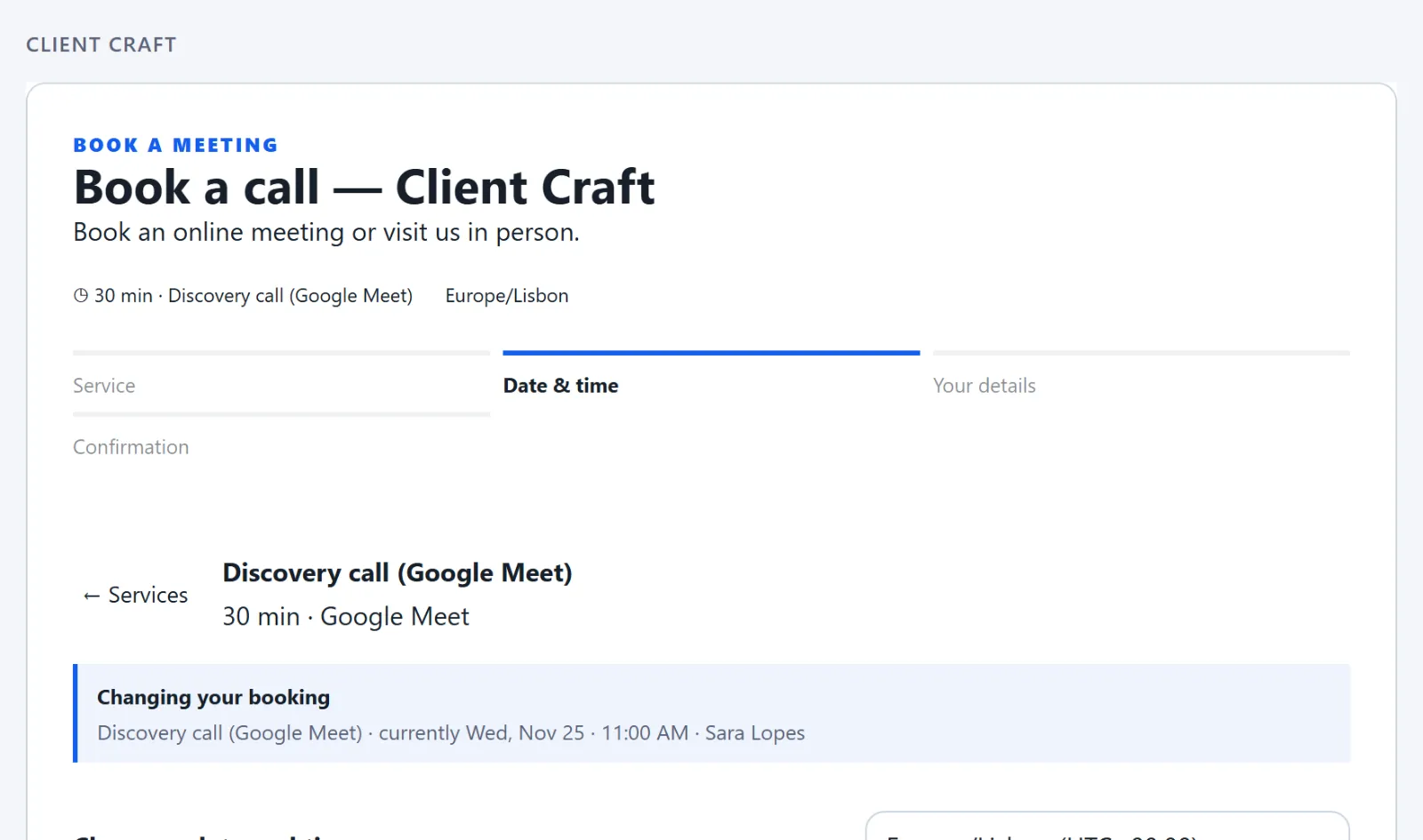
discovery-call-google-meet.ics. It holds the date and time, the service name, the location (or the "link will follow" text) and the guest's Reschedule and Cancel links. - Reschedule opens the booking page with Changing your booking and the current time, so the guest picks a new date and time.
- Cancel asks "Cancel this meeting?" with the service, the guest's name and the time ("The cancellation will be synchronized with participants."). After Cancel meeting, the guest sees "Your meeting was cancelled. There is nothing else you need to do."
If the visitor chooses Send an enquiry instead, they fill in the same form and see Enquiry sent: "We have your enquiry. The team will get back to you to arrange a time."
What happens next #
- Each booking appears in Appointments. See Manage appointments.
- The guest's details create or update a lead, like any form submission. See Turn form submissions into leads.
- To stop taking bookings, click Deactivate on the page card. "Existing blocks now show an unavailable state."