
Create and edit a lead
On this page
Add someone who might buy from you, then find and update their details later.
Plan: All plans
A lead is someone who might buy from you: a person who filled in a form, called, or you met at an event. Add them here, and when they are ready to buy, convert them into a contact, company and deal.
Before you start #
- You have a CRM seat. See Invite team members and manage CRM seats.
- Check the workspace switcher shows the right business if you work in more than one.
Step by step #
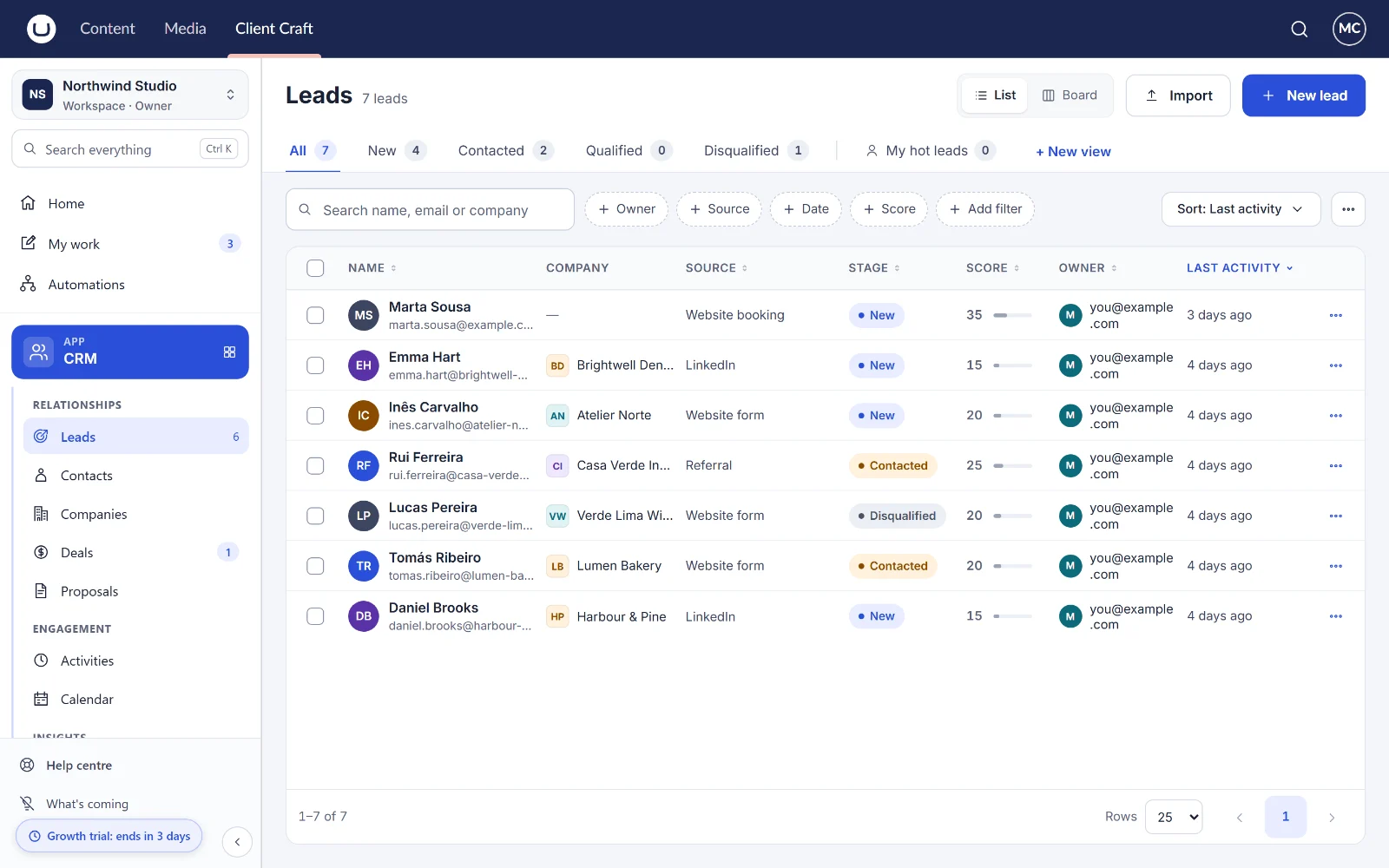
- 1Open the formIn CRM, open Leads and click New lead. On an empty list, click Add your first lead.
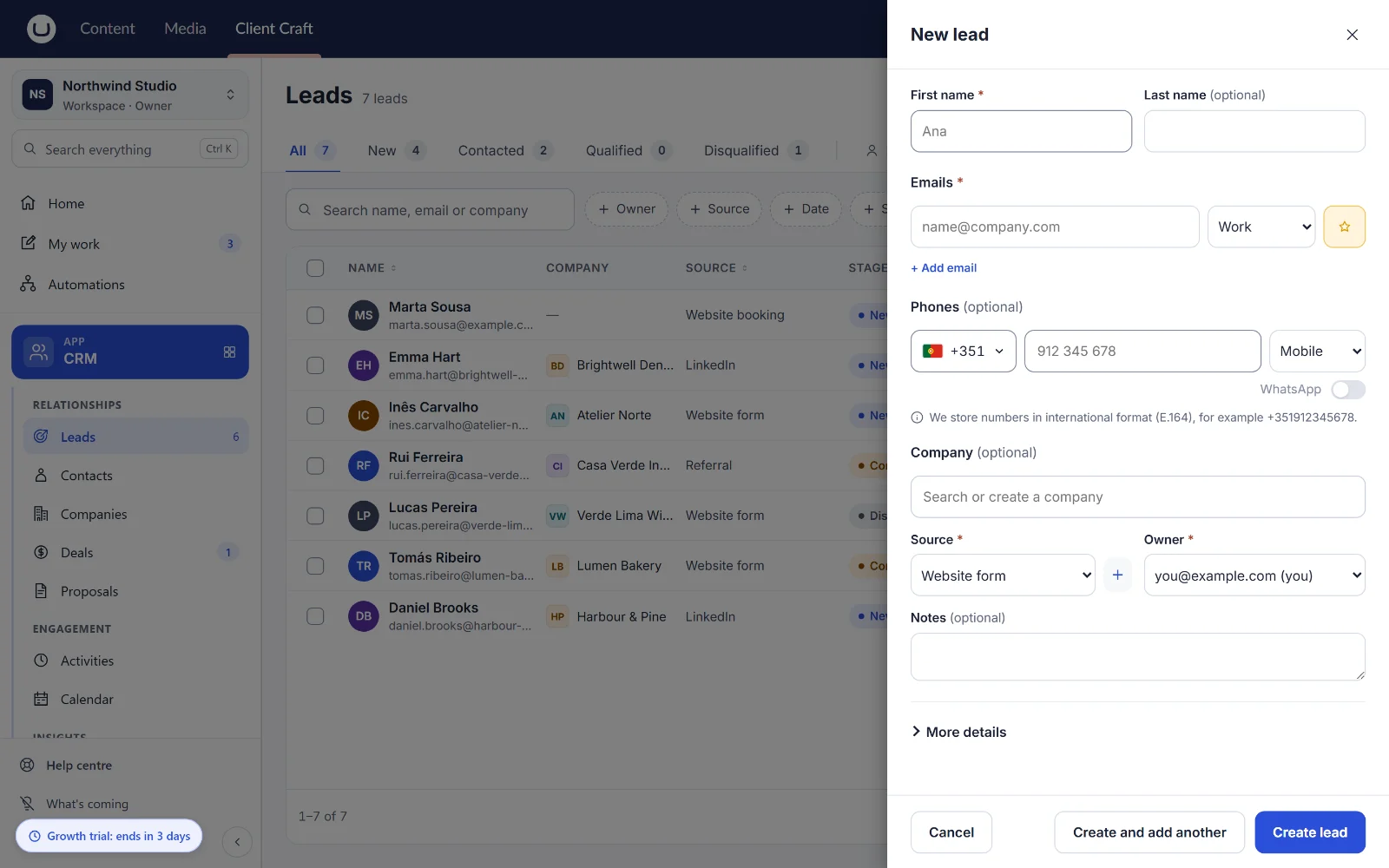
- 2Add who they areEnter the First name and Last name, plus an email or phone if you have one. Client Craft checks them against your existing leads and contacts.
- 3Say where they came fromChoose a Source, for example Website or Referral; it is required. Missing one? Use Add source. Optionally add the Lead status, Company, Owner, Notes and, under More details, things like Interest level and Estimated opportunity.
- 4Create the leadClick Create lead. You see Lead created and the lead appears in the list.
Edit a lead #
In Leads, open the row's actions menu and choose Edit lead. The same form opens as Edit lead; change what you need and click Save changes. On the lead's own page, use Edit details to change its fields in place.
If something goes wrong #
- Possible duplicate. The form shows the matching lead or contact. Click Open existing lead to use it, or Create anyway if they really are different people.
- Lead created, some details weren't saved. The lead exists; open it and add the missing details again.
- The connection dropped while saving. Click Retry same save. It never creates the lead twice.
- You can't create leads. Ask your organization's Owner or an Admin to give you a CRM seat, or to add seats if they have all been used.
What happens next #
- Log a call or add a follow-up task: Log notes, calls and tasks on CRM records.
- Ready to sell? Convert the lead into a contact, company and deal.
- Get leads automatically from your website: Turn form submissions into leads.
Was this article helpful?