
Mark a deal as won and start its project
On this page
Record what the client paid or accepted, mark the deal as won and create its project in one step. Use the deal's Billing to track charges and offline payments.
When a client says yes, you close the deal and hand the work over to delivery. Client Craft only lets you mark a deal as won when there is proof: an accepted proposal or a payment you recorded. The Mark deal as won dialog can create the project at the same time.
Before you start #
- Open the deal. It needs a contact and, usually, a company.
- Have one of these ready:
• an accepted proposal (see Create and send a proposal), or
• a payment the client already made, for example a bank transfer, that you will record on the deal.
Why "Mark as won" is greyed out #
When your pipeline's sales process requires proof of the sale, Mark as won is disabled on a new deal and a message next to it explains why: "An accepted proposal or a recorded payment is required (this deal has neither yet; send a proposal from Proposals or record a payment in Billing)."

The deal's Billing #
Open the deal's Products & services tab and scroll to Billing. It has three views: Charges, Invoices and Orders.
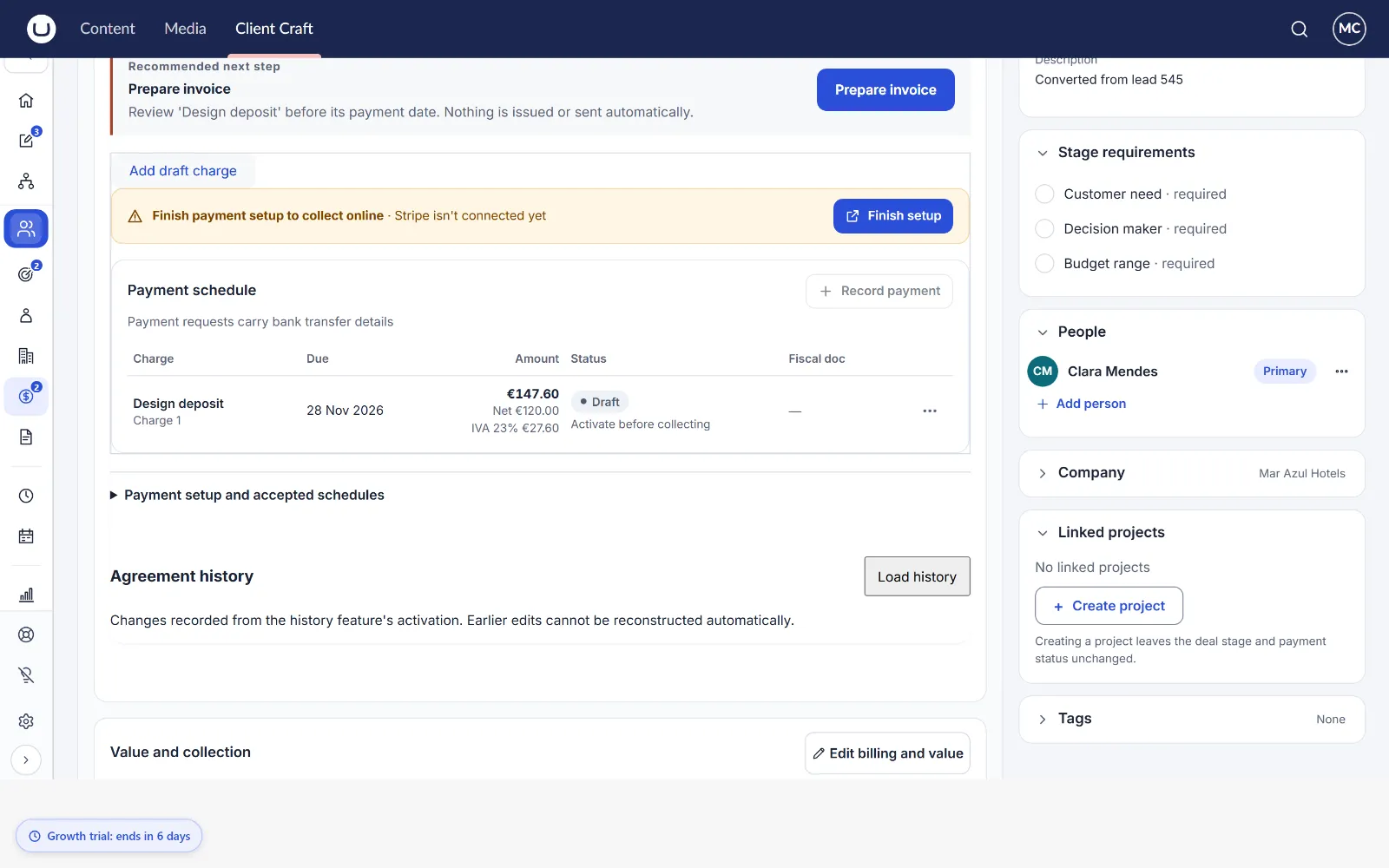
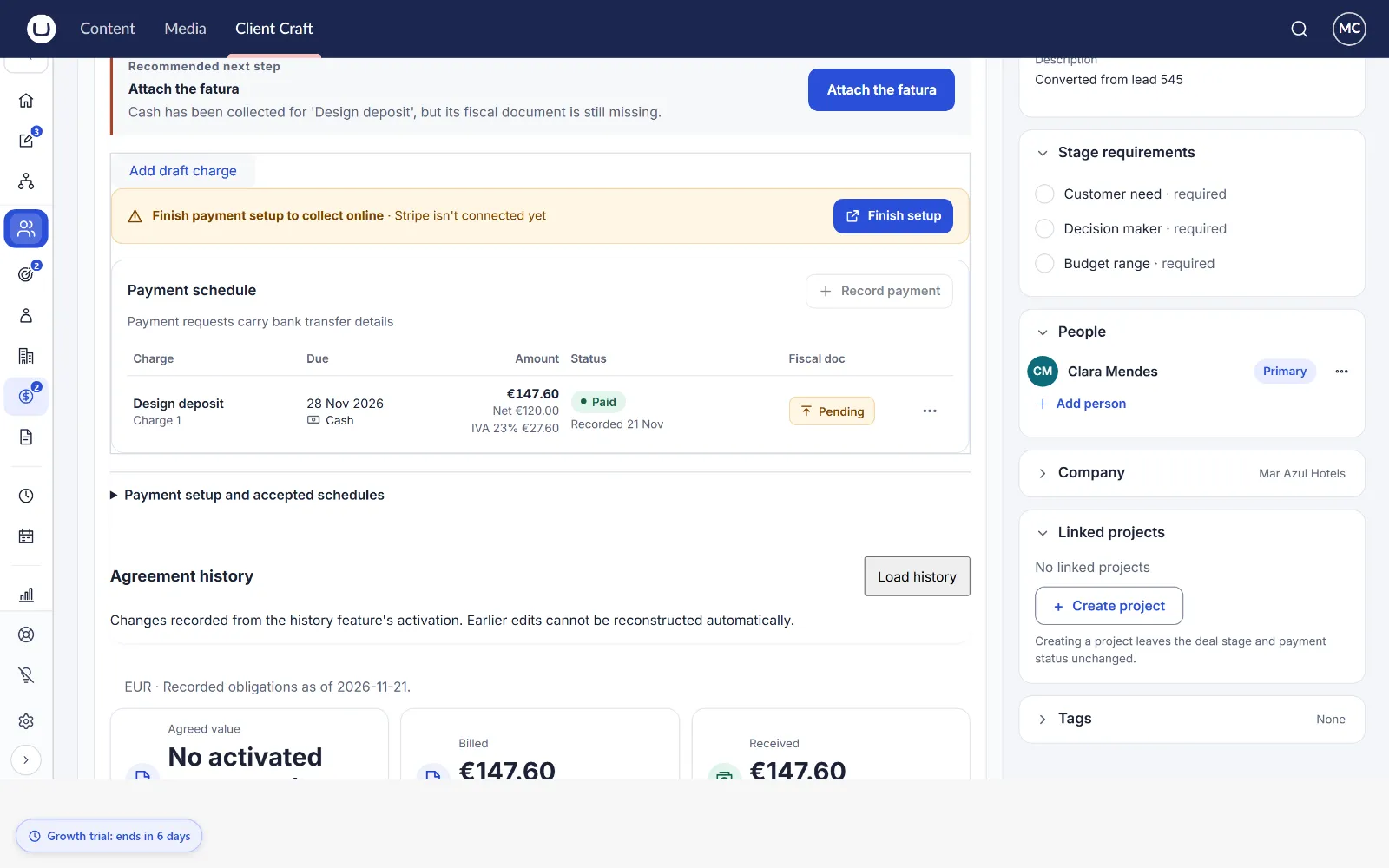
The summary shows Scheduled, Received, Outstanding and the billing type (for example Payment schedule, "1 charge · one-off"). Below it, Recommended next step tells you what to do next, and the Payment schedule lists each charge with its Due date, Amount (incl. tax, with the net and each tax), Status and Fiscal doc.
Charges are created in two ways:
- From an accepted proposal. When the client accepts, Client Craft creates one charge per payment in the proposal's schedule.
- By hand. Click Add draft charge when there is no proposal, for example for a deposit agreed by phone.
Step by step #
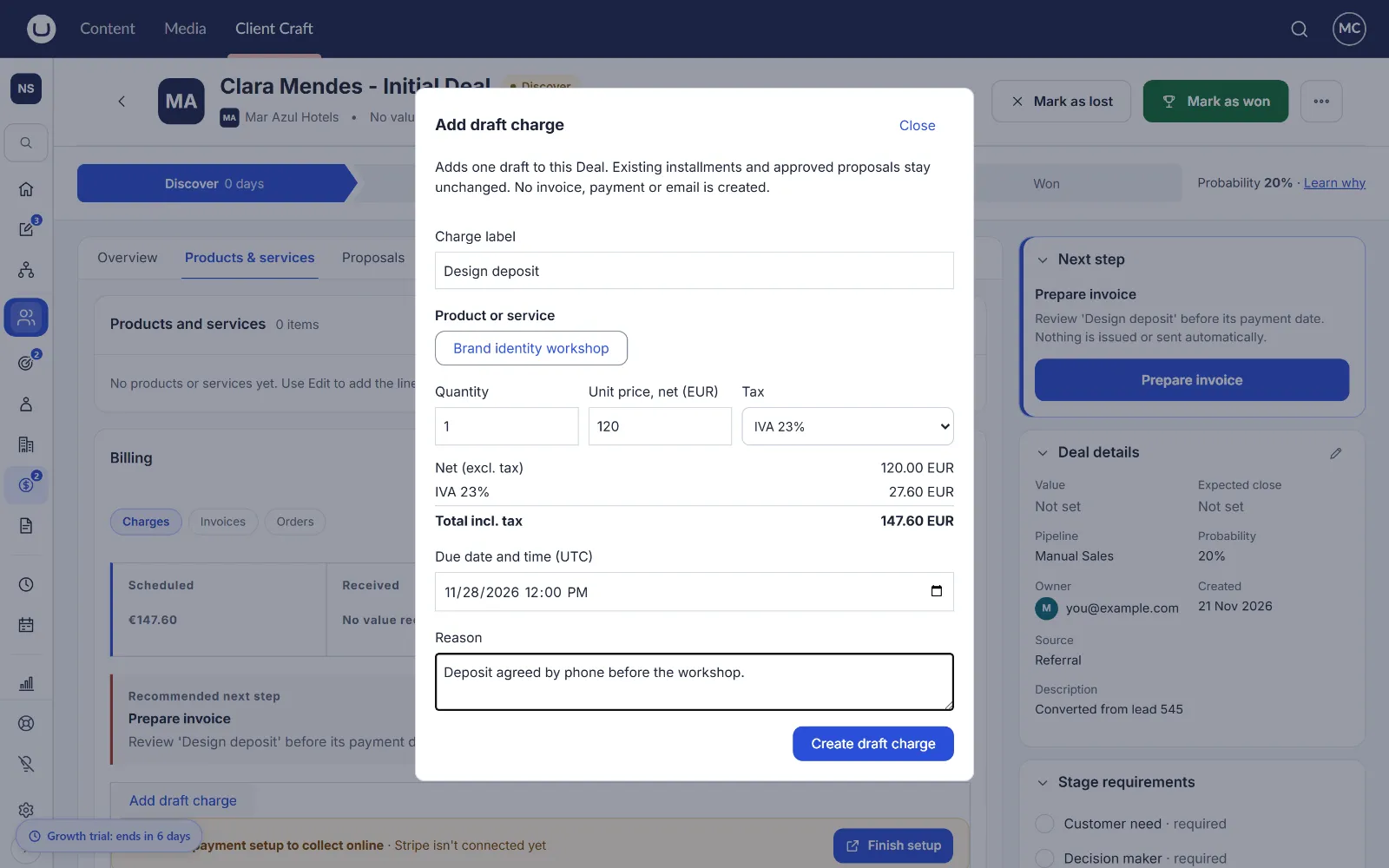
- 1Add a draft chargeIn Billing, click Add draft charge. Fill in:
- Charge label, for example "Design deposit".
- Product or service: click Choose product or service and pick an item from your catalog. Its price and tax fill Quantity, Unit price, net (EUR) and Tax. The dialog shows Net (excl. tax), the tax and Total incl. tax.
- Due date and time (UTC).
- Reason: why you add the charge by hand.
Click Create draft charge. The dialog says what it does: it "Adds one draft to this Deal. Existing installments and approved proposals stay unchanged. No invoice, payment or email is created."
 NoteIf the connection drops while you save, the dialog says "We couldn't reach Client Craft… The result is unknown. Retry the same draft to avoid duplicates." Click Retry same draft: it reuses the same details and can't add a second charge.
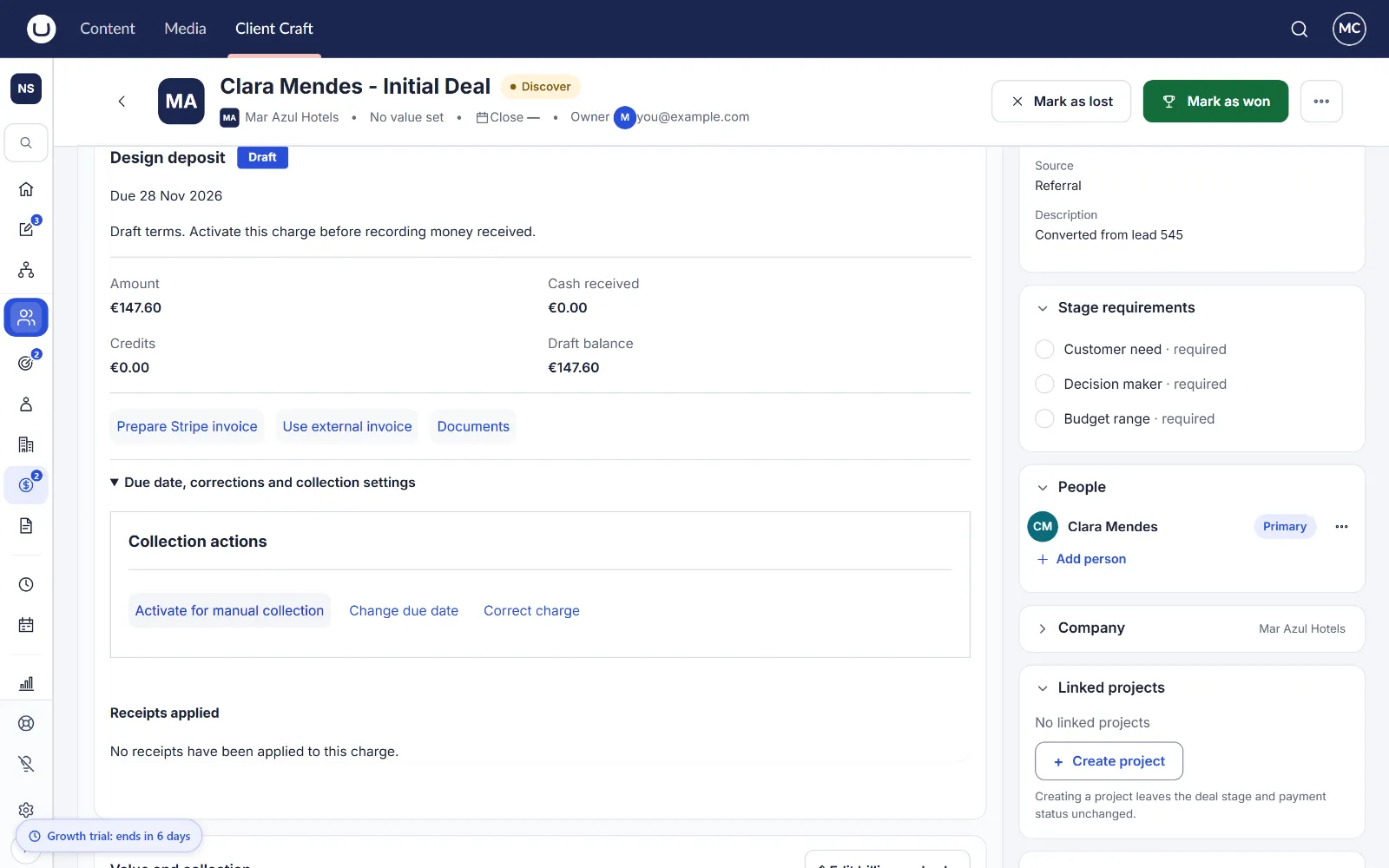
- 2Activate the chargeA draft charge can't receive money yet. In the payment schedule, click ⋯ on the charge and choose Open charge. The charge shows "Draft terms. Activate this charge before recording money received."
Open Due date, corrections and collection settings. Under Collection actions, click Activate for manual collection. The status changes from Draft to Scheduled. Manual collection doesn't need a payment provider.
From the same place you can also Change due date or Correct charge.
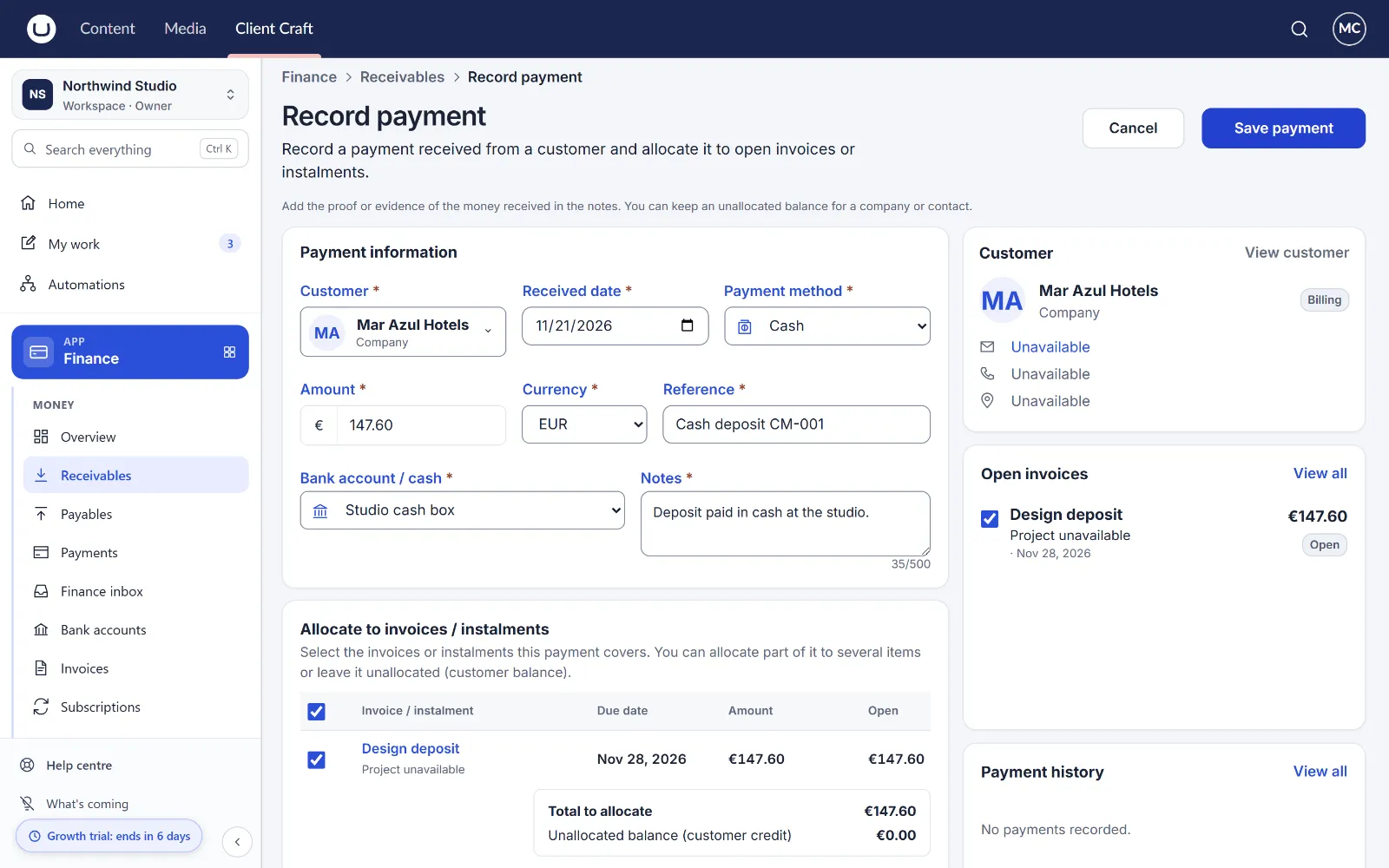
- 3Record the money you receivedOn the scheduled charge, click Record money received, then Open receipt in Finance. The Record payment page opens in Finance with the customer and the open charge already selected.
Fill in Received date, Payment method (Bank transfer, Cash, Cheque or Other), Amount, Reference, Bank account / cash (your bank and cash accounts from Finance › Bank accounts) and Notes. Under Allocate to invoices / instalments, keep the charge ticked. Click Review amounts, check the totals, then click Save payment.
The payment opens with the status Recorded and the charge under Allocated invoices / instalments. It is a record of money you received: "This record is not an issued fiscal receipt."
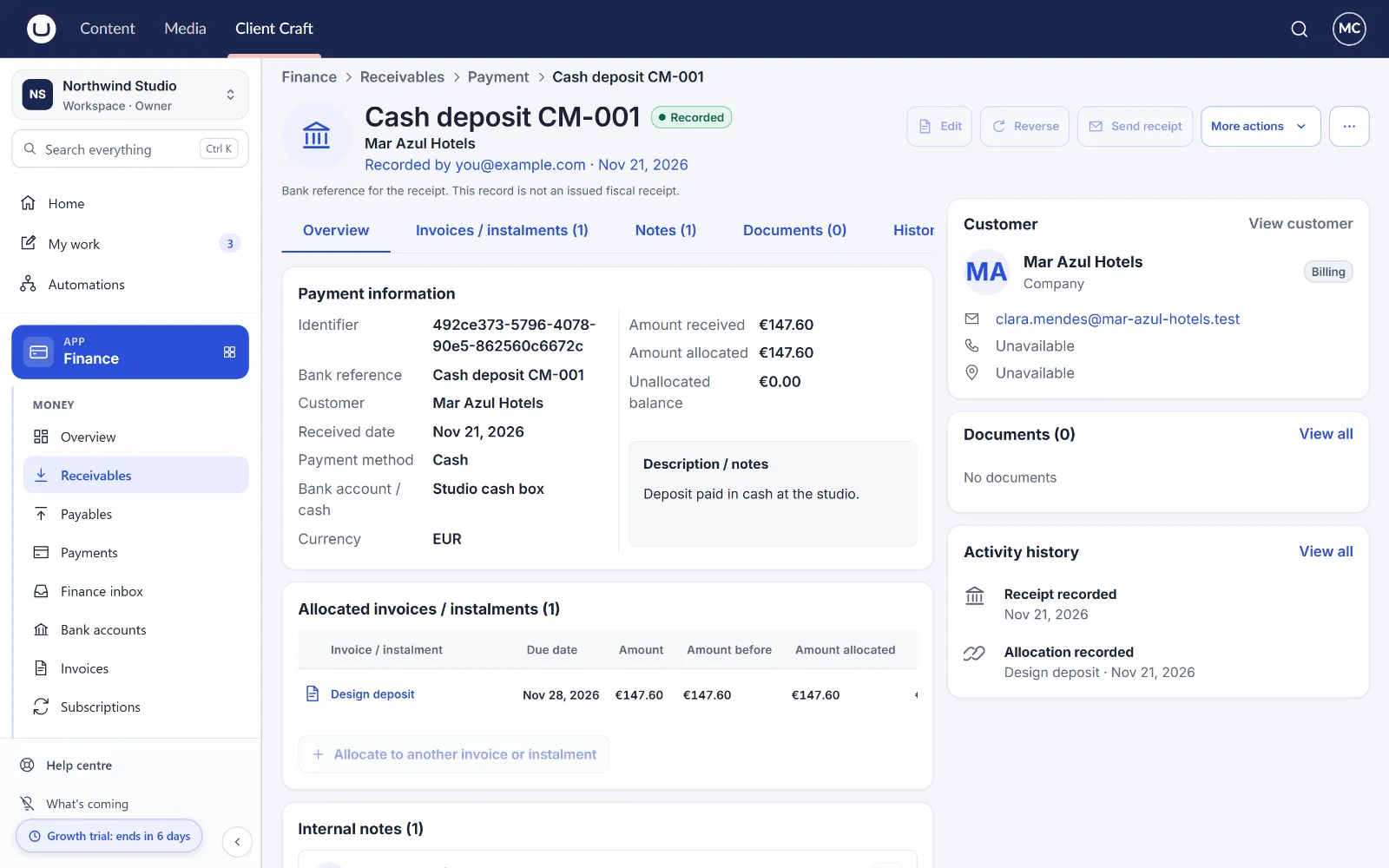 NoteRecording a payment doesn't charge the client or send an email. To ask the client to pay online, see Create and send a proposal.
- 4Check the dealBack on the deal, Billing shows the amount under Received and Outstanding at €0.00. The next step becomes Attach the fatura: the money is in, but its fiscal document is still missing. Mark as won is now available.
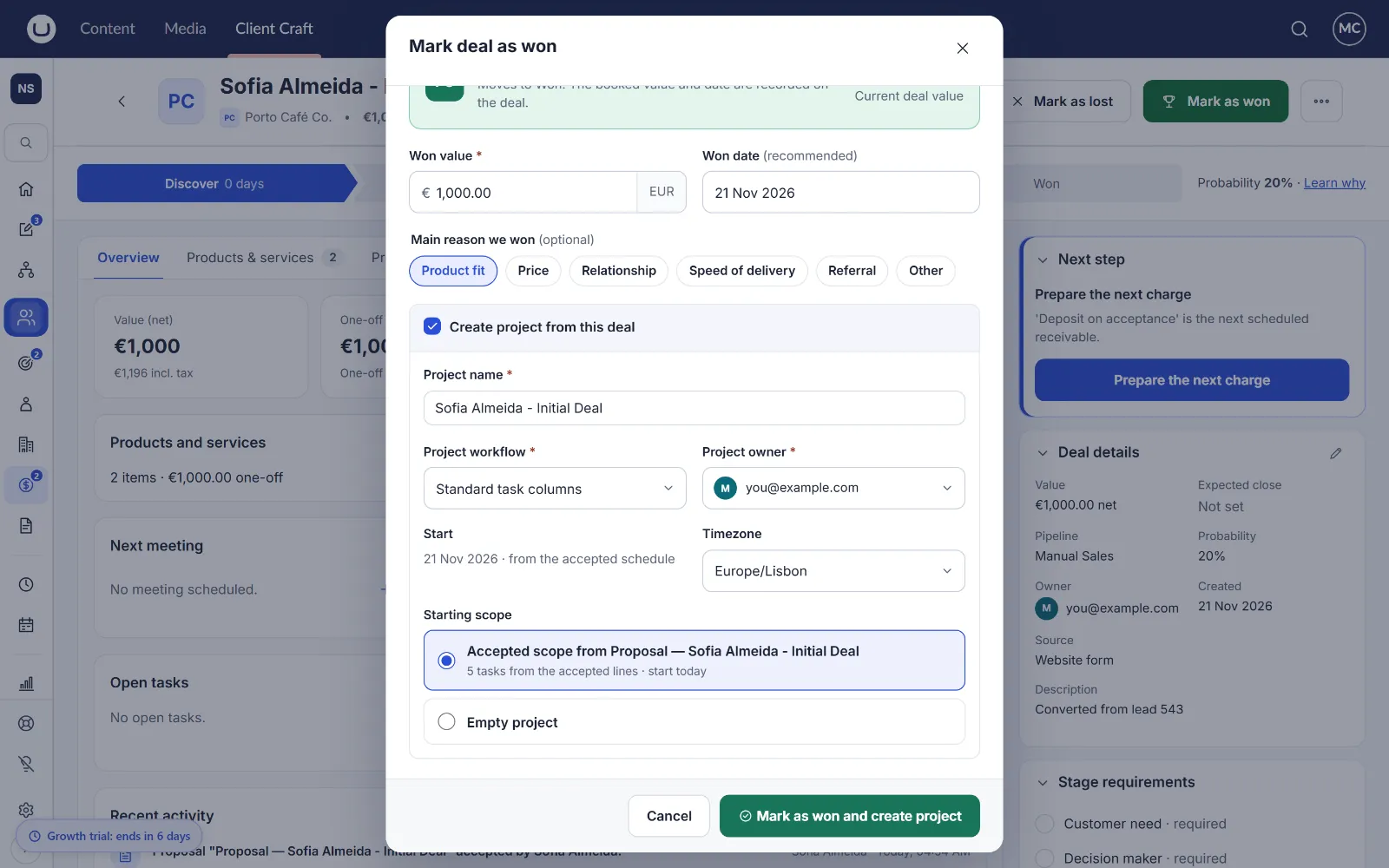
- 5Mark the deal as wonClick Mark as won. In Mark deal as won, check the Won value and the Won date. You can pick a Main reason we won, such as Product fit or Price.
- 6Create the project at the same timeCreate project from this deal is ticked. Check:
- Project name: it starts as the deal's name.
- Project workflow, for example Standard task columns.
- Project owner and Start, and the Timezone.
- Starting scope: what the project starts with. When the deal has an accepted proposal, Accepted scope from proposal name is selected ("5 tasks from the accepted lines · start today") and Start reads "from the accepted schedule". Choose Empty project to start without tasks. Without an accepted proposal, Empty project is the only choice.
Click Mark as won and create project. If you only want to close the deal, untick Create project from this deal first.
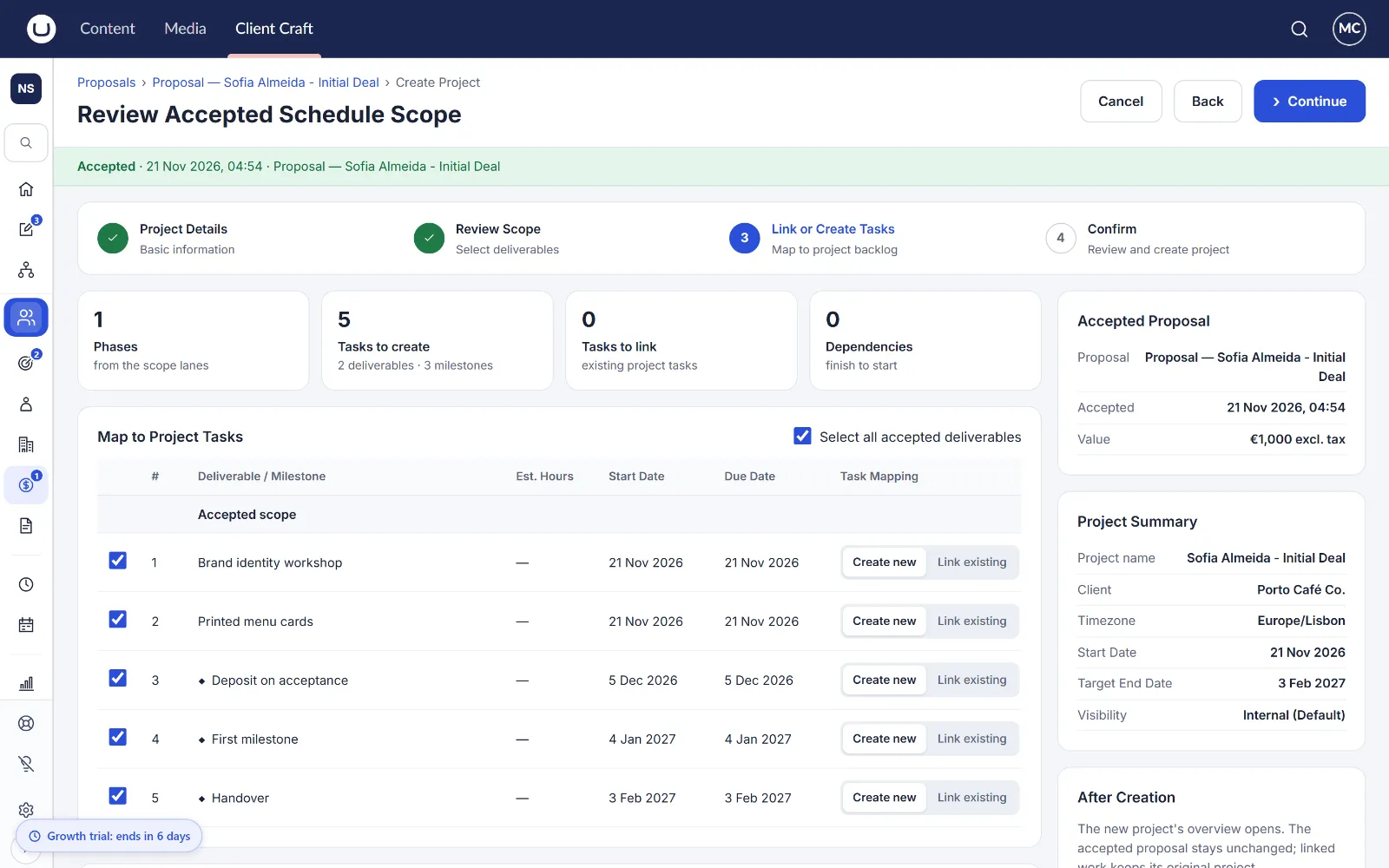
- 7Review the accepted scopeWith an accepted scope, the deal moves to Won and Review Accepted Schedule Scope opens. It has four steps: Project Details, Review Scope, Link or Create Tasks and Confirm. Under Map to Project Tasks, each accepted line and each payment milestone is a row with its start and due date. Untick a row to leave it out, or choose Create new or Link existing for each one. Click Continue, check the summary and click Create project. The new project's overview opens.
What happens next #
The deal moves to Won and the project appears under Linked projects on the deal.
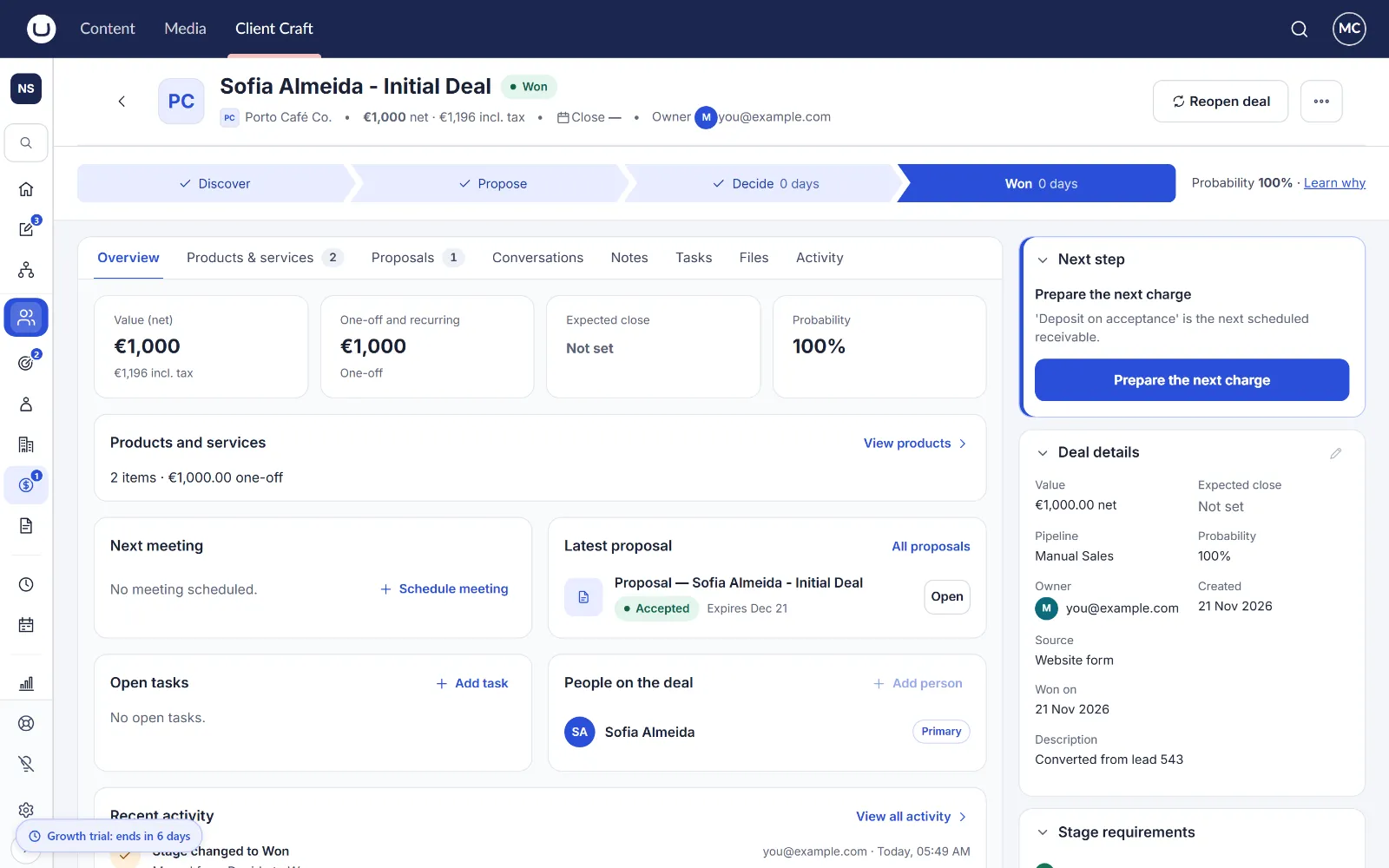
- To create a project later, open the deal and click Create project under Linked projects. "Creating a project leaves the deal stage and payment status unchanged."
- When a deal has an accepted proposal, its charges, due dates and taxes come from the proposal's payment schedule. Record each payment in the same way, or request it online.
- If the client changes their mind, use Reopen deal in the deal header.