
Budgets and cost centres
On this page
Group costs by cost centre, plan a budget for each, and compare actual spending by month, quarter or year, with a flag when you go over.
Plan: Growth and above
A cost centre is a label for where money is spent, such as Marketing or Studio. You give supplier bills a cost centre and category, then compare what you spent with what you planned.
Before you start #
- Create your cost centres and expense categories in Finance setup.
- Record bills with a cost centre. See Create, approve and pay a supplier bill.
Step by step #
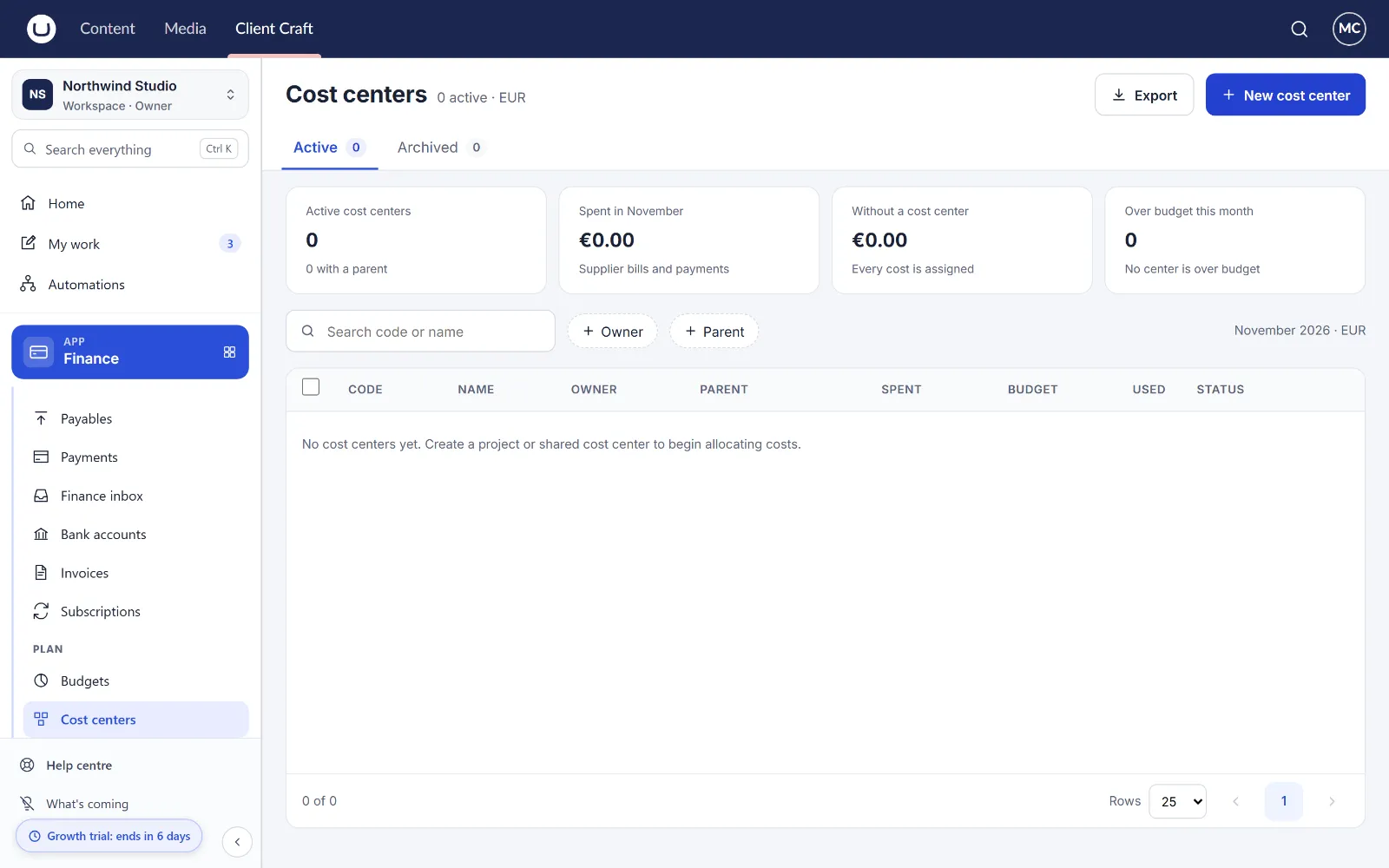
- 1See your cost centresOpen Finance › Cost centers. It lists each cost centre and what was spent.
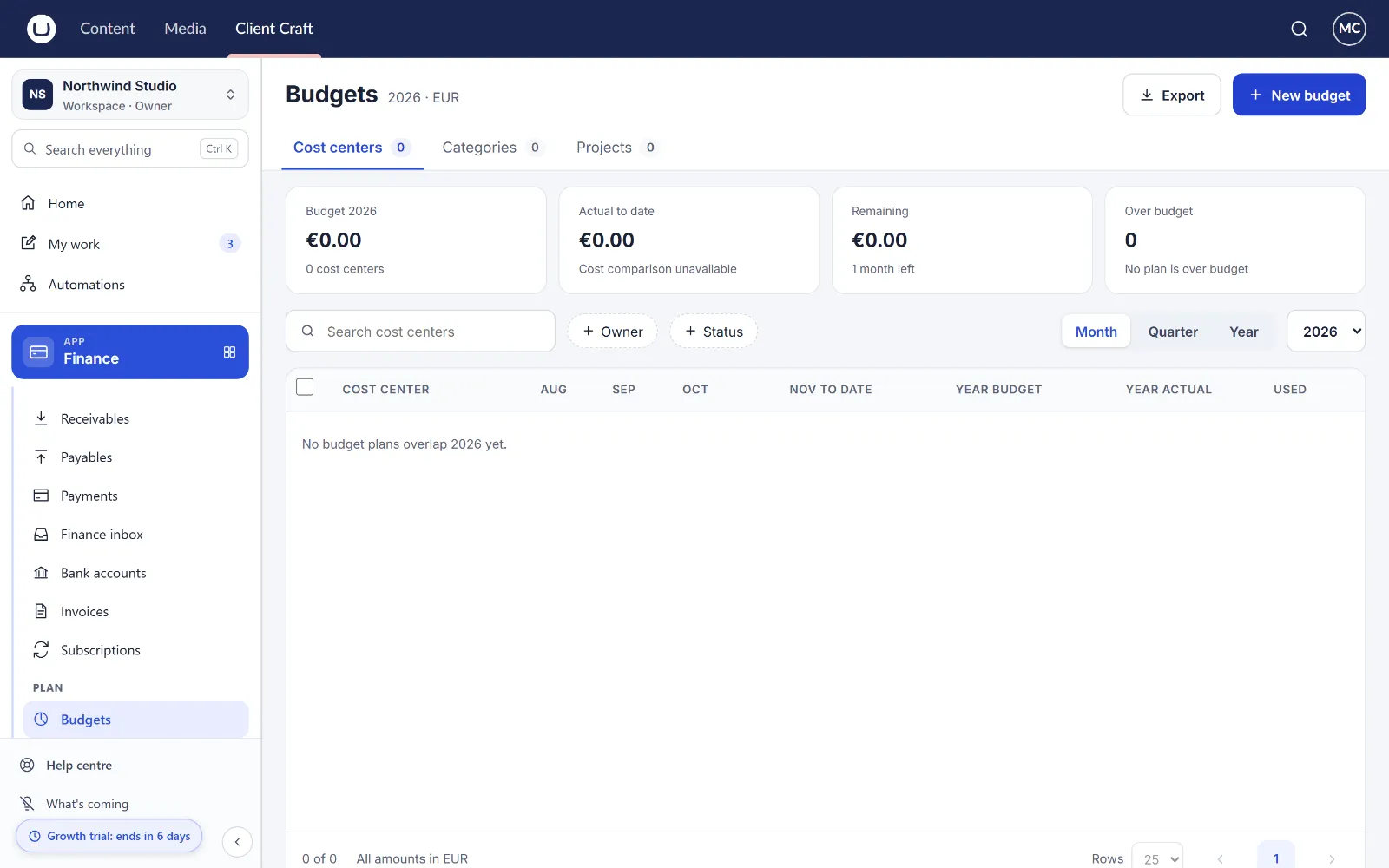
- 2Open BudgetsOpen Finance › Budgets. The tabs are Cost centers, Categories and Projects: pick what you plan against. The tiles show the year's budget, Actual to date, Remaining and Over budget, which counts plans that are over.
- 3Create a budgetClick New budget. Choose what you split by (Split by), the Period and the Total budget amount. Click Distribute evenly to spread it over the months, or Import from previous to copy an earlier plan. Add an optional Description.
- 4CompareSwitch Month, Quarter or Year, and pick the year. The columns show the months, Year budget, Year actual and Used. Open a budget to see Monthly Budget vs Actual, the Category Breakdown, the Variance (actual − budget) and Budget Adjustments with their reasons.
How actuals are counted #
Actual spending includes supplier bills once they are paid, by the cost centre and category on the bill. A payment shows in Actual to date right after you mark it paid. A cost centre over its plan shows as over budget (for example 148%) and counts in Over budget.
NoteOver budget is a flag. It does not block bills or payments.
Was this article helpful?