
Create and send a customer invoice from a deal
On this page
Create a customer invoice from a won deal, send it by your own channel or a Stripe payment page, and attach the fiscal document from your invoicing software.
Finance invoicing is part of the Starter plan and above. You need access to the deal in the selected workspace. Create invoice is available only when the deal is won; a one-time deal can have one invoice, and a recurring deal can be invoiced while it is not churned. Sending through Stripe also requires completed payment setup.
Important: invoices in Client Craft are commercial records, not certified fiscal documents. Brazil NFS-e and Portugal certified invoices (fatura, recibo) are issued in your own certified invoicing software. Client Craft records them and stores the uploaded file.
Step by step #
- 1Create the invoice from the dealOpen the won deal, go to Money and select the Invoices chip. With no invoice yet you see No customer invoices yet. Select Create invoice. The invoice is created as a draft and the notification Invoice created shows its number.
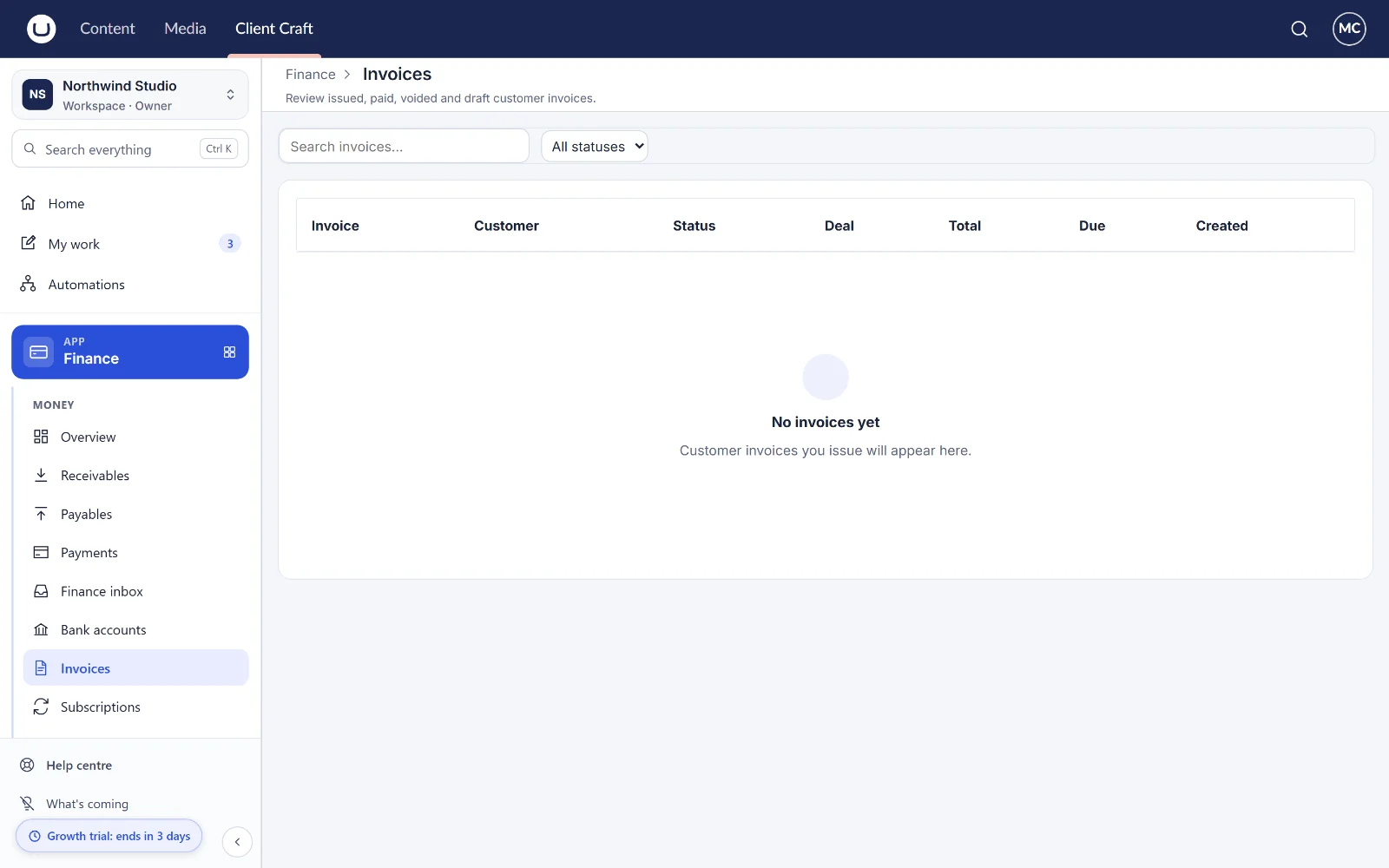
- 2Open it in FinanceIn the sidebar, open Finance › Invoices. The list shows Invoice, Customer, Deal, Status, Total, Due and Created. Use Search invoices... to find it and open the record. Use the Invoice view selector to switch between the details and the document view.
- 3Review or remove the draftExpand Invoice operations and documents and check the lines, the customer and the linked deal under Registos relacionados. If the draft is wrong, select Delete draft and confirm Delete invoice. This cannot be undone, and it is only offered while the invoice is a draft.
- 4Send it through your own channelFor an invoice with Manual collection (No payment or secure invoice link is created):
- Select Mark issued.
- Select Download invoice and send the file by email or any other channel you use.
- Select Record externally sent, fill in Channel and, if you have one, Reference, then Save delivery.
Delivery entered here is user-reported and stays in the audit timeline.
- 5Or send a Stripe payment pageWhen Stripe payment setup is complete, the invoice shows Send Stripe invoice. Select it; on success you see Invoice ready to pay. Share the payment page link with the customer yourself; Open payment page opens it. Under Provider-confirmed collection, payment status is updated from signed provider events.
- 6Invoice a single charge (installments)If the deal is split into charges, open Money › Charges. On a draft charge, Prepare Stripe invoice asks for Invoice recipient and Customer name; select Confirm invoice preparation. This prepares the invoice and payment link only; it does not send an email or record a payment. Once prepared, use Send this invoice to the customer: enter To, Recipient name and CC, select Review invoice email, check the exact message, then Send invoice by email.
- 7Attach the fiscal documentAfter issuing the fiscal document in your certified software, attach it to a manually collected charge that has no Client Craft invoice with Use external invoice. In Upload fiscal document:
- Choose the Document type: Fatura, Fatura-recibo or Recibo.
- Enter the Document number, the optional Issue date and, for Portugal, the optional ATCUD.
- Under PDF, pick a file from the deal, or use Upload a new file and Upload for scanning. Only files that pass the security scan can be attached, up to 10 MB.
- Optionally tick Show this document to the client in their portal, then select Attach fatura or Mark complete.
On the invoice record you can also use Attach document under Receipts and fiscal documents.
- 8Verify the invoiceReload Finance › Invoices and check the status. On the deal's Payment schedule, the Fiscal doc column shows Attached once a fiscal document is recorded. A paid charge without one shows Pending, because a Client Craft or Stripe invoice is not a fiscal document.